
Set default values for Velixo workbook options for your own account or, as an Organization admin, set and enforce defaults for your whole organization in the Velixo Portal.
Overview
Velixo workbook options control how the add-in behaves in a given workbook. From the Velixo Portal, you can set default values for these options so that new workbooks start with the settings your organization wants, instead of the built-in Velixo defaults. Organization admins can also enforce a value so that it applies in every workbook.
For a description of each individual option and what it does, see Options.
This article covers:
-
how Portal defaults are applied,
-
which options appear in the Portal,
-
how changes are saved,
-
setting your personal defaults,
-
setting and enforcing organization defaults.
How workbook option defaults work
Where an option's value comes from
When you open a workbook, Velixo resolves each option by taking the first value available, in this order:
-
An enforced value – set in the Portal and enforced by your Organization admin or by Velixo.
-
The workbook's own value – an option you changed inside that workbook.
-
Your personal default – set on your account in the Portal.
-
Your organization's default – set by an Organization admin in the Portal.
-
The Velixo default.
Without enforcement, a value set inside a workbook wins: changing a Portal default does not override a choice a user has already made in a workbook. An enforced value wins over the workbook's own value.
Which workbooks are affected
A Portal default applies to workbooks that do not yet carry their own saved option values:
-
New workbooks inherit the Portal defaults.
-
Existing workbooks keep the values they were saved with. Setting a new Portal default does not change them, unless the value is enforced.
Which options appear in the Portal
On the Options tab, options are grouped into categories, each on its own tab. Each option is shown on a row with its Name, its Value, and a Reset button. By default, the Portal lists the options that apply to all ERPs; options that are specific to an individual ERP are hidden unless a connection of this particular type is configured. To see every option, select Include settings for unconfigured ERP connections.
You can change only the options that Velixo makes available to your role. Some settings exist only in the add-in and are set per workbook; see Options.
How changes are saved
Changes to options save automatically. To remove a value you set and go back to the inherited value, select Reset on the option's row.
A Changes saved confirmation appears in the bottom-right corner each time a setting is reset or updated.
Set your personal defaults
-
Select your name in the top-right corner of the Portal, then select My account.
-
Select the Options tab, then the category tab that contains the option.
-
Set the option to the value you want. The change saves automatically.
Your personal default overrides your organization's default for new workbooks you create.
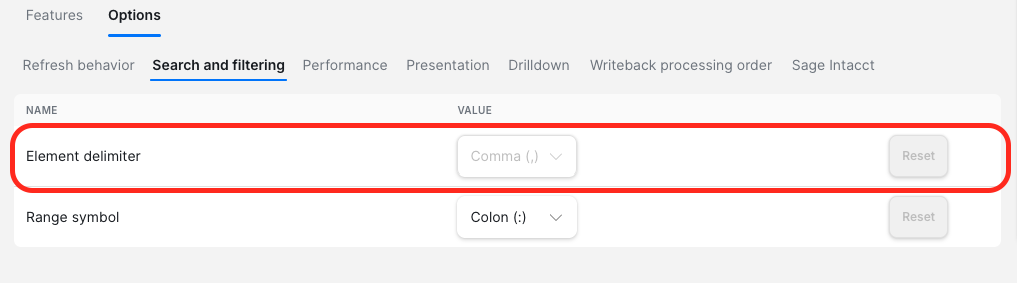
If your Organization admin or Velixo has enforced an option, its value field is grayed out, and you cannot change it.
Set organization defaults
Instructions in this section require the Organization admin role.
-
Select your name in the top-right corner of the Portal, then select Organization settings.
-
Select the Options tab, then the category tab that contains the option.
-
Set the option to the value you want. The change saves automatically.
New workbooks created by members of your organization now use this value, unless a member has set their own personal default.
Enforce an organization default
Enforce a value when every member of your organization must use it, in every workbook. An enforced value overrides members' personal defaults and the values saved in workbooks.
-
In Organization settings → Options, set the option to the value you want to enforce.
-
On the option's row, select the checkbox in the Enforced column. The checkbox is available only after the option has a value.

Members cannot change an enforced option. On their My account → Options tab, the option's value and Reset button are unavailable. In the Velixo add-in, the option is unavailable.