
Instructions in this article require the Organization admin role.
Overview
As an Organization admin, you manage the people in your organization from the Users page. To open it, select Administration → Users in the sidebar.
Employees can also open the Users page and see who belongs to the organization, but they cannot invite users or change them.
This article covers:
-
the Users page,
-
roles and ownership,
-
inviting users,
-
managing pending invitations,
-
changing a user's role,
-
deactivating and reactivating users,
-
transferring ownership.
The Users page
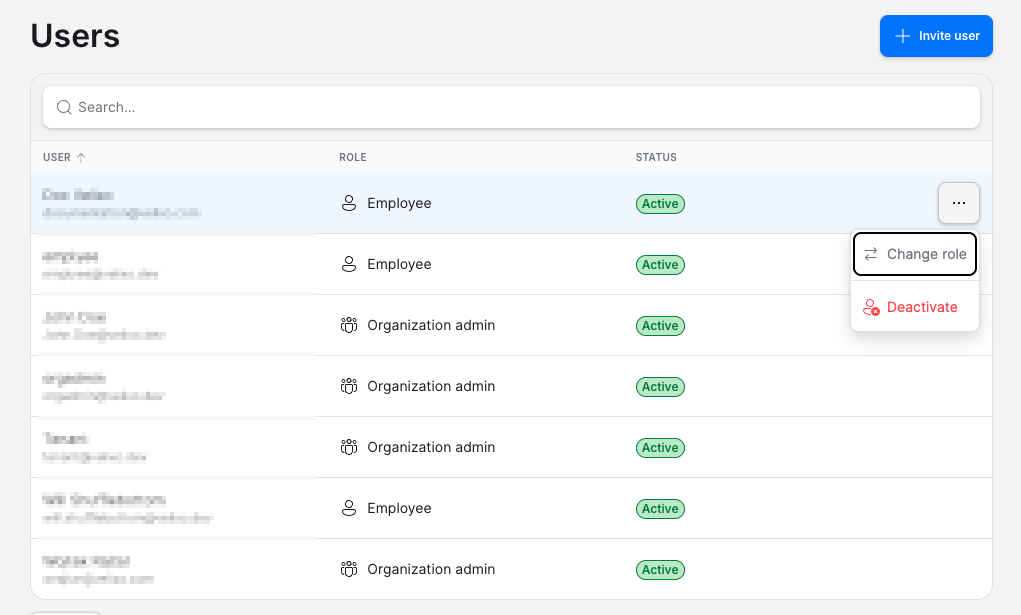
The Users page lists the people in your organization, with these columns:
-
User – the user's name and email address. You can sort the list by this column.
-
Role – Employee or Organization admin.
-
Status – Active, Pending for an invitation that has not been accepted yet, or Inactive for a deactivated user.
Use the search box to find a user. To act on a user or an invitation, select ... at the end of its row.
The same actions are also available on the Admins and Users tabs of Organization settings. See Managing organization settings (coming soon).
Roles and ownership
Each user in your organization has one of two roles: Employee or Organization admin. For what each role can do, see Velixo Portal overview.
One Organization admin is the organization's Owner:
-
The first Portal user in an organization becomes its Owner.
-
Other Organization admins cannot change the Owner's role or deactivate the Owner. If you try, the Portal shows an error.
-
Only the Owner can transfer ownership to another Organization admin.
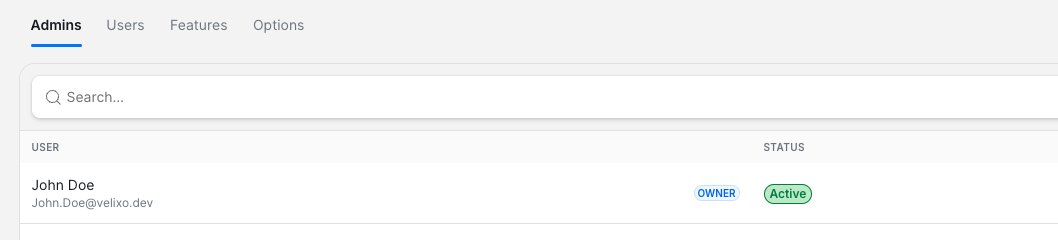
The Users page does not show who the Owner is. To find the Owner, open Organization settings and select the Admins tab; the Owner is marked Owner. See Managing organization settings (coming soon).
You cannot change your own role or deactivate your own account.
Invite a user
-
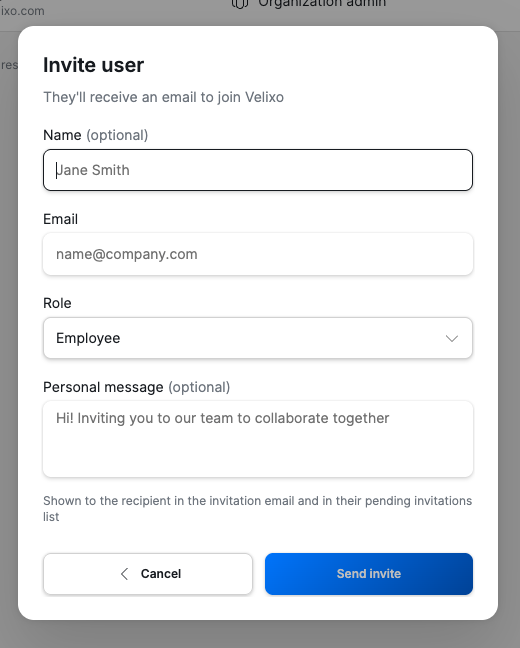
On the Users page, select Invite user.
-
Enter the person's Email. Optionally, enter their Name.
-
Select a Role. The default is Employee.
-
Optionally, enter a Personal message. The invitee sees it in the invitation email and in their list of pending invitations.
-
Select Send invite.
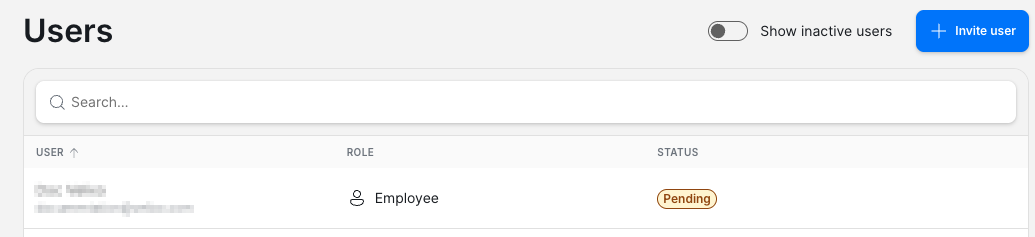
The invitee receives an invitation email and a notification in the Portal. The invitation appears in the user list with the status Pending until the invitee accepts it. An invitation expires 14 days after it is sent. For how invitees accept, see Signing in to the Velixo Portal.
The Portal does not send a duplicate invitation:
-
If the person already has a pending invitation, the Portal shows A pending invitation already exists for this email.
-
If the person is already an active member, the Portal shows This user is already a member of this organization.
You can invite a deactivated user again. When they accept, their existing account becomes active again.
Cancel a pending invitation
You can cancel an invitation that has not been accepted yet, for example one sent to the wrong address.
-
In the user list, select
...next to the invitation with the status Pending. -
Select Cancel invitation.
-
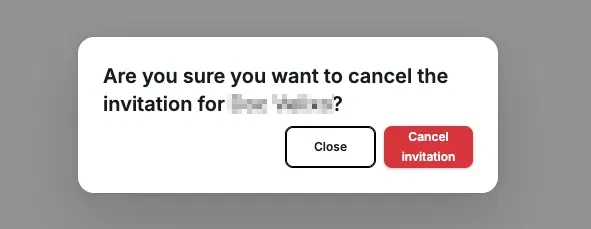
In the confirmation dialog, select Cancel invitation. To keep the invitation, select Close.
Change a user role
-
In the user list, select
...next to the user. -
Select Change role.
-
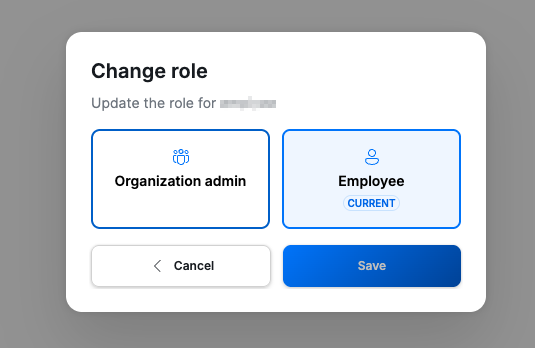
In the Change role dialog, select Organization admin or Employee. The user's current role is marked Current.
-
Select Save.
Deactivate or reactivate a user
To deactivate a user:
-
In the user list, select
...next to the user. -
Select Deactivate.
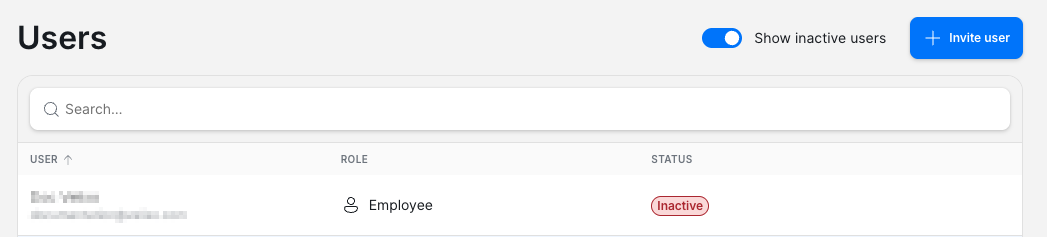
The Portal shows Deactivated followed by the user's name, and the user's status changes to Inactive.
To reactivate a user:
-
Turn on Show inactive users. The toggle appears only when your organization has at least one inactive user.
-
Select
...next to the user. -
Select Activate.
The Portal shows Activated followed by the user's name.
Transfer ownership
Only the current Owner can transfer ownership, and only to another Organization admin. You transfer ownership from Organization settings, not from the Users page.
-
Select your name in the top-right corner of the Portal, then select Organization settings.
-
Select the Admins tab.
-
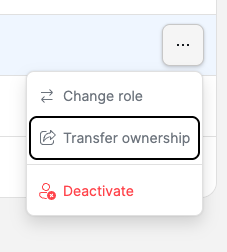
Select
...next to the Organization admin who should become the new Owner. -
Select Transfer ownership.
-
In the confirmation dialog, select Transfer ownership.
-20261007-130333.webp?cb=6fe8455b998ba85ee240953fde48dab9)
The selected admin becomes the Owner. You cannot transfer ownership back yourself. Only the new Owner, or Velixo, can transfer it again.