
Purpose
Use the Journal Writeback feature to create allocations, accruals, and many other types of GL entries such as:
-
Month-end allocations of revenue and expenses
-
Accrual transactions
-
Release of restricted funds
-
Fringe calculations
-
Inter-entity and multi-currency transactions
-
Calculations, or GL entries that depend on data that is not available in your ERP
Create a Journal Transaction Worksheet
From any spreadsheet, start by creating an empty GL entry worksheet. On the Velixo ribbon, select Journal Transaction from the pulldown on the New Sheet button.
A spreadsheet template will open which looks similar to your ERP's Journal Transactions page.
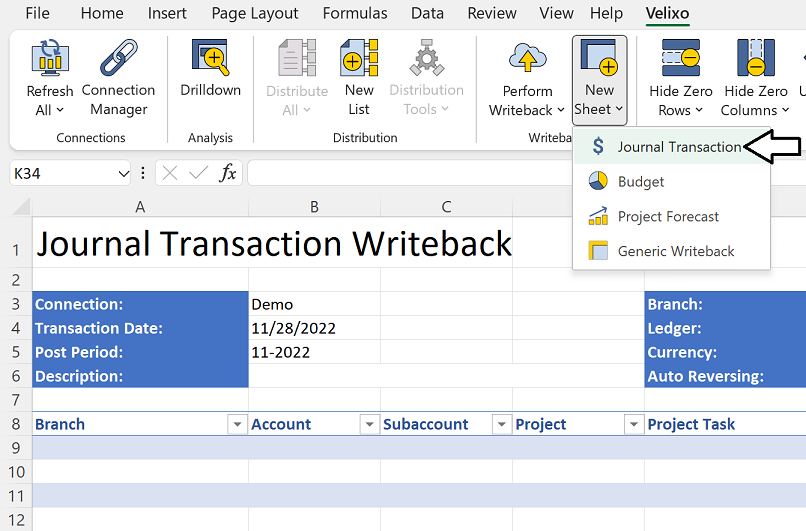
For each row, enter data that is necessary for your journal entry:

Velixo will ensure that any cells you leave empty will populate with default values (as they would when entering the transaction manually from your web browser).
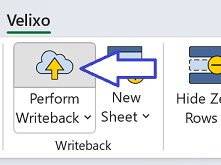
To send your transaction data to your ERP, click on Perform Writeback.
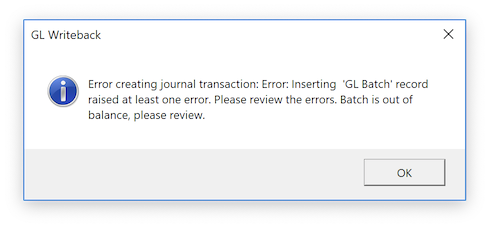
Velixo will apply validation rules and present errors for any entry that is out of balance or uses an invalid GL account.
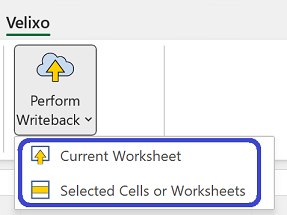
If you only want to perform all of the writebacks defined on multiple worksheets, first select those worksheets, then click Selected Cells or Worksheets from the Perform Writeback pulldown.
Example
Watch the video below to see how easy it is to import the spreadsheet into your ERP. In the video, notice that we allocate expenses for a shared call center—based on the revenue of each of its branches. The calculations leverage many of the functions that Velixo adds to Excel, including ACCOUNTTURNOVER, ACCOUNTTOTALDEBITS and ACCOUNTTOTALCREDITS.
You can also use standard Excel functions and reference other cells in your workbook.

The description of our journal entry is dynamic and varies with the current month and year. Remember that formulas can be used anywhere!
Use your journal entry spreadsheets as templates and import them weekly or monthly. Optionally, you can create an Excel workbook file that contains as many journal-entry template worksheets as you like.
Using Journal Writeback with your ERP's multi-factor authentication requires that the ERP's single sign-on ("OAuth2") feature is also enabled.
Enabling OAuth2 does not require an SSO/Advanced Authentication License with Acumatica