
Overview
The Velixo Connection Manager is used to add, edit, or remove a workbook's connection(s) to one or more ERPs.
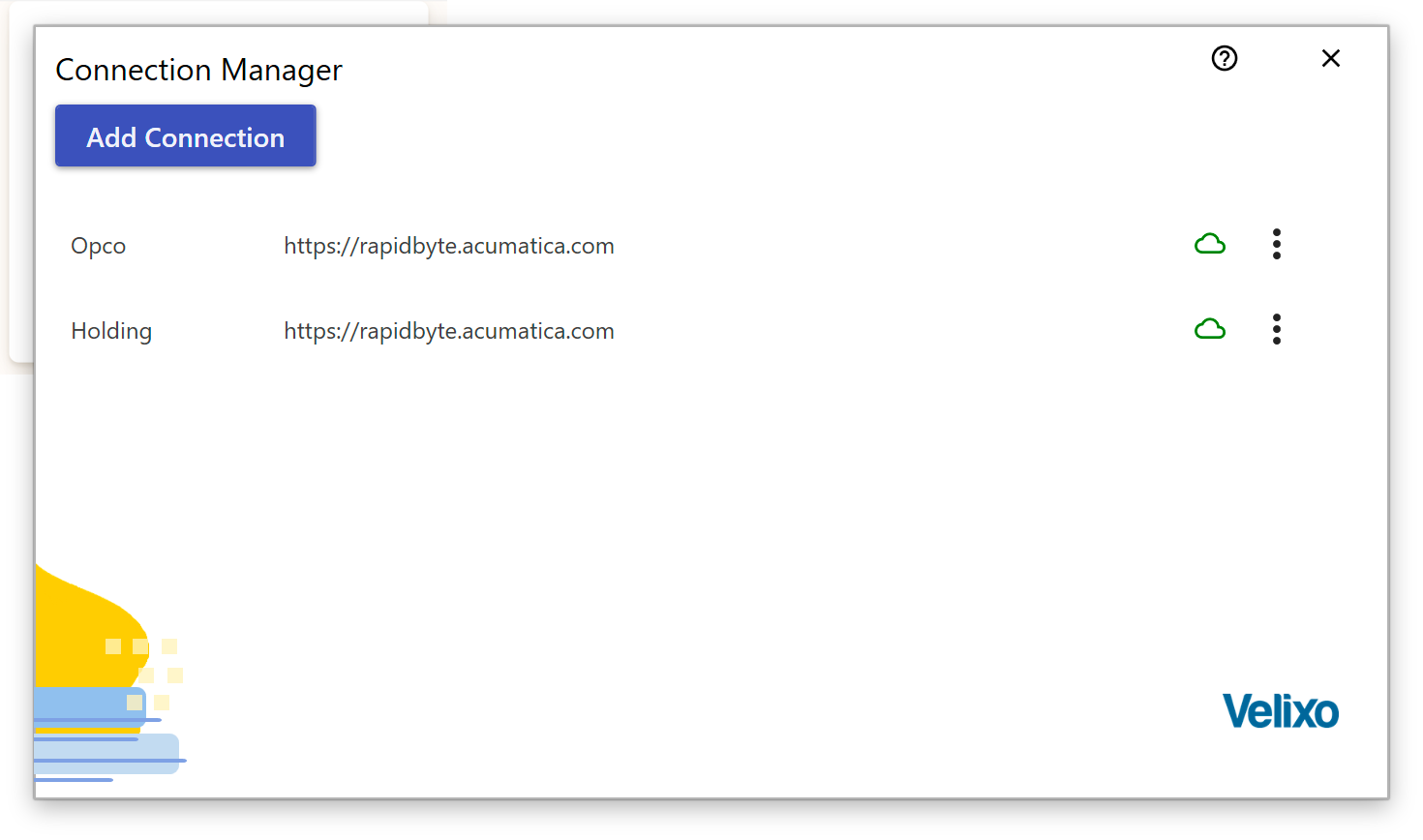
Add Connection
Click Add Connection to add a new connection. Opens Connection Editor.
Connection status
Each connection shows their status using one of the three cloud icons:

|
Connected |

|
Offline |

|
Not connected yet and not in the offline mode |
Connection menu
Depending on the connection type and status, not all options may be available.
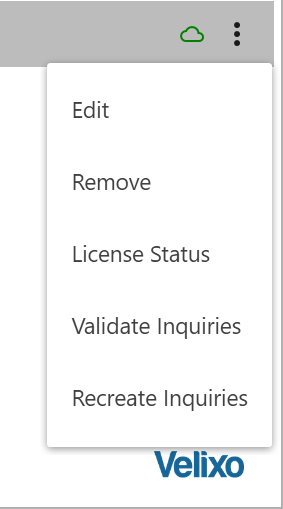
Edit
Opens Connection Editor to change the connection details.
Remove
Removes the connection without further confirmation.
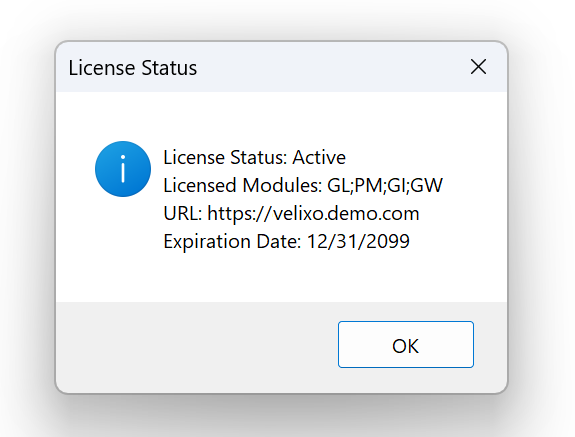
License Status
Shows a message box about the connection's license:
Validate Inquiries
Checks the connection to confirm that all required Velixo inquiries are available within the selected connection.
Recreate Inquiries
Recreates all inquiries for the connection. This is not something you need to do unless instructed to (ex. after a major update).
Saving and re-using your connection information
Once you have created your connection, you may want to create an Excel Template so that you don't have to re-create the connection for each new report.