
Overview
This article shows you how to open Velixo Intelligence, start a conversation from a worksheet selection, and manage your conversations. The article covers:
-
Opening the Velixo Intelligence task pane,
-
Starting a conversation from a selection,
-
Managing conversations,
-
Selecting a range from a reply,
-
Editing a prompt,
-
Directing a request to a specific agent,
-
Working in your language.
Opening Velixo Intelligence
-
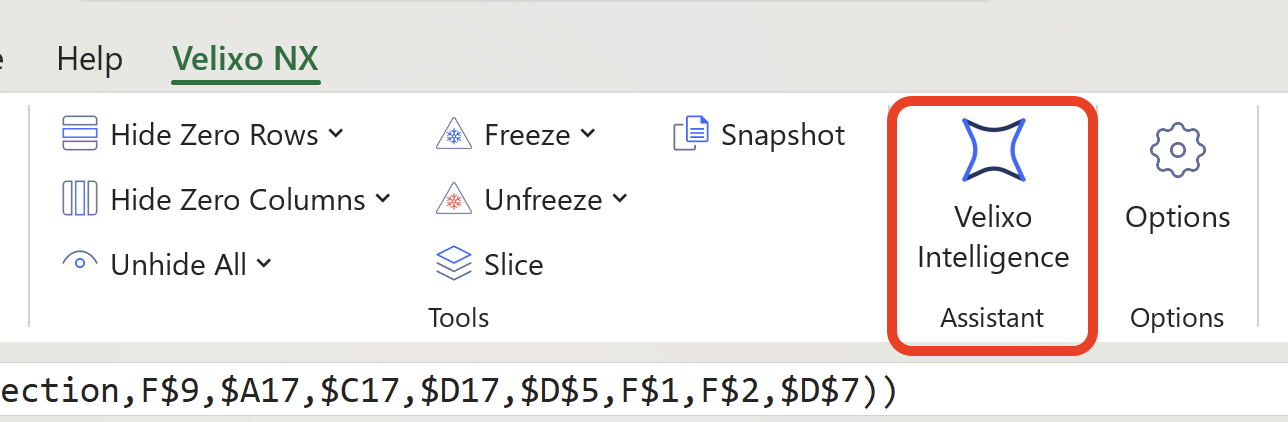
In Excel, open the Velixo NX ribbon.
-
Click the Velixo Intelligence icon.
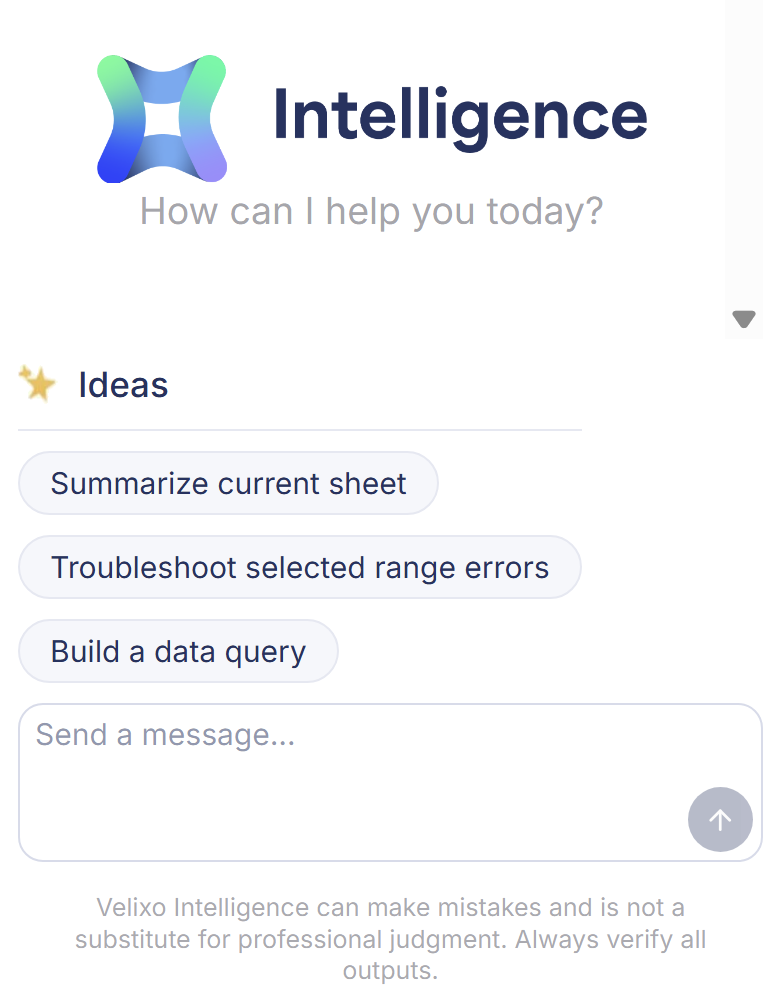
The Velixo Intelligence task pane opens with an empty conversation, and you can type your first request in the message box.
Starting a conversation from a selection
You can hand worksheet content directly to Velixo Intelligence instead of describing it in the chat:
-
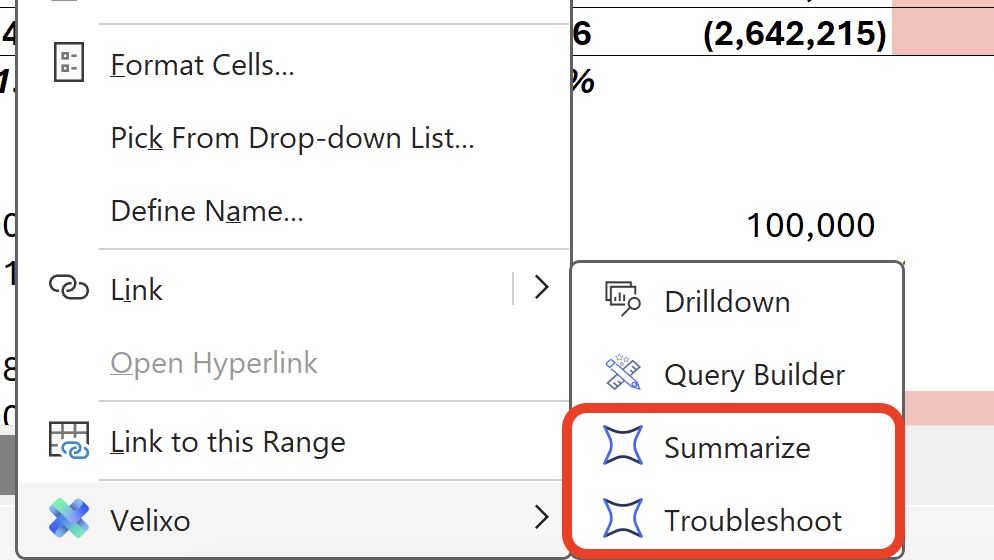
Select a cell or range, right-click it, and choose Summarize or Troubleshoot from the Velixo menu. Velixo Intelligence opens with your selection as context.
-
In the Formulas to Review section of the Status panel, click the Explain with Velixo Intelligence icon next to an error to hand that error to Velixo Intelligence. See Troubleshooting formulas with Velixo Intelligence for details.
Each Summarize or Troubleshoot action starts a fresh conversation, so the context of the previous conversation does not affect the new analysis.
Managing conversations
Velixo Intelligence keeps a list of your past conversations:
To start a new conversation, open the conversation list and select New thread.
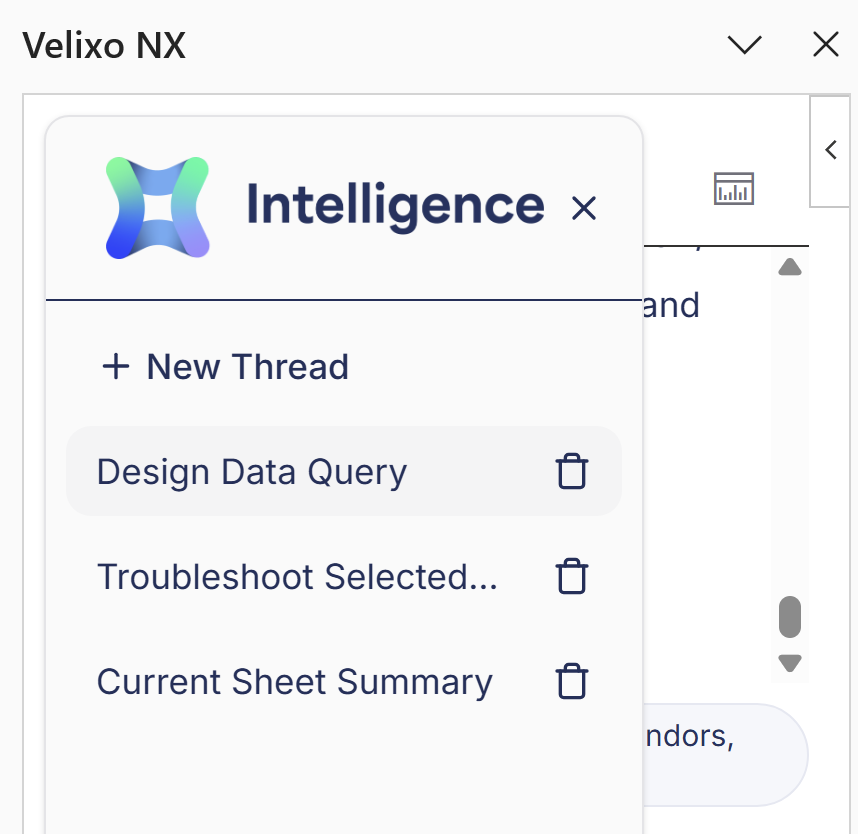
To return to an earlier conversation, select it in the list. The list collapses automatically after you make a selection.
To stop a reply that is being generated, click the Stop button.
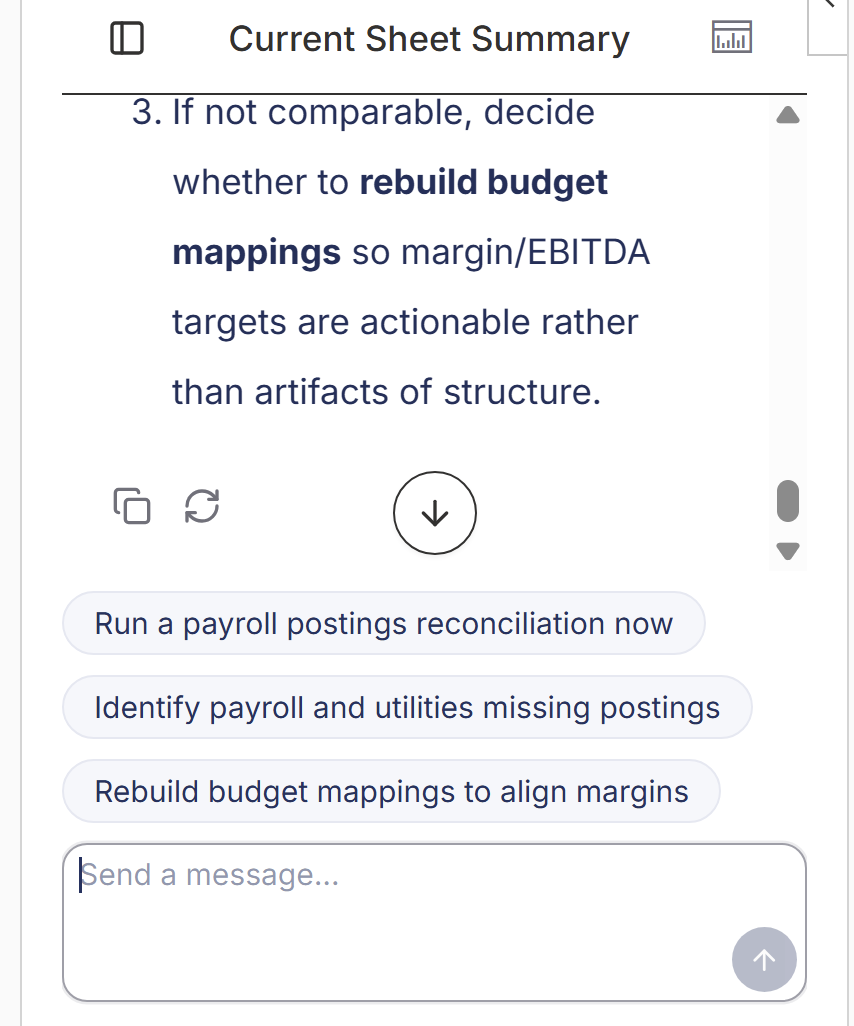
After each reply, Velixo Intelligence suggests follow-up questions you can select.
Selecting a range from a reply
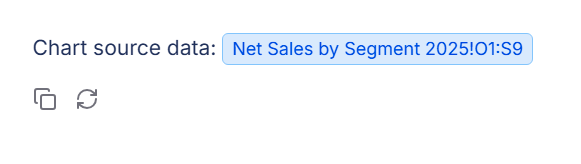
When a reply refers to a cell or a range, the reference is clickable. Select it to highlight that range on the worksheet, so you can move straight to the cells the assistant is describing.
Editing a prompt
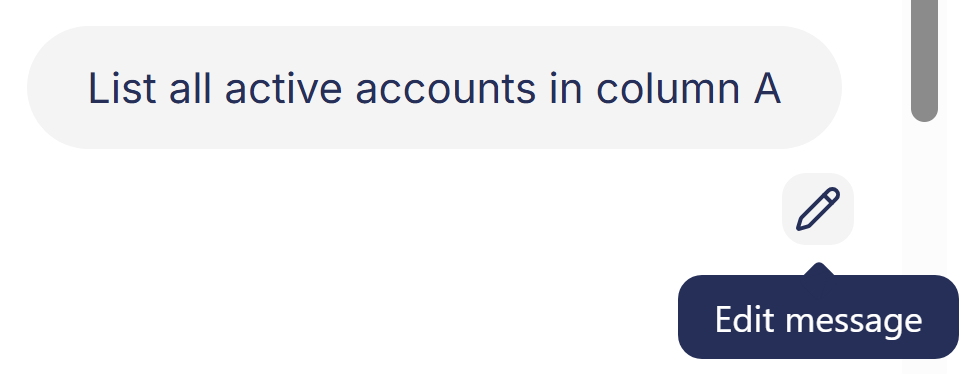
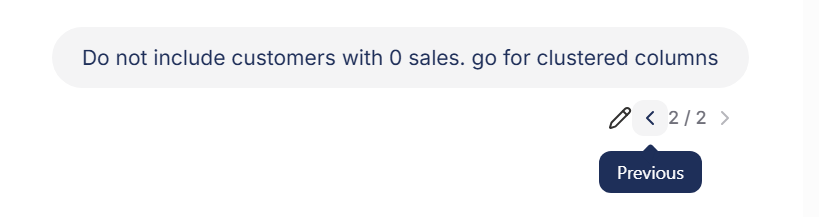
When a reply misses the point, you do not have to start over - edit the prompt that produced it by pointing at the message you want to change and selecting the pencil icon.
Velixo Intelligence answers the edited prompt as a new branch of the conversation. Your original prompt and its reply are kept, and you can move between branches to compare the answers. You can edit any of your earlier messages, not only the most recent one - editing an earlier message branches the conversation from that point.
Directing a request to a specific agent
Velixo Intelligence answers each message with one of its specialized agents and labels every reply with the name of the agent that produced it. It picks the agent automatically and keeps it for the rest of the conversation unless your topic clearly changes.
To direct a request to a specific agent, start your message with @ followed by the agent's name:
@Designer Build a 12-month profit and loss report for this year
For an overview of the agents and what each one does, see the Velixo Intelligence - Overview article.
Working in your language
Velixo Intelligence replies in the language you write in. Numbers, dates, and currency values follow your Excel locale, so a request written in German to a workbook with a US locale returns a German reply with US-formatted values.
Staying within your credit allowance
Velixo Intelligence usage counts toward your organization's credit allowance. A dismissible banner above the message box warns you when you are near or over the allowance. When the allowance is used up, Velixo Intelligence still answers product questions from the Velixo documentation, however agents that read or change your workbook and ERP data become unavailable until the allowance renews.
For details on how credits work - checking your remaining allowance, when it renews, and which operations use the most - see What to expect from Velixo Intelligence and how to report issues.