
Overview
The Designer agent builds complete reports directly in your workbook: profit and loss statements, trial balances, aging reports, and other financial worksheets. The reports it builds use live Velixo formulas connected to your ERP, so you can refresh them like any other Velixo report.
Building a report
-
Open Velixo Intelligence from the Velixo NX ribbon.
-
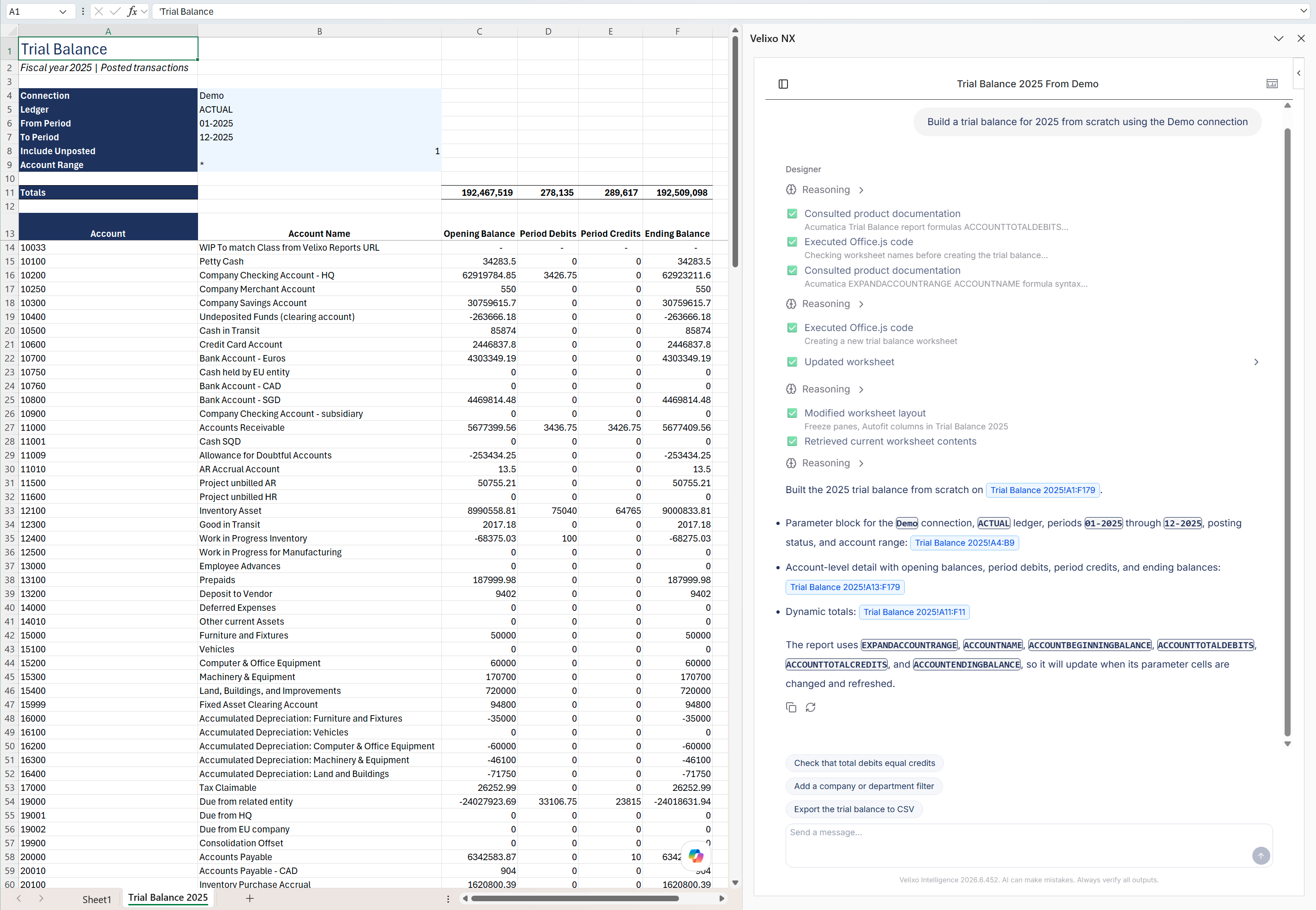
Describe the report you need. Include the period, the connection (if there’s more than one in the workbook), and any structure you have in mind:
Build a trial balance for 2025 using the Demo connection
-
The Designer builds the report on a worksheet and reports back in the conversation when it is done.
The Designer agent can build the requested report based on an appropriate template. See Building from a template for details.
If you have several ERP connections and your request does not name one, the Designer asks which connection to use before it starts. If your workbook has no ERP connection, it asks you to set one up first, because the report formulas cannot return data without one.
How the Designer builds reports
Knowing how the Designer works helps you review its output and phrase follow-up requests:
-
It prefers the simplest Velixo formulas that produce the required data. Lists of accounts or dimension values come from
EXPAND-family functions; complex query functions are used only when no simpler formula fits. -
It formats date and monetary cells for their data type and your Excel locale, so dates and amounts appear the way you expect them in your region.
-
It leaves room for formulas that spill into multiple columns, so results do not overwrite neighboring cells.
-
After building the report, it checks its own work and fixes formula errors it finds before reporting back.
-
It can include charts when the report benefits from them. See Analyzing data with Velixo Intelligence for details on chart creation.
Building from a template
When your request matches a report in the Velixo Template Gallery that is available under your license, the Designer proposes that template instead of building the report from scratch. Templates are professionally built Velixo reports, so starting from one gives you a proven layout you can refine.
Ask for a report as you normally would:
Build me an AP aging by vendor
When one or more templates match, the Designer lists the candidates before it builds anything. Each candidate shows its template code, its name, a short description, and a walkthrough link. Reply with the code or name of the one you want.
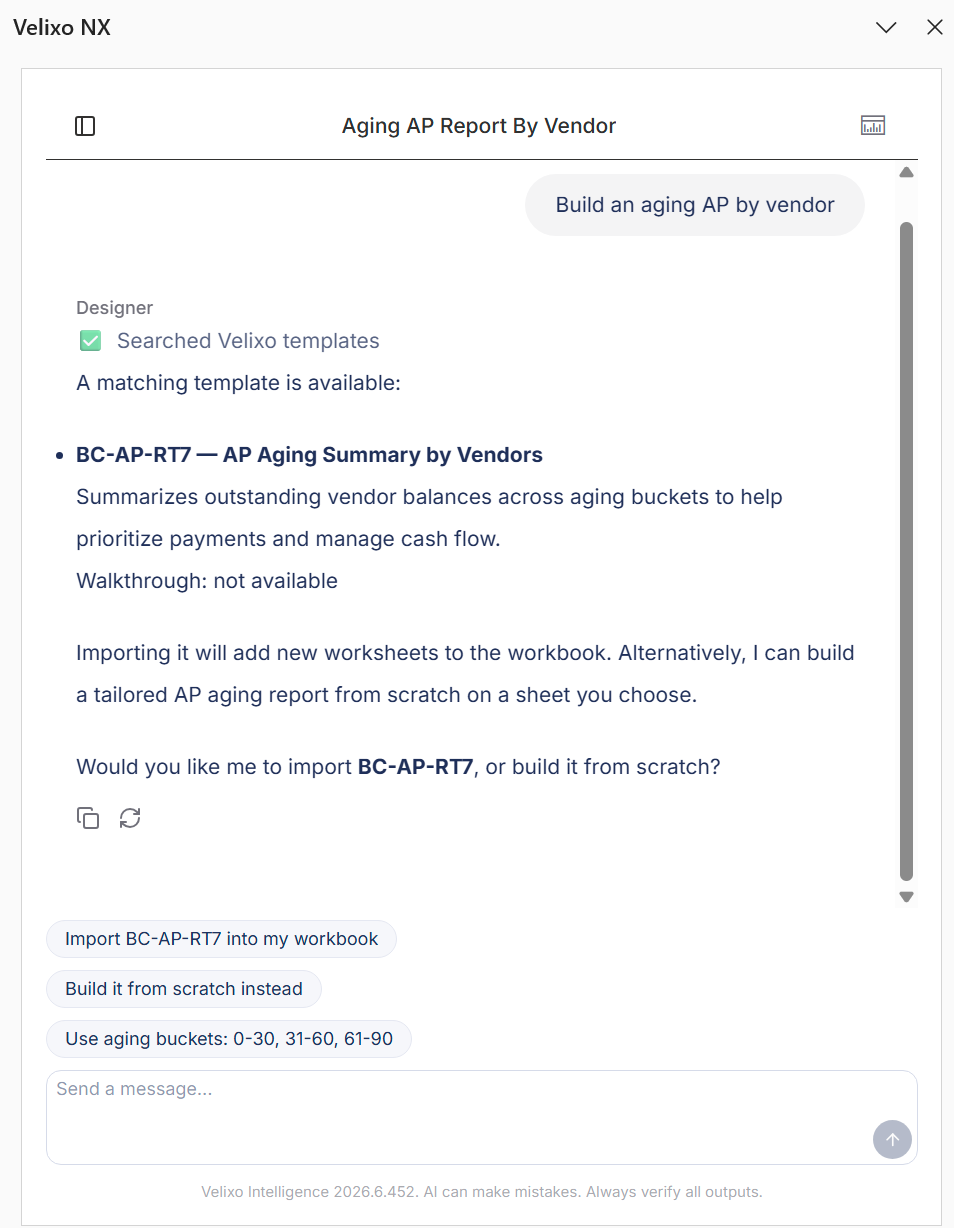
The Designer imports the template you choose into the workbook. If your original request named a target worksheet, the Designer asks whether to import the ready-made template or build the report on the worksheet you specified, rather than doing both.
An imported template is a normal Velixo report. Refine it in the same conversation exactly as you would a report built from scratch (see below).
Refining the report
The report is a starting point you refine in the same conversation. Ask for changes in a conversational manner:
Add a budget column next to the actuals and a variance column after it
Group the expense rows by account category
For layout changes such as freezing panes, grouping, and conditional formatting, see Formatting and worksheet operations with Velixo Intelligence.
Velixo Intelligence can make mistakes. Review the structure and the figures of every generated report before you distribute it.