Overview
Several options are available to control certain features or the behavior of Velixo NX. Each setting is described in detail in this article.
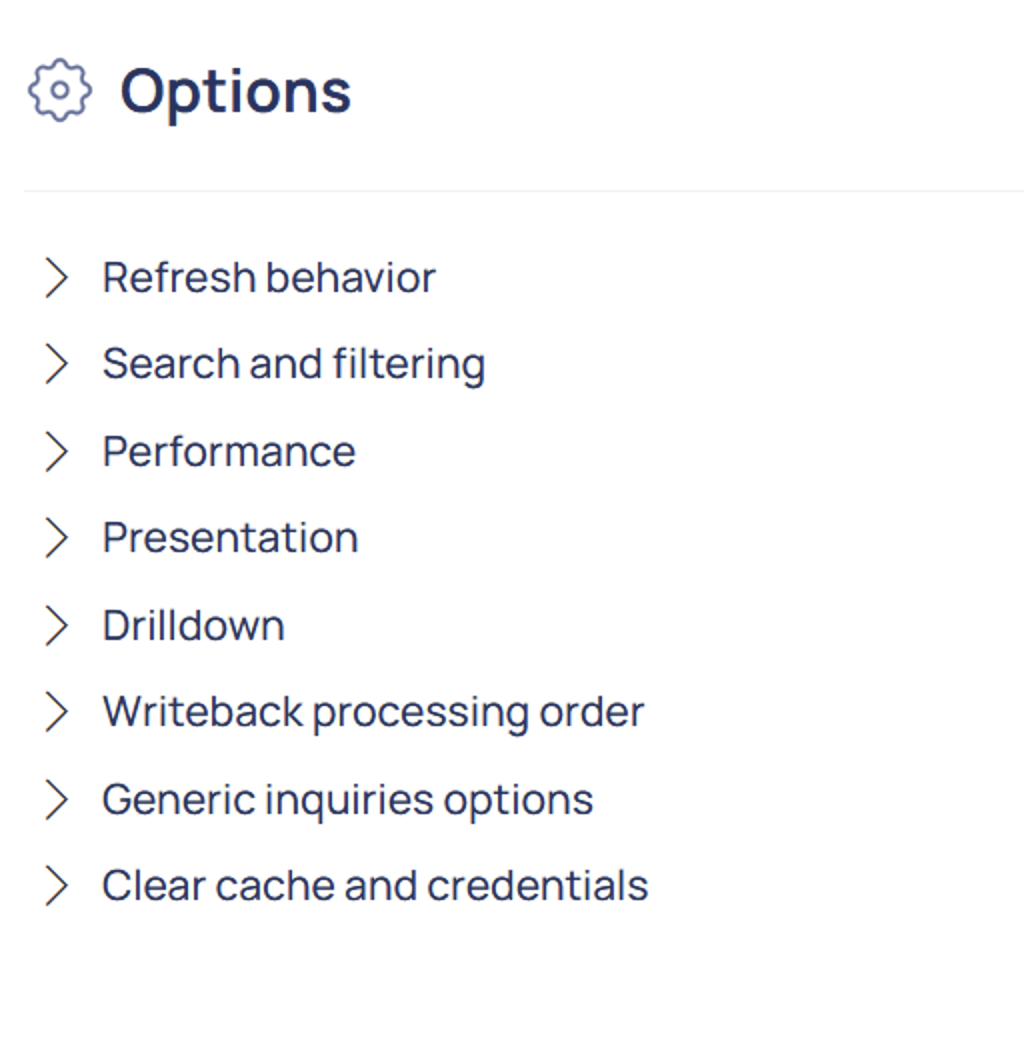
Click the Options button in the Velixo NX Excel menu to summon the Options menu.

Refresh Behavior
-
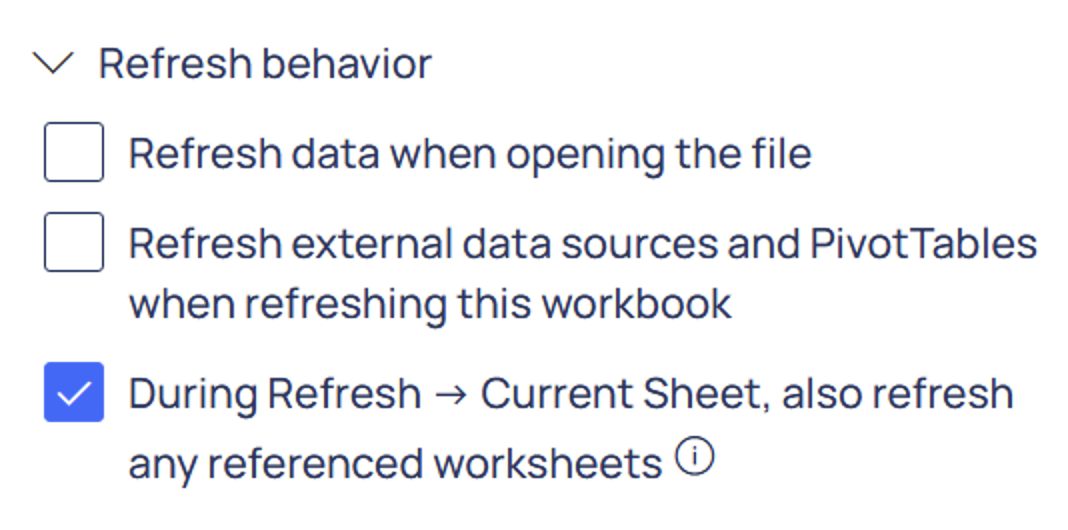
Refresh data when opening the file: When checked, a Smart Refresh will be performed when the workbook is opened (drawing in any data that is new in the ERP since the last refresh of the Velixo functions).
-
Refresh external data sources and PivotTables when refreshing this workbook: When checked, this setting will automatically refresh both PivotTables and non-Velixo external data sources when using the Velixo NX Refresh feature.
-
During Refresh Current Sheet, also refresh any referenced worksheets: When checked (enabled by default), using Refresh Current Sheet will cause the add-in to recursively explore any worksheets referenced by the current sheet and recalculate them first, ensuring that dependent data is up to date before the current sheet is refreshed.
Search and filtering

These options control how Velixo range expressions are parsed.
-
Element delimiter: Changes the character used to separate elements in Velixo range expressions. The available options are: Comma and semicolon (default value), Comma, Semicolon, and Pipe (Business Central style).
-
Range symbol: Changes the character used to denote ranges in Velixo range expressions. The available options are: Colon (default value) and Two dots (Business Central style).
Performance
Maximum number of simultaneous functions to process
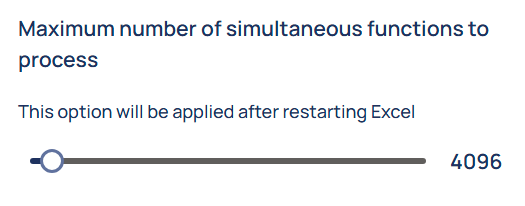
This setting configures the maximum number of functions that Velixo will attempt to evaluate at any time. This can be adjusted to accommodate the resources available on your system.
Presentation
Account balance sign

Controls the way the balances of the liability and income GL accounts are represented in your worksheets. The following options are available:
-
Normal (Default value): The credit balances for liability and income accounts are displayed as positive numbers, and the debit balances are displayed as negative numbers. In this mode, the total balance of all asset and expense accounts is equal to the total balance of all liability and income accounts (and Assets + Expenses = Liabilities + Income)
-
Reversed: The credit balances of liability and income accounts are displayed as negative numbers, and the debit balances are displayed as positive numbers. In this mode, the total balance of all accounts is equal to zero (i.e., Assets + Expenses + Liabilities + Income = 0)
This setting only impacts functions returning data from the GL module (e.g., ACCOUNTBEGINNINGBALANCE, ACCOUNTTURNOVER, and ACCOUNTENDINGBALANCE). Data from other modules (e.g., Project Module) is not affected.
Blank rows in Hide Zero Rows
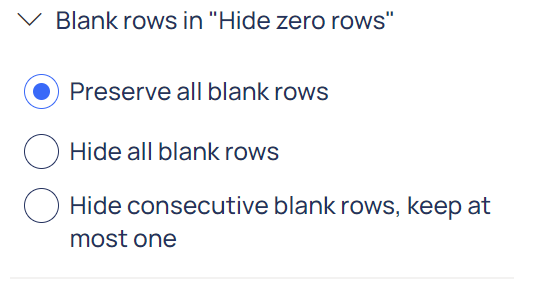
Controls how blank rows/columns should be handled after hiding zero rows/columns in a report. There are three possible settings:
-
Preserve all blank rows (default value): Rows/columns with blank values will remain visible in the report.
-
Hide all blank rows: Blanks will be treated the same as zeros, and those rows/columns will be hidden.
-
Hide consecutive blank rows, keep at most one: All but the first of consecutive blank rows/columns will be hidden; only the first will remain visible in the report.
Missing identifier behavior
This setting determines if Velixo functions will return zero if one or more specified values are not found in the current tenant. This option is useful when creating reports consolidating data from multiple tenants with different configurations. You must refresh your report after changing this option.
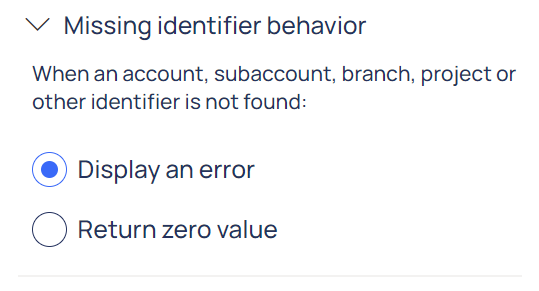
When using the Sage Intacct ERP and referencing an existing account group to which no accounts have been assigned, the Velixo functions will ALWAYS return zero, regardless of the setting of this option.
Drilldown
Sheet destination

Controls whether drilldown sheets are created in the current workbook or if they are created in a separate workbook.
Writeback processing order
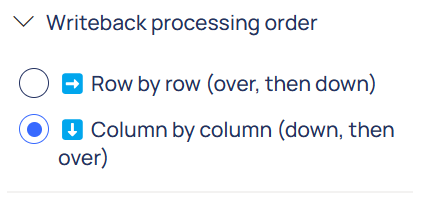
Controls the direction of traversing the worksheet during writeback processing. Options:
-
Row by row (default value): all writeback formulas on the row will be calculated (left to right) before the next row will be calculated.
-
Column by column: all writeback formulas in the column are calculated (top to bottom) before the next column is handled.
Generic inquiries options
If your report contains GI functions, the Options window includes a setting section for each Generic Inquiry referenced from within the report:

Use the edit (pencil) button to display the options for the specific generic inquiry:
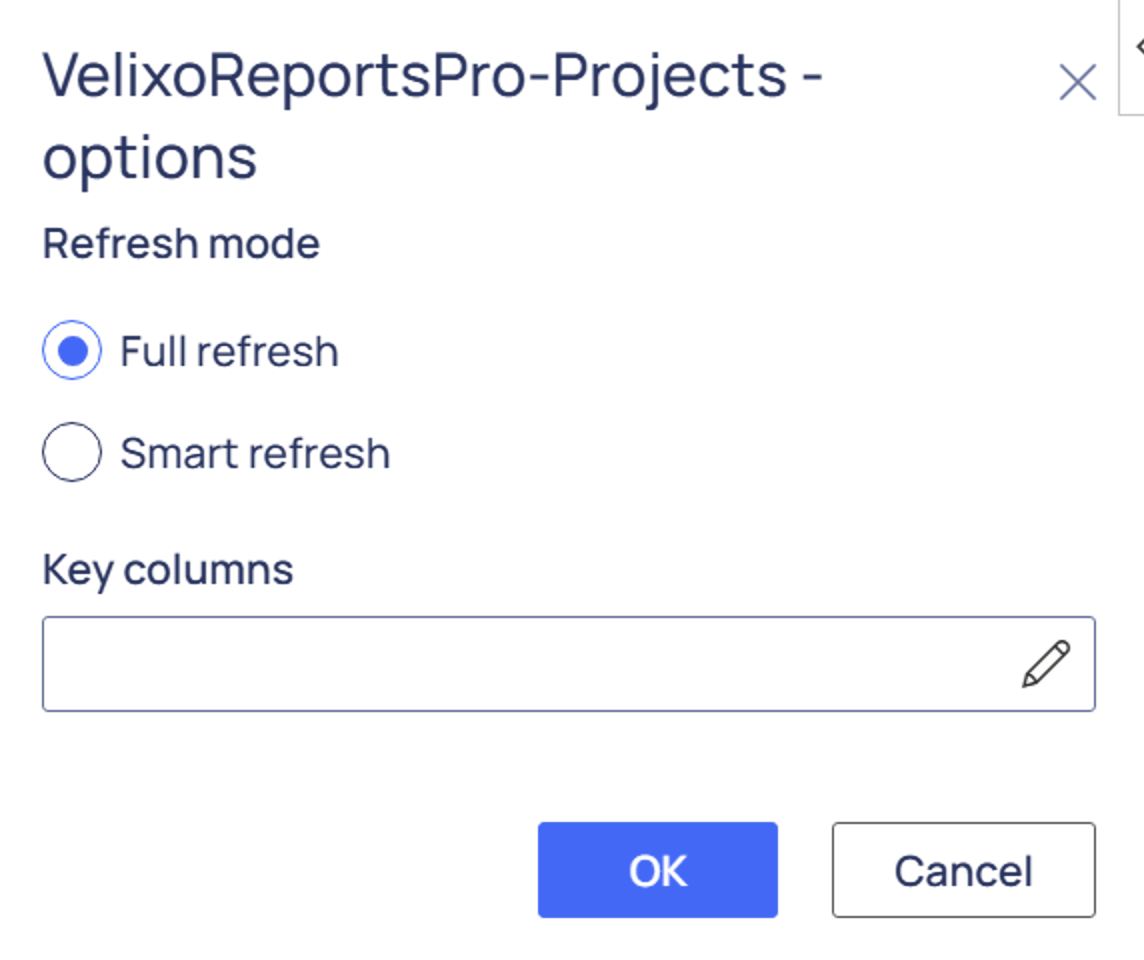
Refresh Mode
Allows you to control how much data is retrieved from the database. There are two options for Refresh Mode: Smart Refresh and Full Refresh.
Refer to the Refresh Features article to learn how to set up Smart Refresh.
Clear cache and credentials
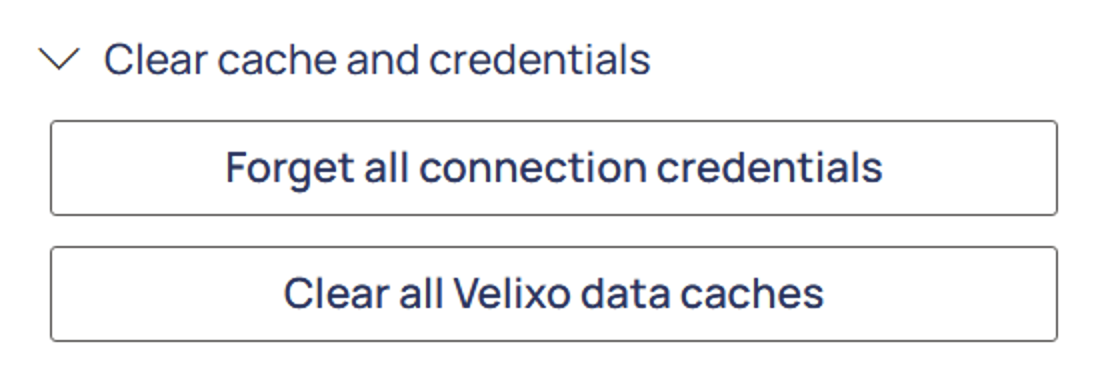
The Forget all connection credentials button allows you to require that new credentials be entered for all connections in the workbook.
Clear all Velixo data caches clears the cache for all connections.