
Excel add-in
🚀 New
-
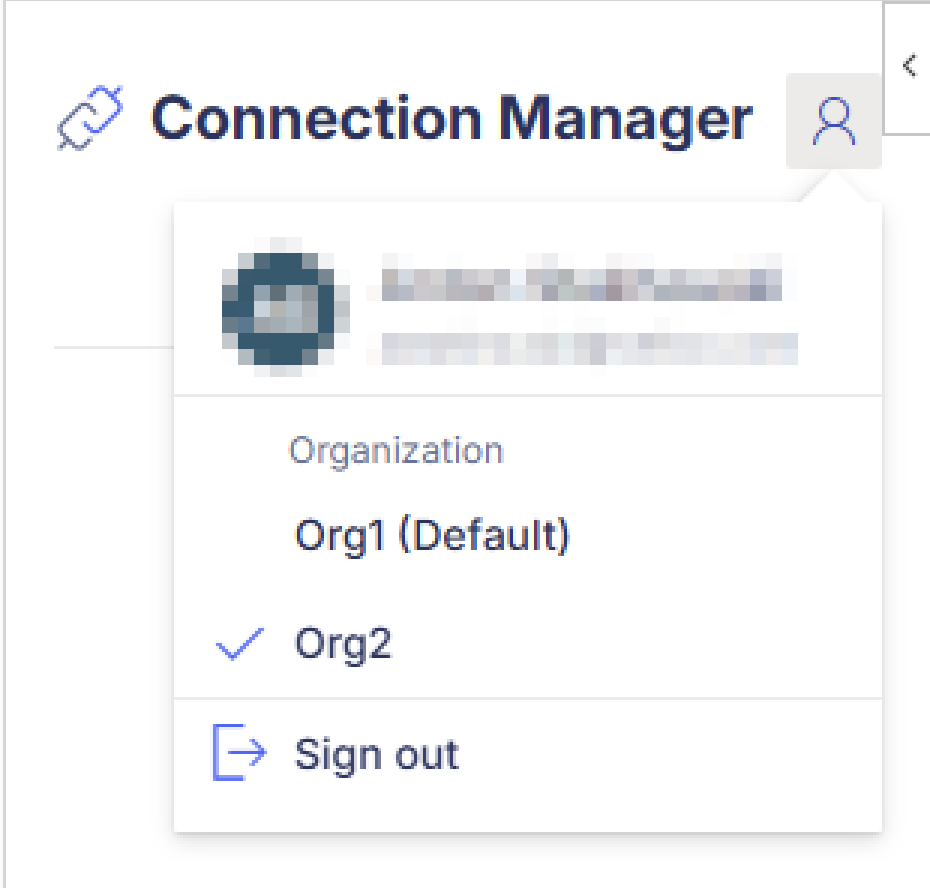
If you belong to more than one Velixo organization, you can now switch between them in the add-in without signing in again. Click the account icon in the Connection Manager, which replaces the Sign out button, and pick an organization. Predefined connections and settings then come from the selected organization; local connections are not affected. Each workbook remembers the organization it was saved in, and new workbooks open in your default organization. (RD-11746, RD-13020)
✨ Improved
-
The Refresh upon connecting option has been removed from the connection settings. Workbooks are no longer refreshed automatically when you connect. (RD-12088)
Velixo Portal
The new Velixo Portal is now the default experience! Opening the Velixo Portal now takes you to the redesigned Portal, with a dashboard and simpler navigation. (RD-13559, RD-10465, RD-13089)
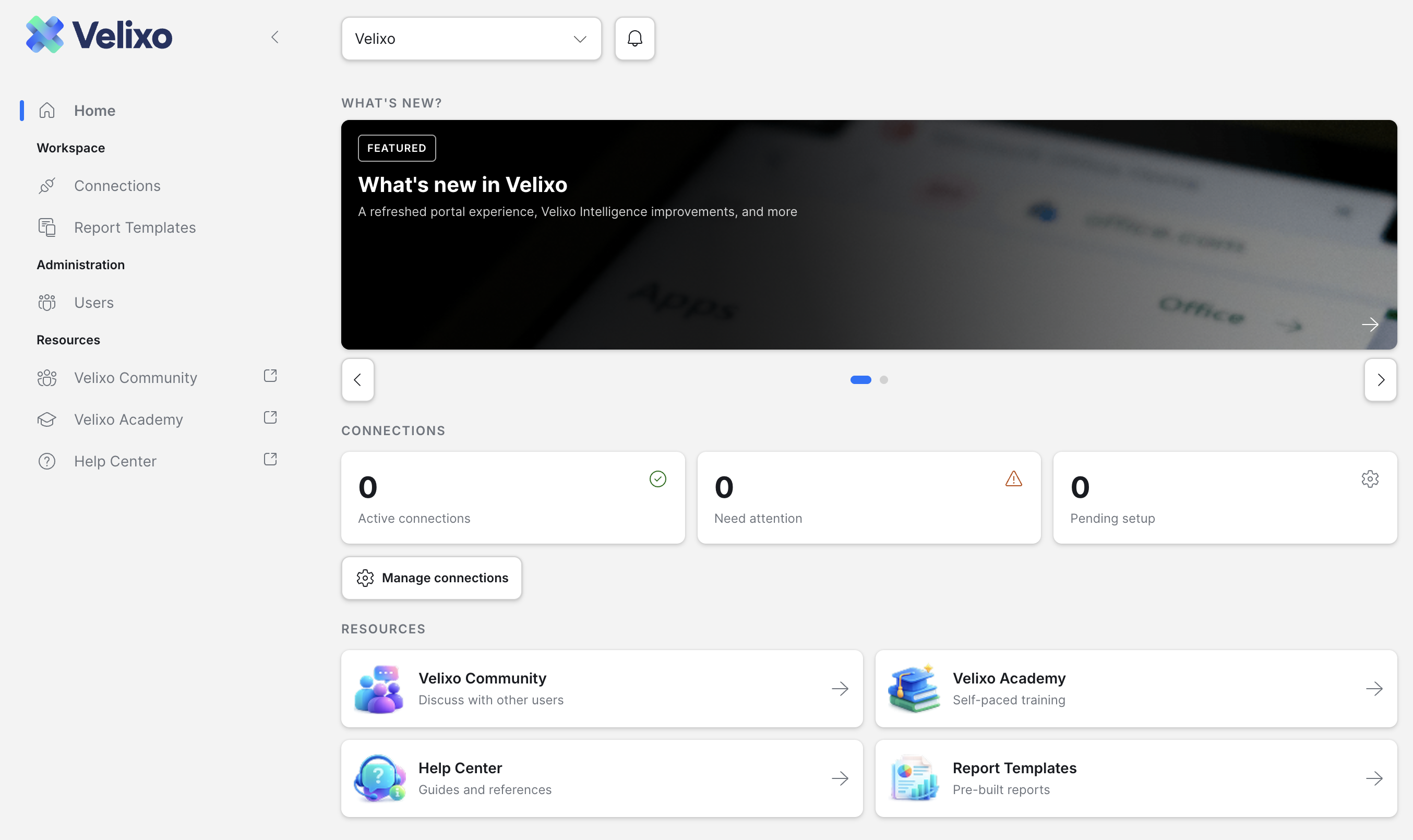
New Portal highlights:
-
-
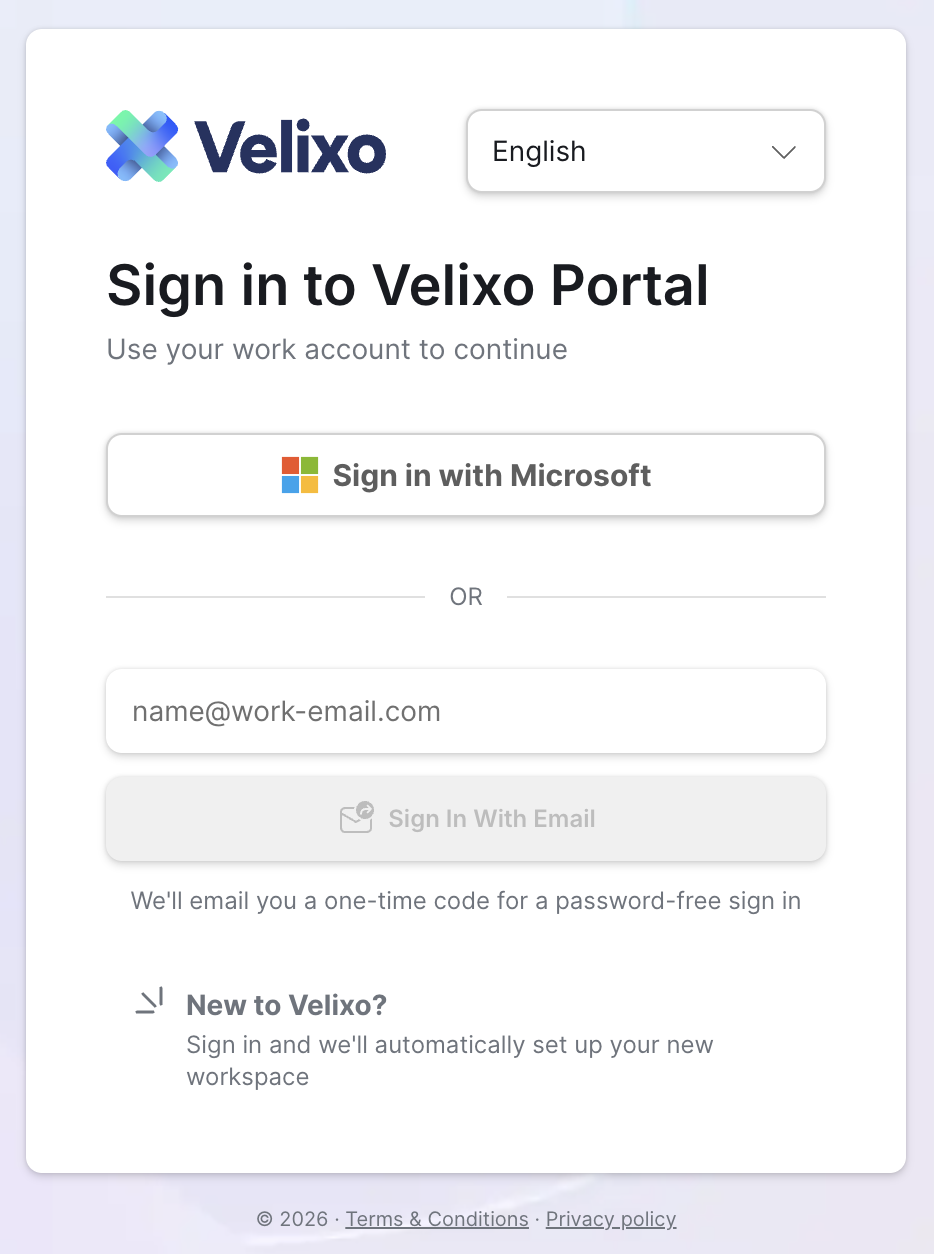
Sign in with email – Select Sign In With Email on the login page to receive a one-time code, with no Microsoft account needed. (RD-13086)
-
Invitations – Organization admins invite colleagues, who join by accepting via email link or in the notifications menu. (RD-13389)
-
Faster organization switching – Switch from the header selector, or click a tile on the My Account page to jump to that organization. (RD-12960, RD-12391)
-
Guided first sign-in – New users enter their name, accept the Terms of Service and Privacy Policy, and are added to their company's organization based on email domain. (RD-12643, RD-13557)
-
Velixo Intelligence
-
VI now checks whether the target cells are occupied before writing. If any target cell is non-empty and you have not confirmed an overwrite, the agent stops and asks whether to overwrite, choose a different location, or cancel. Cells holding zero or a formula count as occupied; formatting-only changes and requests that explicitly ask to clear or replace cells go ahead without asking. (RD-11768)
-
The message box now receives focus automatically whenever the Velixo Intelligence panel becomes visible in the Excel add-in, so you can start typing immediately without clicking. (RD-13314)
-
A tool call that fails now shows a failure indicator without requiring you to expand the step where the failure occurred. (RD-13475)
-
When a response fails partway through, Velixo Intelligence now tells you whether the connection was lost or the service ran into a problem, and lets you retry the failed response instead of retyping your message. (RD-11989)
-
After you press Stop, Velixo Intelligence no longer resumes automatically and does not start any further steps. (RD-13737)
-
Excel's info button no longer obscures the “new conversation” button. Its icon is also updated. (RD-13320)
-
The Velixo Intelligence chat now fills the full width of the side panel regardless of panel width. (RD-13632)