
Overview
If you are working on an unfamiliar computer or you have just completed an installation but do not see the Velixo ribbon in Excel's toolbar:
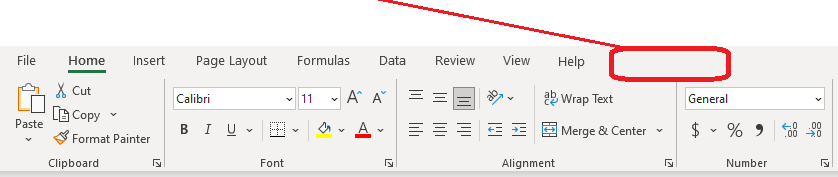
This may be due to either the Velixo add-in not being activated, or it could be that something interfered with the installation process.
Is the Velixo ribbon turned off?
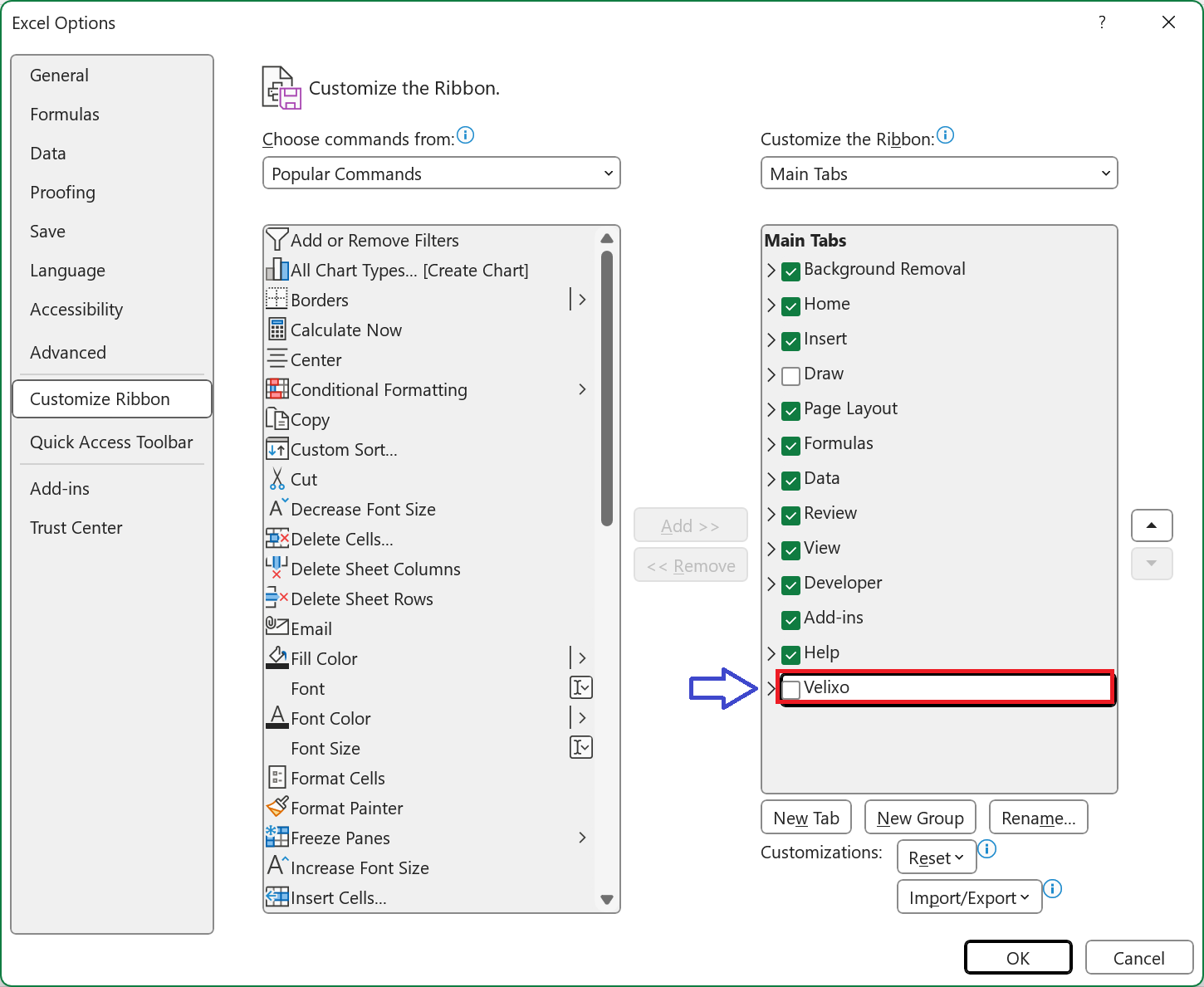
You can check if the ribbon has been turned off within Excel by going to File | Options | Customize Ribbon and ensuring that the Velixo entry is checked:
Is the Velixo add-in Disabled?
In some cases, the add-in might be automatically disabled by Excel during start-up.
To double-check, open Excel and follow these steps:
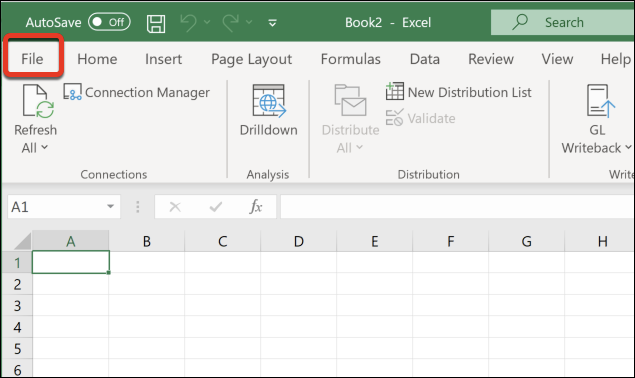
Open the File menu:
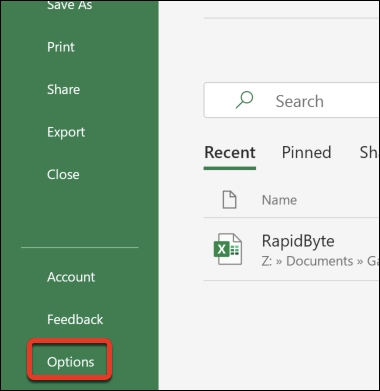
Next, select Options:
On the left, select Add-ins. You should see two Velixo entries in the Add-ins list.
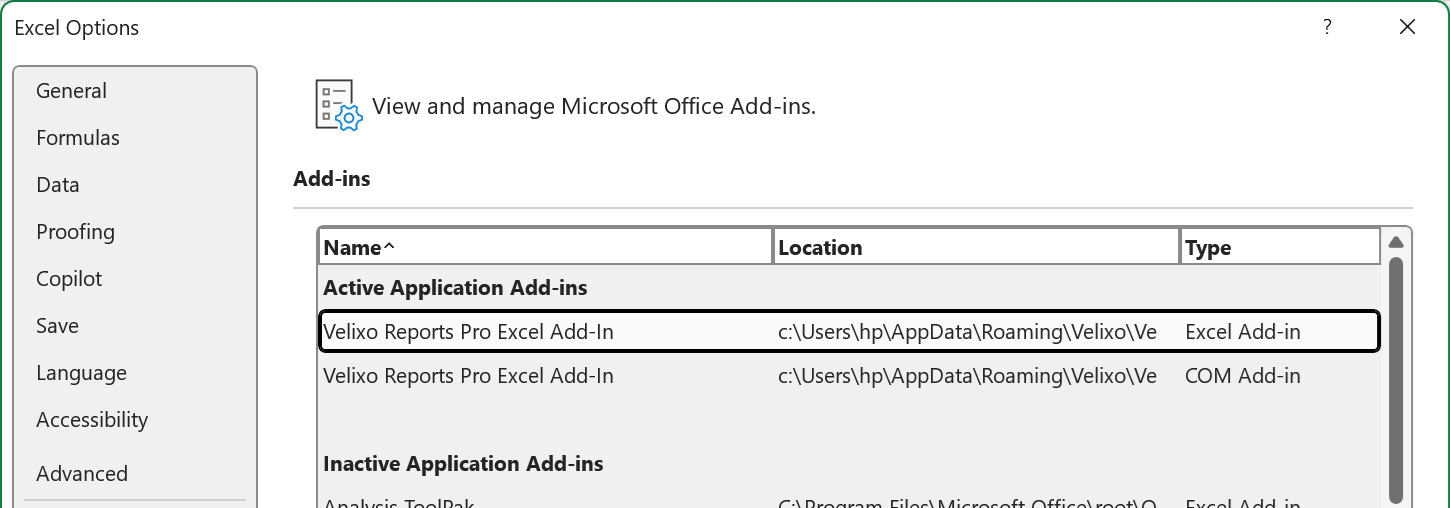
The add-in will not function properly if either component is disabled.
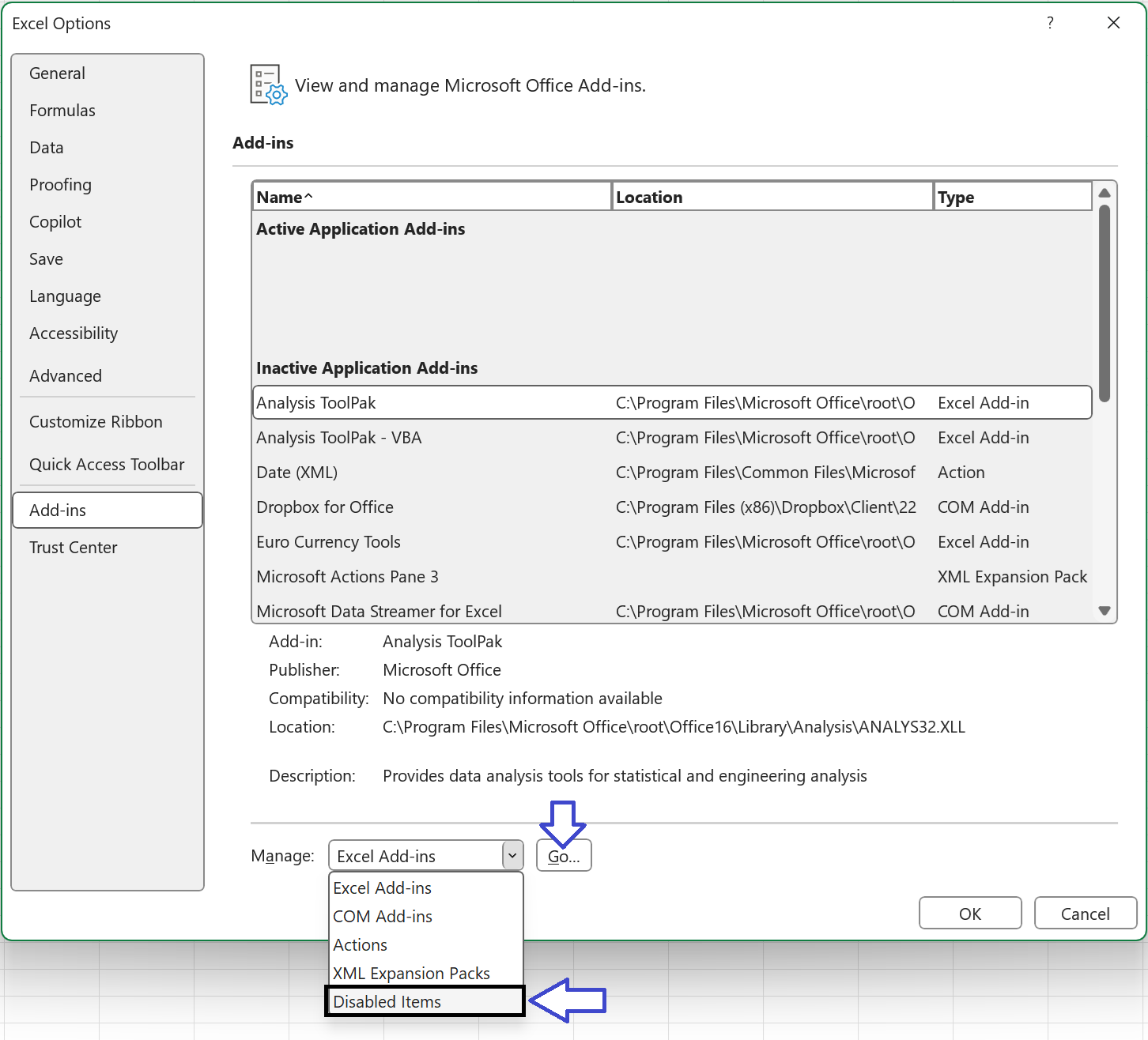
Choose Disabled Items from the small drop-down menu at the bottom of the window and then press the Go button.
If any item is disabled, it will appear in the popup window:
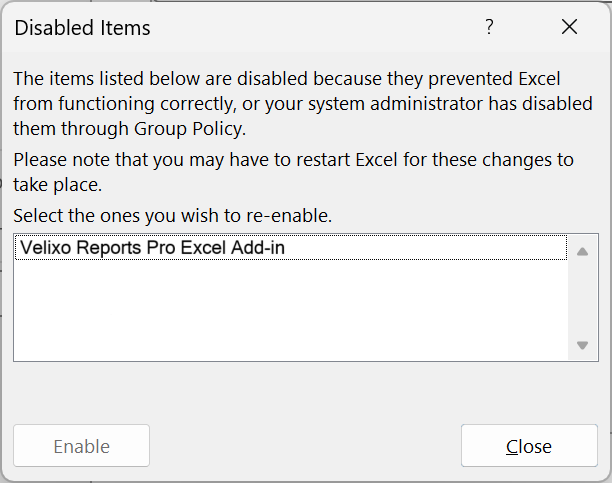
Select any Velixo items and click Enable for each of those.
Restart Excel.
Is Velixo Classic installed?
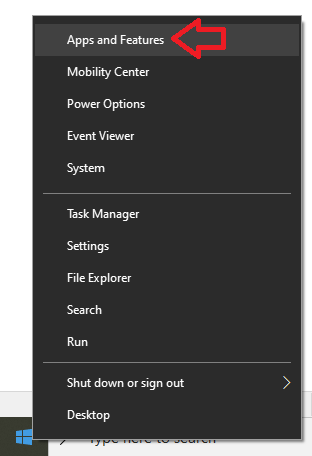
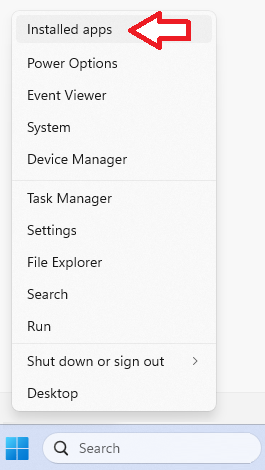
To find out if Velixo Classic is installed, right-click on the Windows Start icon and select either Apps and Features or Installed apps (depending on your version of Windows):
Windows 10
right-click on the Windows Start icon and
|
Windows 11
right-click on the Windows Start icon and
|
|
|
From the displayed window, scroll down in the alphabetical list to where Velixo should be:
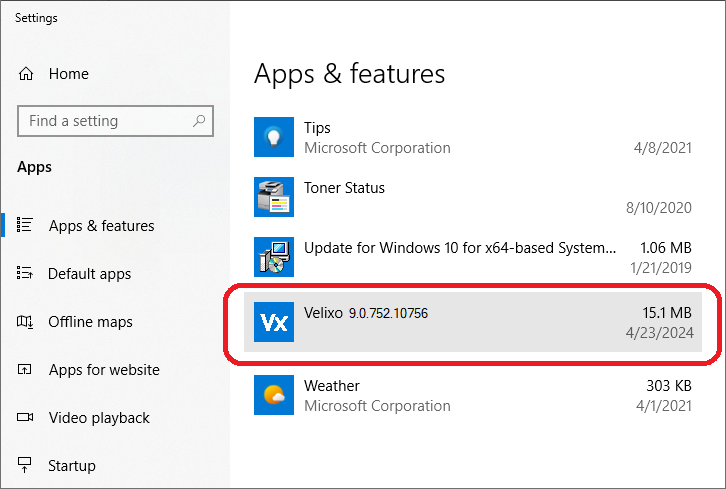
Is Velixo in the list?
|
Yes |
It is installed.
|
|
No |
You would need to ensure that Excel is closed and then download and install the Velixo add-in. |
Other Troubleshooting Steps
If you continue to experience an issue, please see additional troubleshooting steps listed inCannot Install or Run the Velixo Add-In