
Velixo recommends Microsoft 365 or Excel 2021 or higher for this feature. Experimentally, Excel 2010 or higher can be used. For prerequisites and an overview of Generic Inquiries, see Introduction to Generic Inquiries.
Overview
The GI function returns the contents of the specified generic inquiry (GI).
You can convert the resulting Excel arrays into Excel tables using the TOTABLE function.
Syntax
This is the syntax for this function:
=GI(
    ConnectionName,
    Name,
    Filter,
    Select,
    IncludeHeader
)
Arguments
|
Argument |
Required/Optional |
Description |
|
|
Optional |
Provide one of the following values:
OR Omit the argument to return results for all compatible connections with default aggregation settings. |
|
|
Required |
The name of the generic inquiry. To search for generic inquiry names, use the Inquiry Title lookup on the Generic Inquiry page in Acumatica. |
|
|
Optional |
The conditions that determine which records should be selected from the inquiry. The recommended way to construct this argument is by using the GIFILTER. Otherwise, see the OData filter reference sheet. |
|
|
Optional |
Comma-separated list of field names to be included in the resulting dataset. If this argument is empty, all the columns from the generic inquiry will be returned (including columns that may not be shown in the ERP's user interface; see the Known Issues section). Rows where the selected columns have no value are included in the results - see Rows with no value in selected columns. |
|
|
Optional |
Default value: |
Excel Online
Loading large datasets with the GI() function is not performant in Excel Online due to the limitations of the Excel platform in the browser. If your dataset contains more than approximately 100,000 records, we strongly recommend using a desktop version of Excel 365 for Windows or Mac OS.
Rows with no value in selected columns
The function returns all rows from the generic inquiry, including rows where the selected columns have no value. Blank cells in the results are expected and are not an error.
Because every returned record produces a row, the spilled range sizes to the number of records in the inquiry result, not to the number of populated values. For example, selecting a column that is populated for 5 of 493 records returns 493 rows containing 5 populated cells.
To exclude rows with no value in a column, build the filter with GIFILTER using <>null as the criteria and pass the result into the Filter argument:
=GIFILTER(
    "Acumatica",
    "AR-Customers",
    "ParentAccount",
    "<>null"
)
This returns the OData clause ParentAccount ne null. See Filter blank or non-blank values in Filtering Generic Inquiries for details.
Examples
Creating an array
=GI(
    "Demo",
    "VelixoReportsPro-Projects",
    A1,
    "ProjectCD, Description",
    FALSE
)
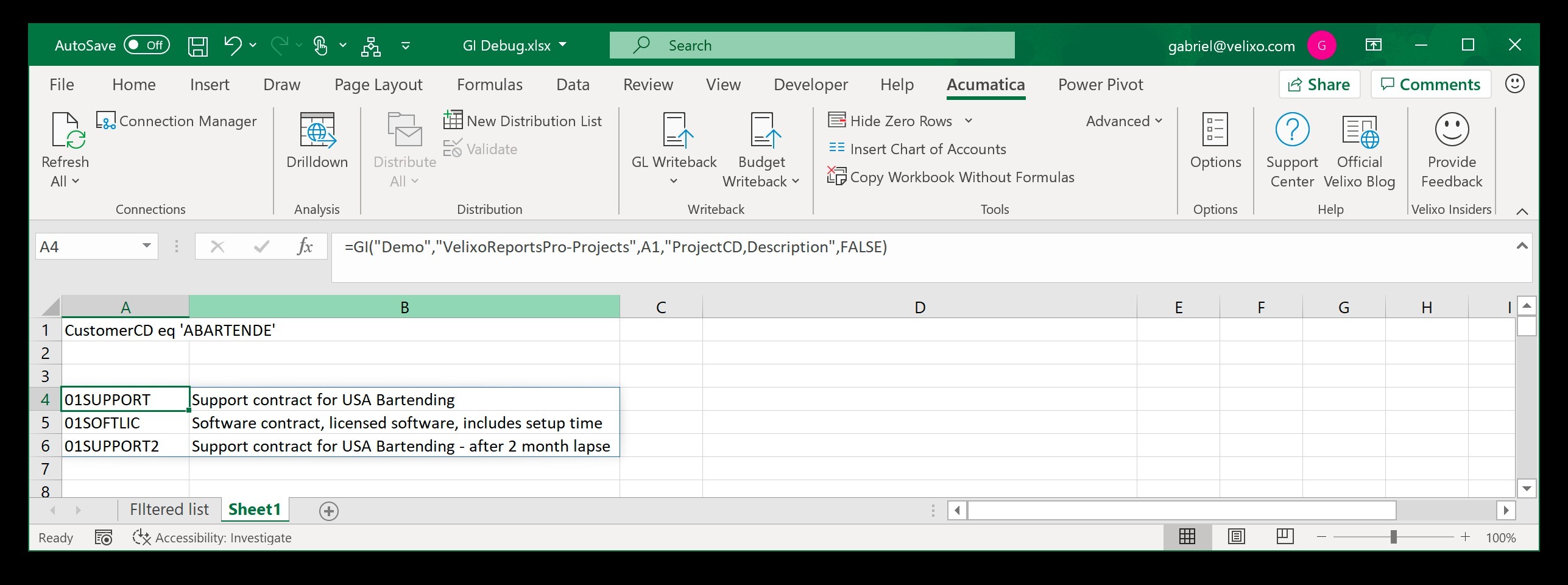
Description: Returns the project code and the description of records returned by the VelixoReportsPro-Projects generic inquiry, which match the filter conditions specified in cell A1. FALSE as the last argument specifies that no column headers should be returned. This information is displayed as an Excel array.
Result:
Configuration
For configuration details, see Generic Inquiries Options.
Accommodating pre-defined filters in Acumatica
Acumatica Generic Inquiries can include pre-defined arguments which are used within Acumatica to filter the results of the inquiry:
e.g.,
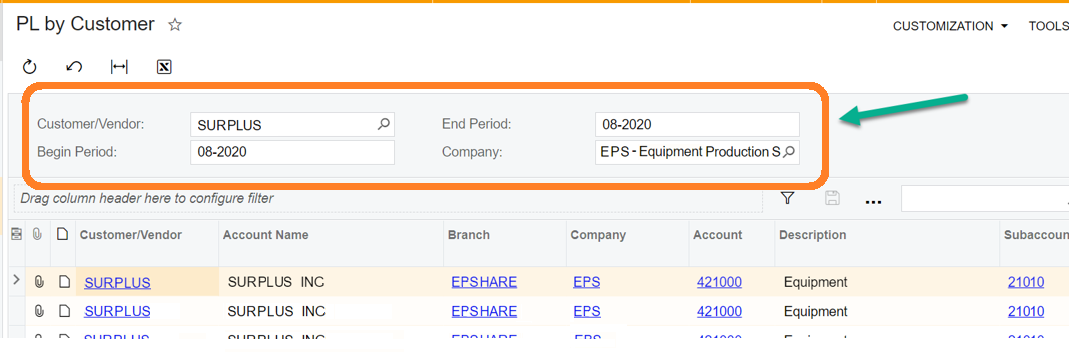
Acumatica's OData interface (used by Velixo for querying the GI) does not support this type of filtering. To be compatible with your Velixo report, you would need to modify your GI by either:
-
removing the arguments or
-
making them optional by ensuring that the conditions in your
GIwill return the full dataset when the arguments are not specified.
Filtering large generic inquiry datasets
If you experience either long load times or a persistent #BUSY! message for inquiries with a very large result set (e.g., GL transactions or invoices), make sure to always supply a GIFILTER filter when using the other GI-related functions with such inquiries.
In Velixo Classic, if you're using always load the entire Generic Inquiry to enable more advanced OData syntax, consider disabling it for larger inquiries and rewriting your filters so that they do not involve ODATA functions unsupported by Acumatica [such as toupper()]. Applying your filters on the server [before downloading the data] can significantly reduce the load time.
Known issues
The GI() function may return more columns than you expect.
For example, a generic inquiry that queries PMProject returns the ProjectID field, which is not specified on the result grid.
It is a correct behavior, as Acumatica unconditionally adds to the GI result all key columns of the objects used in the GI.
If you don't like seeing them, please use the Select argument to explicitly specify the columns you'd like to see in the result.