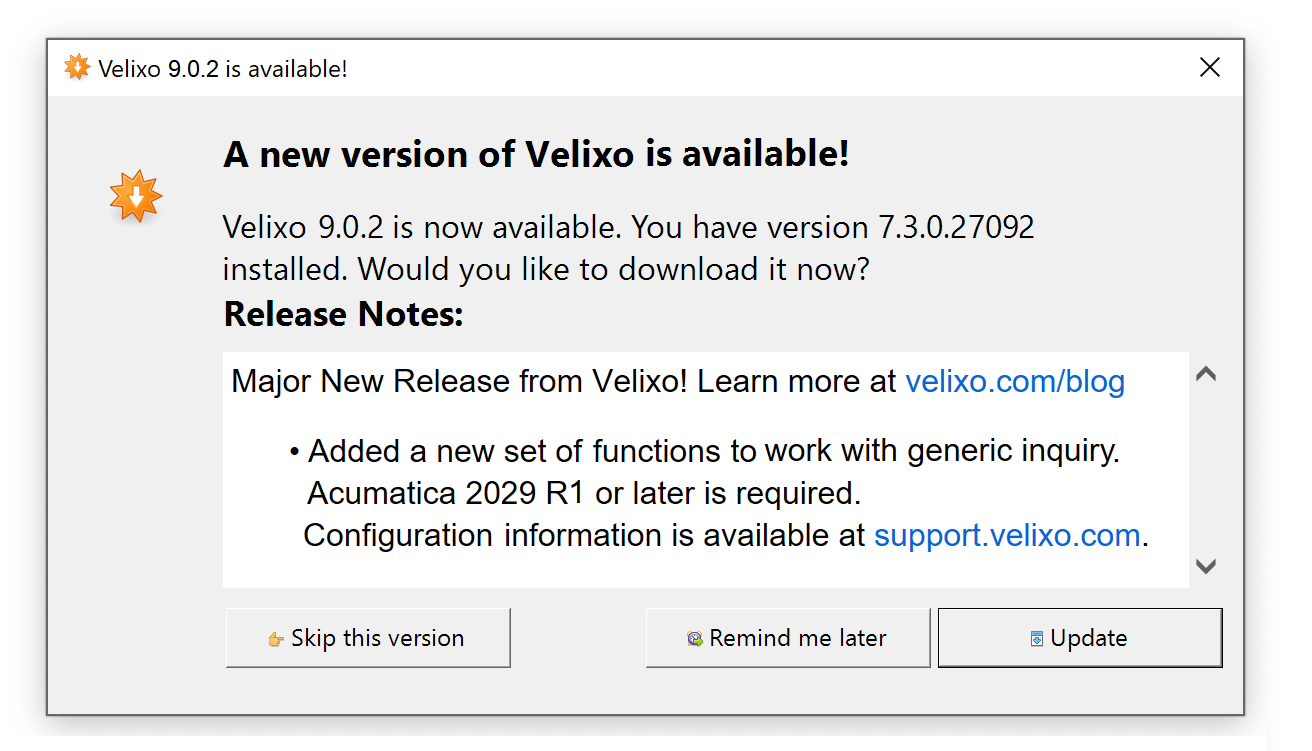
Sometimes, you may want to know what edition and version of Velixo you have (or you may get asked about it, if you send in a support request).
Step 1: Identifying the edition of Velixo that you're using
Look at the name of your Velixo toolbar at the top of the Excel window. If you see "Velixo NX", you are using Velixo NX:

If you only see "Velixo", you are using Velixo Classic:

To learn more about the differences between Velixo NX and Velixo Classic, check out this article.
Step 2: Identifying the version number
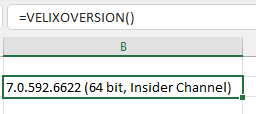
If you enter the =VELIXOVERSION() function into a cell, that cell will display the current Velixo version information:
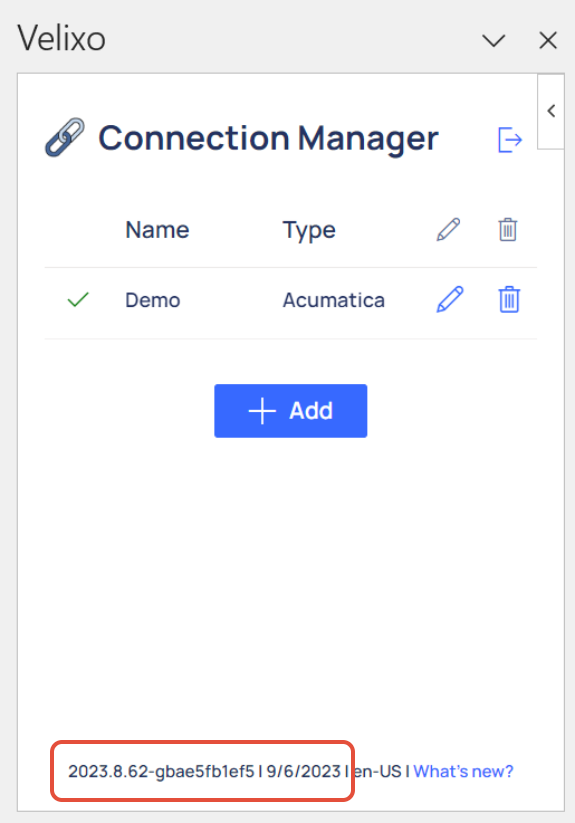
Velixo NX users can also click the Connection Manager button and find the version at the bottom of the side panel:
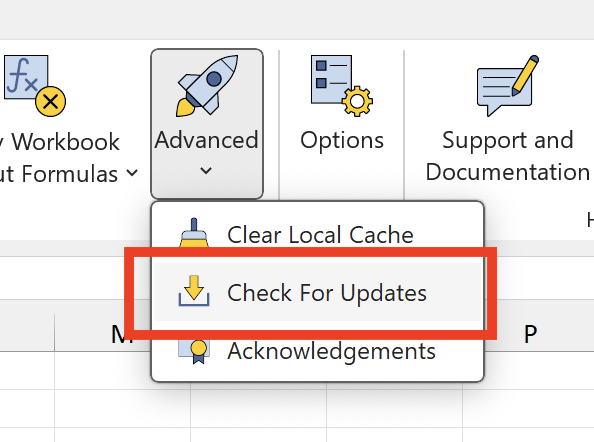
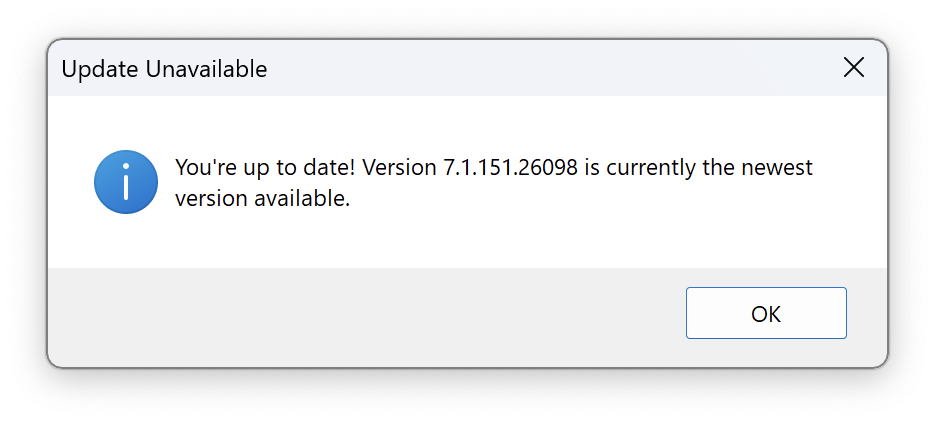
If you're on Velixo Classic, you can easily find what version you're running by selecting Check for Updates from the Advanced tools pulldown. If you have the latest version for your installation channel, you will get a message stating that you are up to date, along with the version number:
If you have an older version, you will see a message letting you know that a new version is available: