
Overview
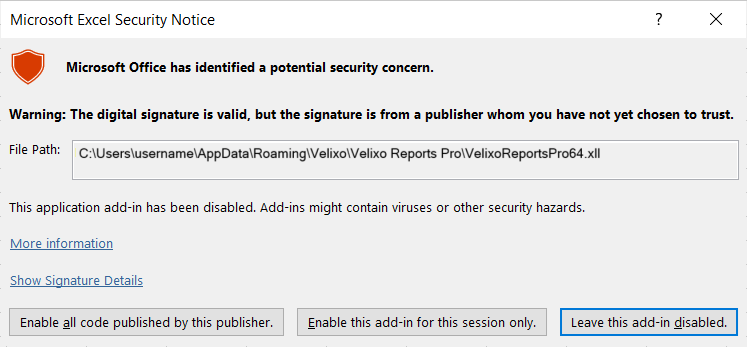
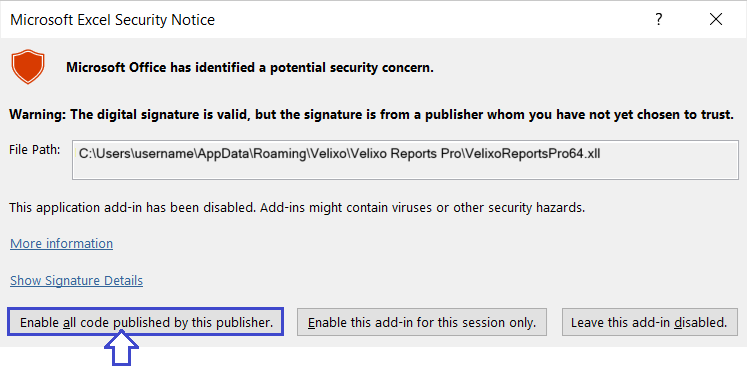
When using the Windows command line tool to install Velixo Classic (for example, when installing for all users on a machine), the following Microsoft Excel Security Notice is displayed:
Text Message excerpt
Microsoft Office has identified a potential security concern.
Warning: The digital signature is valid, but the signature is from a publisher whom you have not yet chosen to trust.
The application add-in has been disabled. Add-ins might contain viruses and other security hazards.
Potential Cause
Your Excel Trust Center Settings may be configured to require add-ins to be signed by a Trusted Publisher.
Resolution
Once you have closed the Microsoft Excel Security Notice...
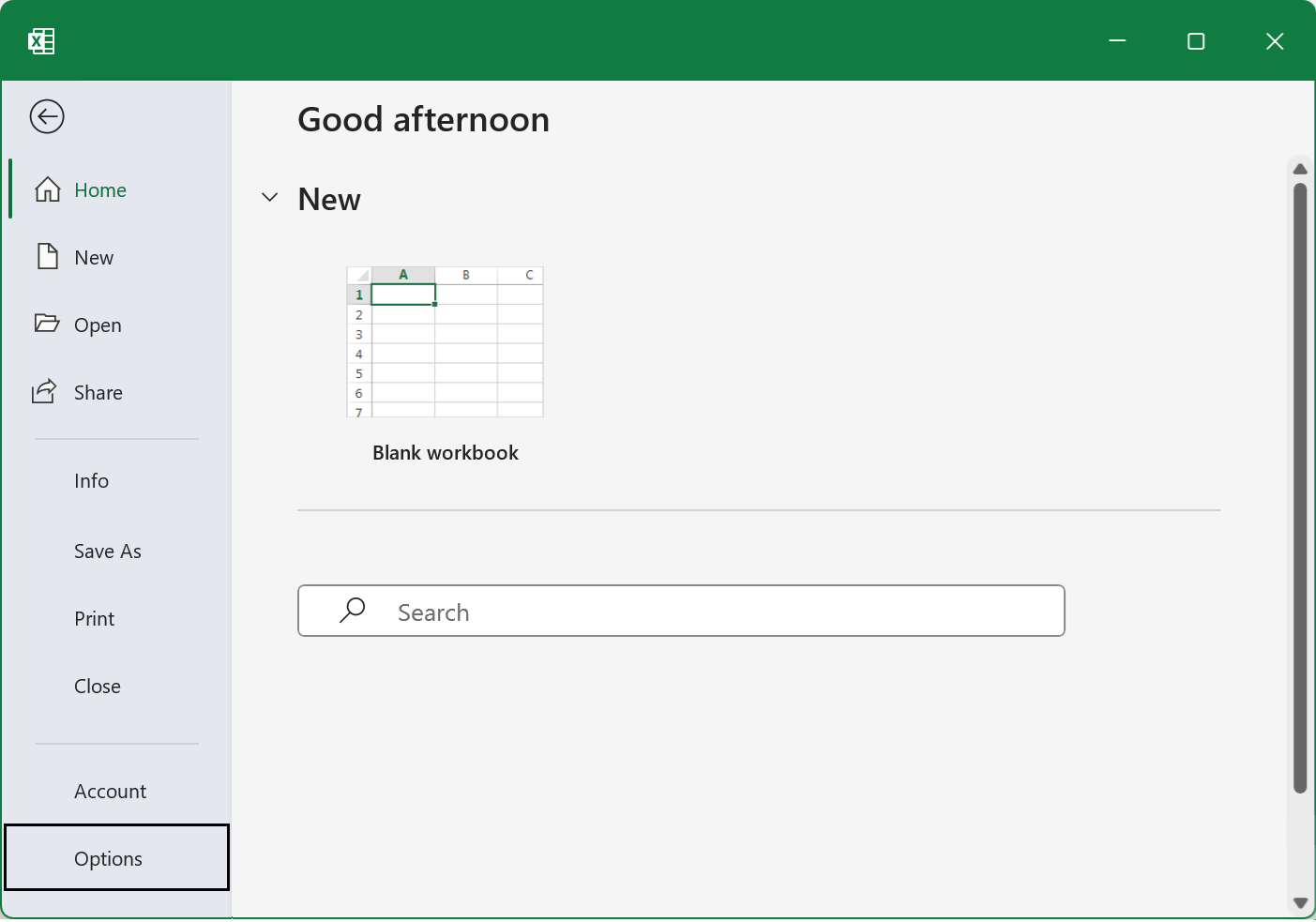
Step 1 - Within Excel, go the File ribbon and select Options
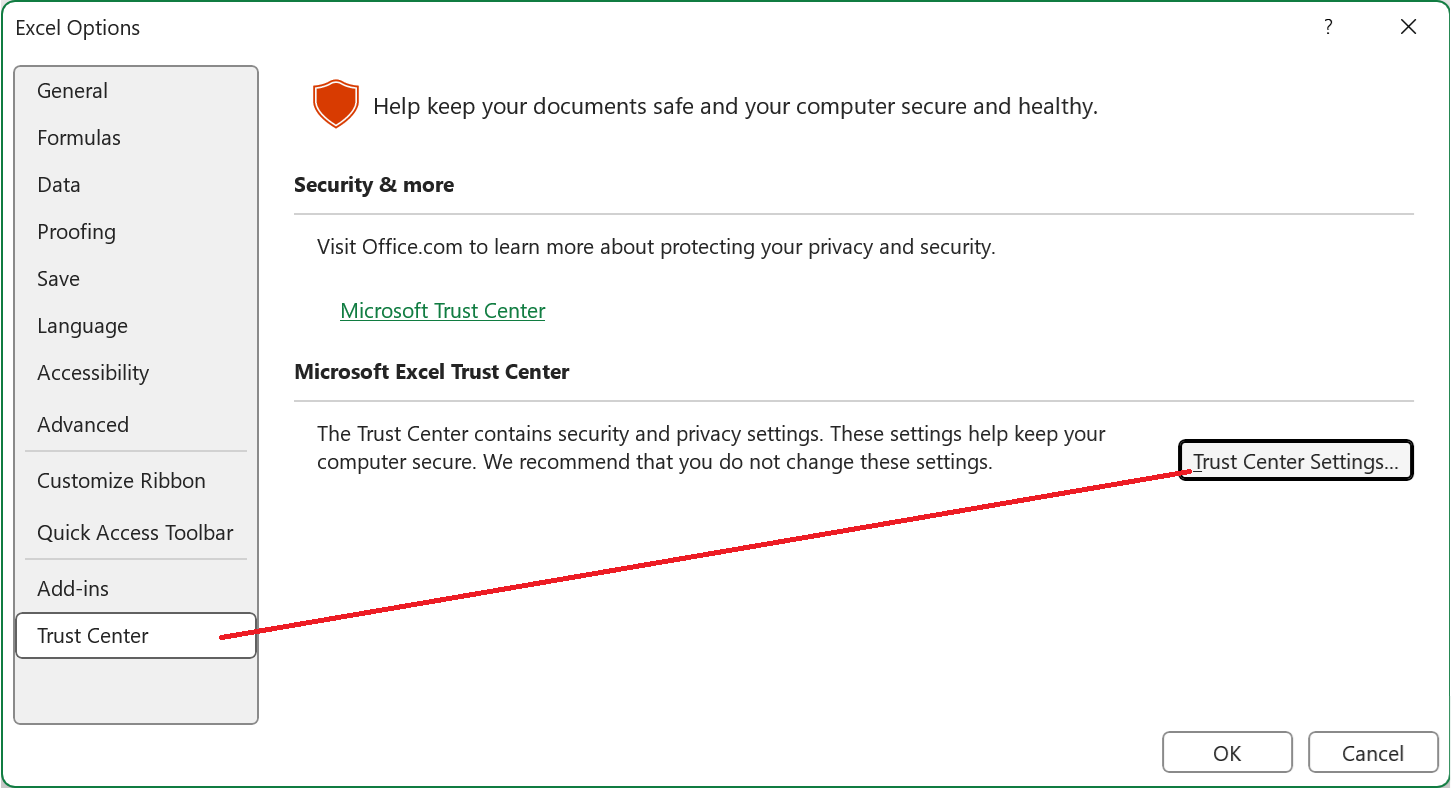
Step 2 - From the Excel Options screen, select Trust Center and then click the Trust Center Settings... button
Step 3 - From the Trust Center screen, select Add-ins and then note if the box next to Require Application Add-ins to be signed by Trusted Publisher has been checked:
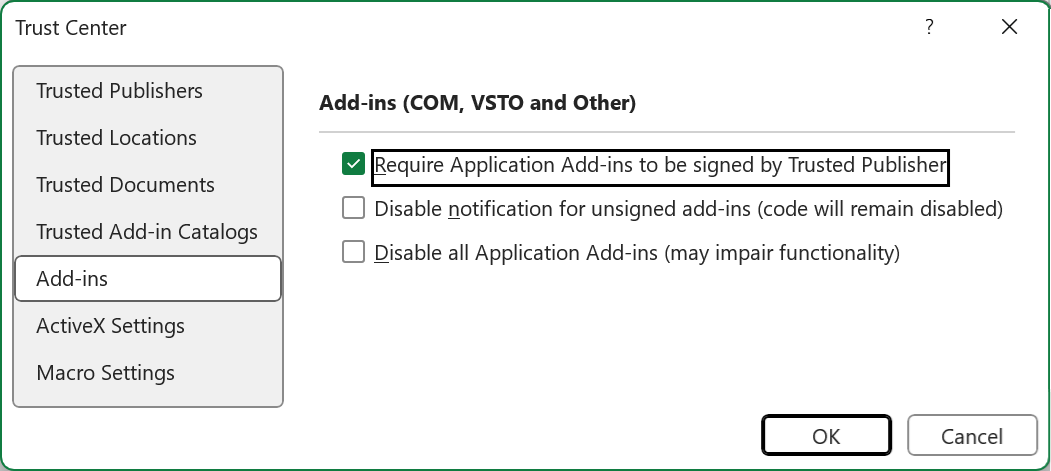
If that box *is* checked, when you next see the Security Notice, click on Enable all code published by this publisher.
This is a one-time action which should add Velixo to your list of trusted publishers and ensure that the Security Notice will not appear again.