
Overview
Velixo Intelligence diagnoses formula errors in your workbook: it reads the failing formula and its error message, explains the cause, and proposes a fix. The article covers:
-
Starting a troubleshooting session,
-
How Velixo Intelligence troubleshoots,
-
Preparing a support case.
This article covers problems with a Velixo formula. If Velixo Intelligence itself is the problem (e.g. the chat stops responding, or the panel fails to load), see What to expect from Velixo Intelligence and how to report issues instead.
Starting a troubleshooting session
Start from the error itself, in either of two ways:
-
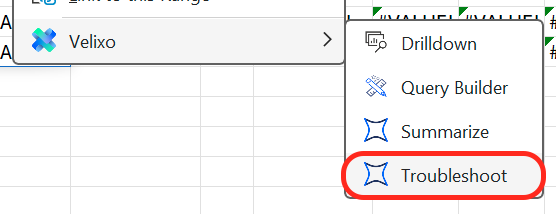
Select the cell with the failing formula, right-click it, and choose Troubleshoot from the Velixo menu.
-
In the Formulas to Review section of the Status panel, click Explain with Velixo Intelligence next to an error entry. This hands the formula, its arguments, the error message, and the cell reference to Velixo Intelligence.
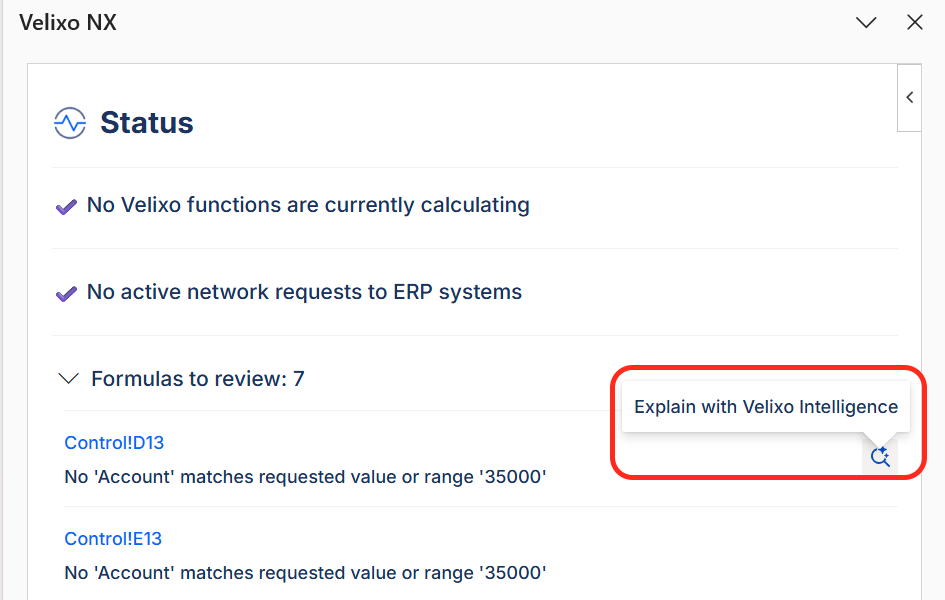
Both entry points start a fresh conversation dedicated to that error, so earlier conversations do not affect the diagnosis. The Formulas to Review entry point handles one error at a time.
How Velixo Intelligence troubleshoots
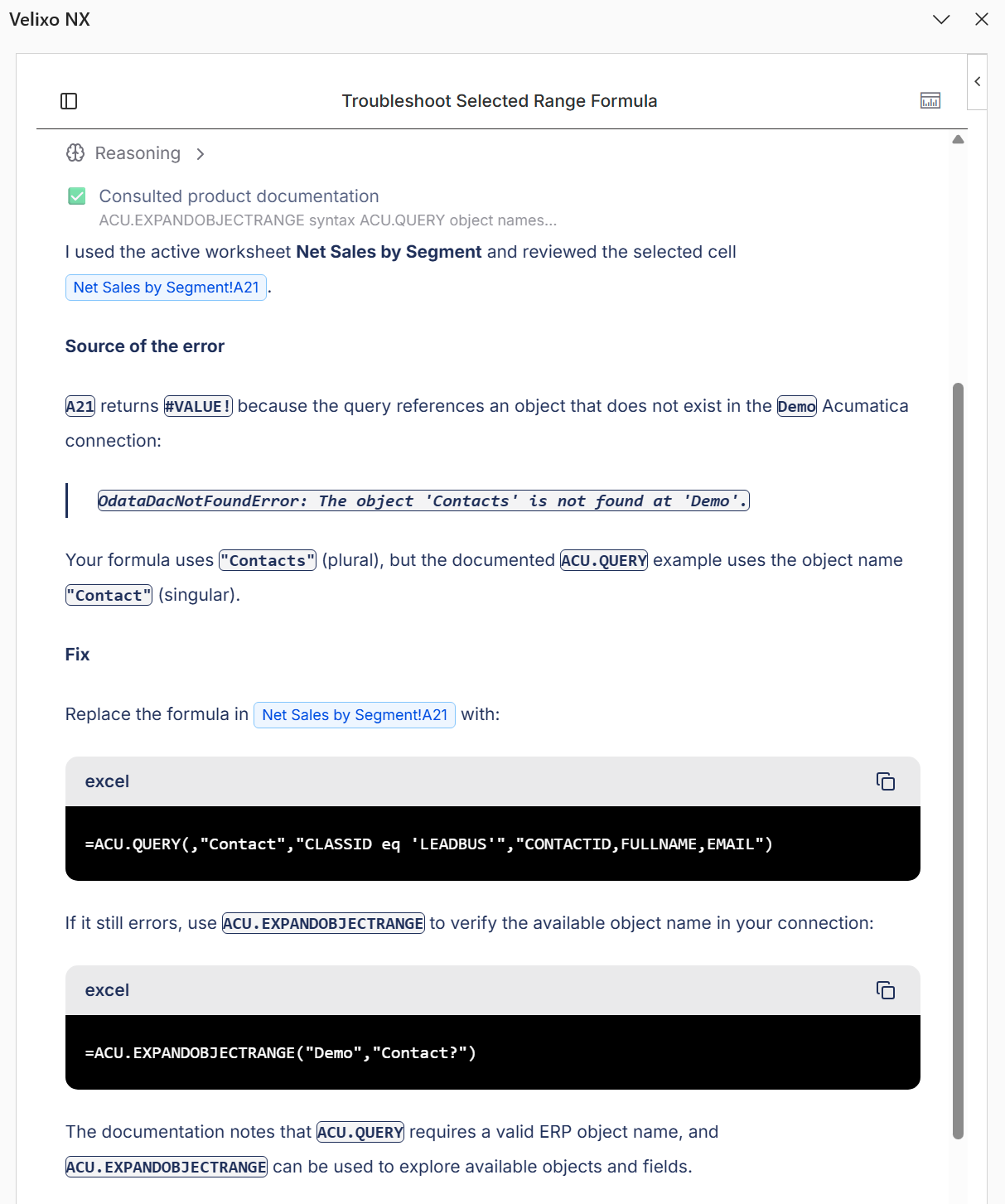
Velixo Intelligence explains why the formula fails in plain language and proposes a corrected formula or the steps that resolve the underlying cause. It does not change your formula without your confirmation. You can also describe the problem yourself in the chat:
Why is this query returning an error?
When the diagnosis involves comparing figures rather than a failing formula, use the Analyst agent instead - see Analyzing data with Velixo Intelligence.
Preparing a support case
When troubleshooting does not resolve the problem, ask Velixo Intelligence to open a support case instead of starting over in a separate channel. It carries the context of your conversation into the case, so you do not have to restate the formula, the error, and what you already tried.
This did not solve the problem. Create a support case with what we found
After the support case is prepared, VI will ask you to confirm before submitting it. Once a support case is submitted, you will receive a confirmation email.
You can open a support case even when your weekly credit allowance is used up.