
Applies to:
-
Product version: Velixo NX
-
ERP: Sage Intacct
-
Functional area: Financials
-
Industry: Not-For-Profit
-
Plan: Essentials, Professional, Premium
-
Template type: Production Report template
Description
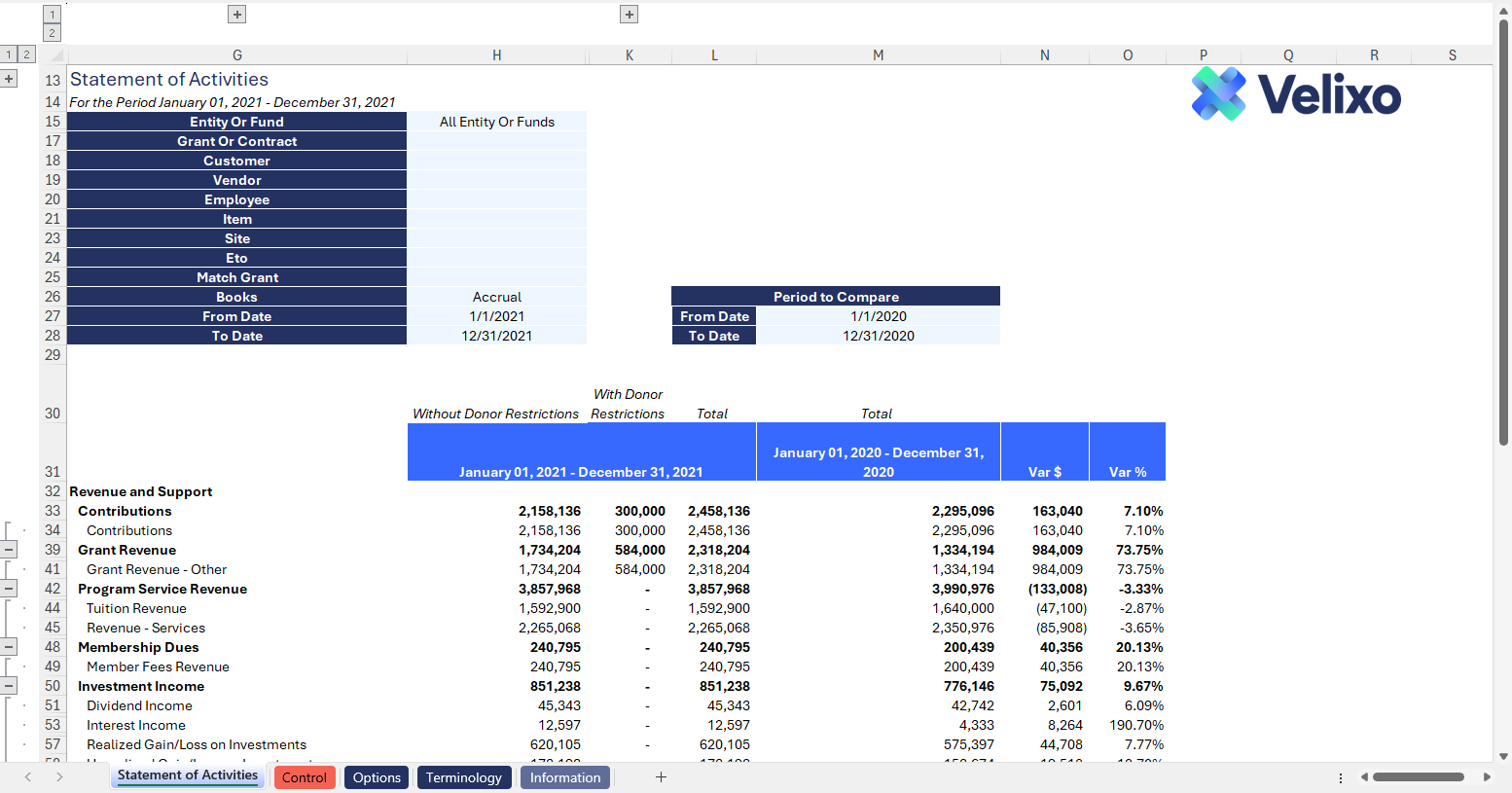
The SI-NFP-RPT2 Statement of Activities (GAAP Aligned) is a key component of a nonprofit organization's audited financial statements, presenting your revenues by category and your expenses by function while also expanding your data by the nature of its net asset restriction. Seamlessly integrating with your financial data, it provides a streamlined overview and user-friendly interface while helping you to easily achieve a GAAP-compliant report format. This is a useful tool for all nonprofit organizations.
The current version of the template is: v1.1.
Coverage
This workbook includes the following sheets:
-
Statement of Activities: The Statement of Activities comprises Sage Intacct's default categories, assigned to various sections for a comprehensive financial overview, along with user-defined mapping for your organization's functional expense and net asset restriction dimension values.
-
Control: a control report that can be used to confirm that the data is accurate and balances.
-
Options: the template's settings sheet that is used for data validation lists and various lookups and configurations.
-
Terminology: a sheet that allows the user to override terminology (naming) used for their Sage Intacct dimensions within the template.
-
Information: the information sheet of the report, used for storing useful details about the report such as: code, version, article link to keep track of the origin of the report.
Typical audience
The typical audience of this report are nonprofit finance professionals: Accountants, CFOs, Controllers, and their audit firm(s)/committees.
Features
The following Velixo features are used by this report. To use this report, please ensure that your Velixo license includes all of them (or contact Support or Sales if not):
-
Financial functions
-
Query functions
-
Dimension functions
Preview
Download
Documentation
Navigating and utilizing the SI-NFP-RPT2 Statement of Activities (GAAP Aligned) report is a very straightforward process, designed for simplicity, maximum flexibility, and efficiency. The template comes pre-configured with QuickStart account categories and ready to seamlessly map in your chosen dimension values where needed, streamlining the reporting process with minimal user effort.
Filters
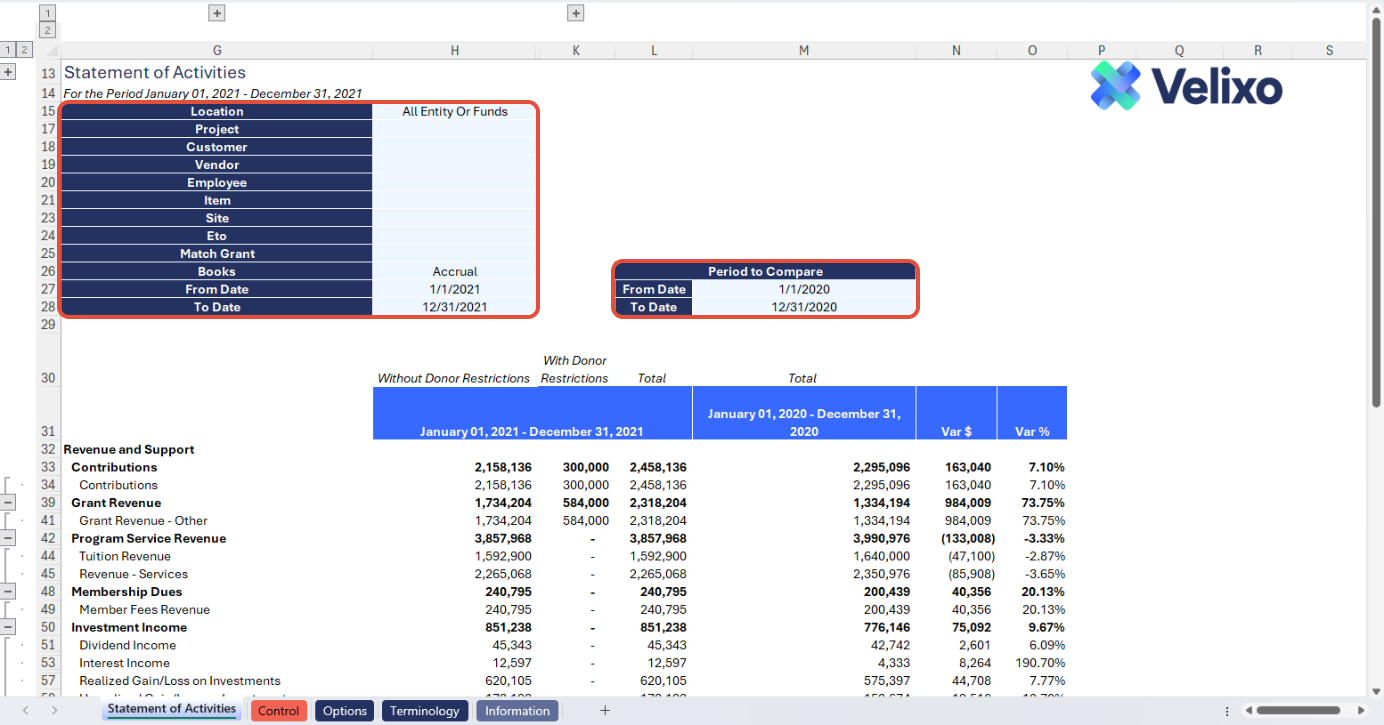
Located in the upper left of the sheet, the filters include the following (note: each dimension filter can be renamed using the Terminology tab). For ease of use, Velixo shows you both the Dimension ID and Name for included standard dimensions. If you leverage user defined dimensions ("UDDs"), Velixo shows the name only, consistent with UDDs' behavior in Sage Intacct. The Display name for each filtering selection is configurable in the Options sheet.
The dimensions you select for use as the Restriction and Functional Expense tracking dimensions will not be available for filtering in the upper left section of your sheet.
-
Location: lists all Entities and Locations present in your Sage Intacct instance, including any custom groups you defined in the Options sheet.
-
Department: Lists all Departments present in your Sage Intacct instance, including any custom groups you defined in the Options sheet.
-
Project: Lists all Projects present in your Sage Intacct instance, including any custom groups you defined in the Options sheet.
-
Customer: Lists all Customers present in your Sage Intacct instance, including any custom groups you defined in the Options sheet.
-
Vendor: Lists all Vendors present in your Sage Intacct instance, including any custom groups you defined in the Options sheet.
-
Employee: Lists all Employees present in your Sage Intacct instance, including any custom groups you defined in the Options sheet.
-
Item: Lists all Items present in your Sage Intacct instance, including any custom groups you defined in the Options sheet.
-
Class: Lists all Classes present in your Sage Intacct instance, including any custom groups you defined in the Options sheet.
-
User defined dimensions: For each user defined dimension, the filter will list each UDD name present in your Sage Intacct instance, including any custom groups you defined in the Options sheet. In the above "Preview" screenshot, Site, ETO, and Match Grant are user defined dimensions. The template is prebuilt to display up to three user-defined dimensions.
-
Books: Lists every type of books defined in your Sage Intacct instance, subject to the selections you made on the Options sheet. The report defaults to the Accrual book, but the user can add multiple books by creating custom book groups in the Options sheet, then choosing the group from the Books filter.
-
From Date: a date field, representing the start date you want to use for your revenue and expense activity. Please enter a date.
-
To Date: a date field, representing the end date you want to use for your revenue and expense activity. Please enter a date.
-
Period to Compare - From Date: a date field, representing the start date you want to use for your comparative period revenues and expenses. Please enter a date.
-
Period to Compare - To Date: a date field, representing the end date you want to use for your comparative period revenues and expenses. Please enter a date.
These filters are seamlessly linked to the data on the Options tab.
Structure
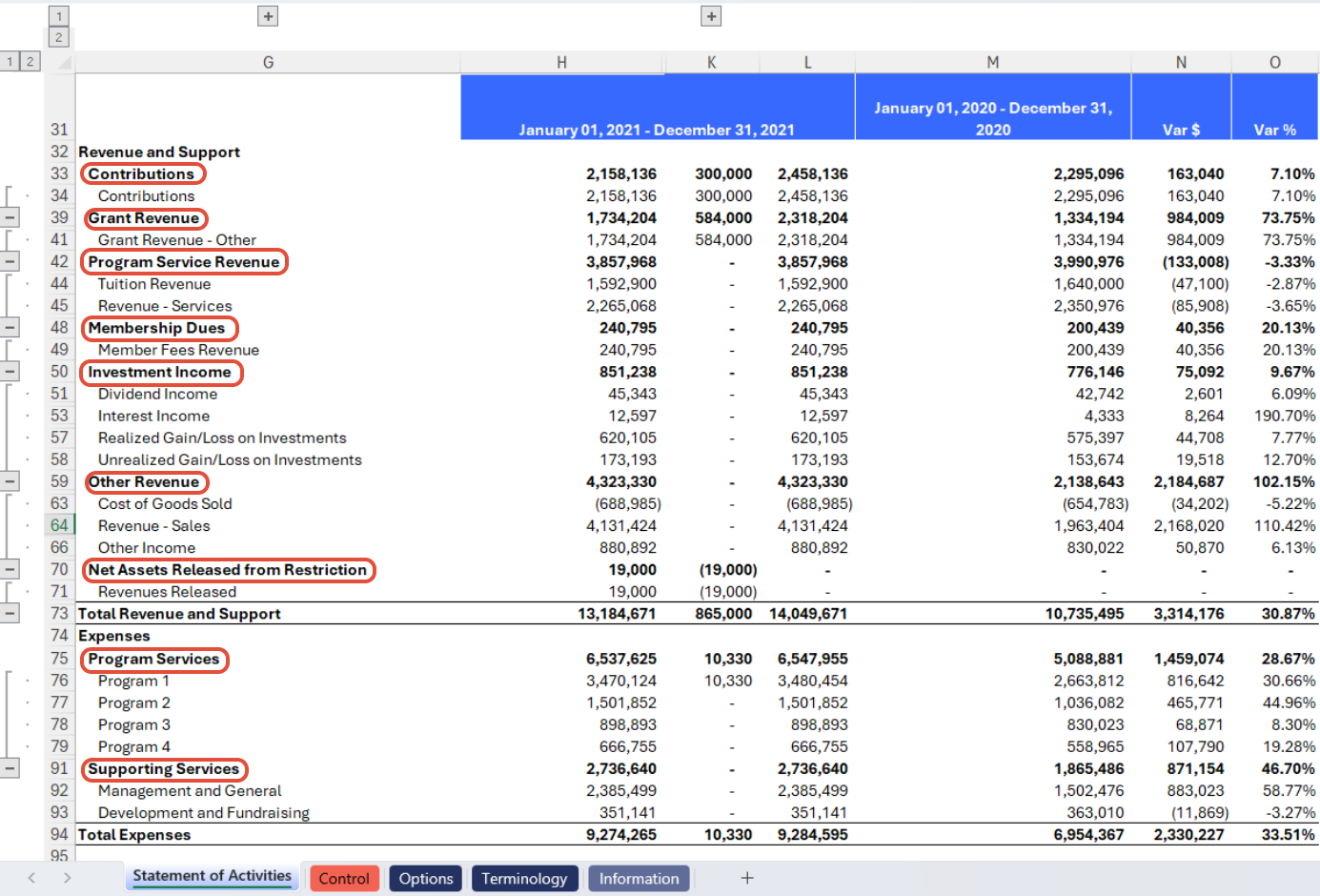
Sections: Velixo has thoughtfully structured the Statement of Activities using multiple common sections that should be generic, by default. The following sections are used by default, with row groupings allowing the user to quickly collapse to a summarized section header level presentation style as desired:
-
Revenue and Support Sections
-
Contributions
-
Grant Revenue
-
Program Service Revenue
-
Membership Dues
-
Investment Income
-
Other Revenue
-
Net Assets Released from Restriction
-
-
Expense Sections
-
Program Services
-
Supporting Services
-
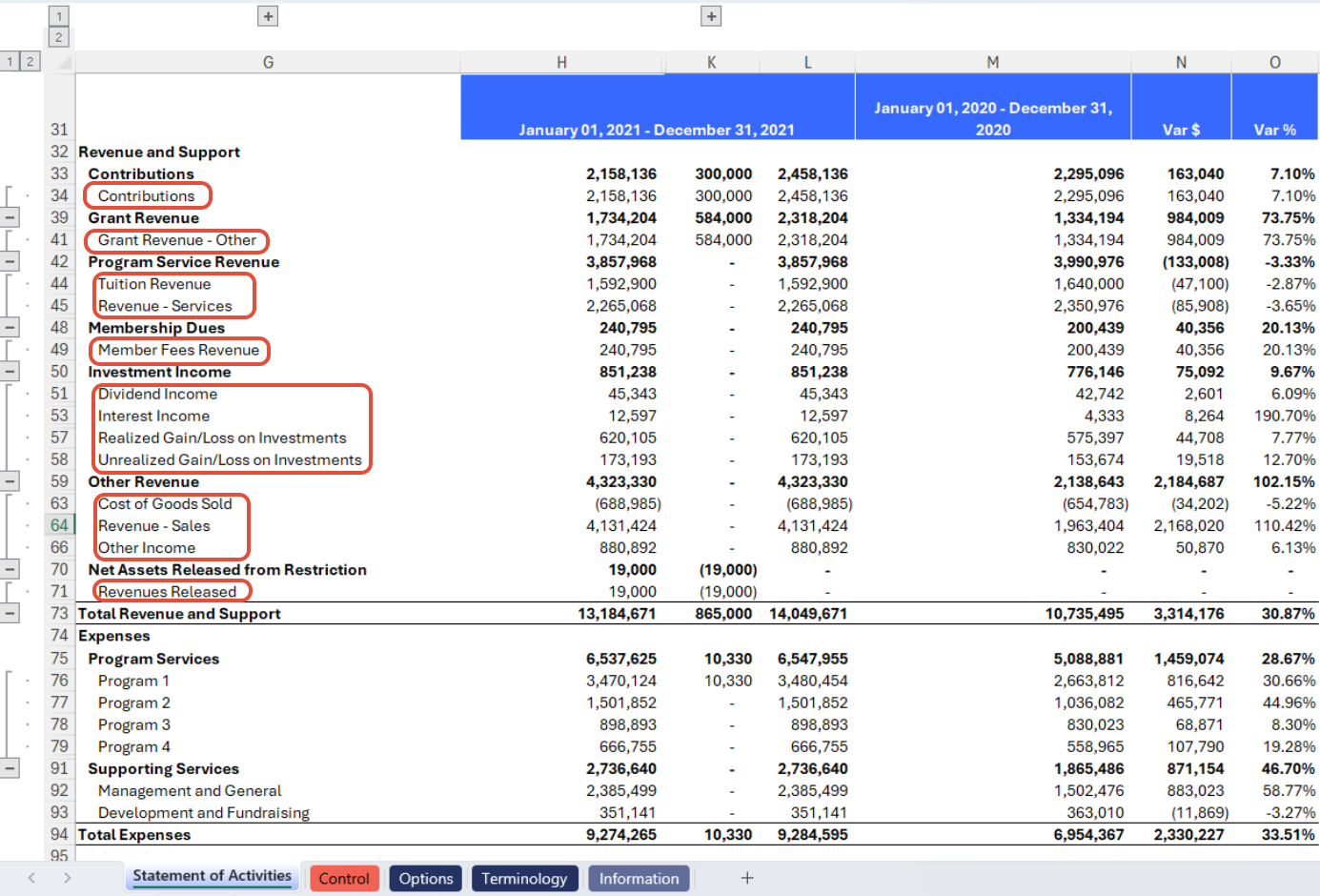
QuickStart Account Categories: Built on the foundation of Sage Intacct out-of-the-box account categories, the template is ready for use post-ERP implementation.
Only minor naming adjustments may have to be considered, see: Understanding Account categories' use in Templates
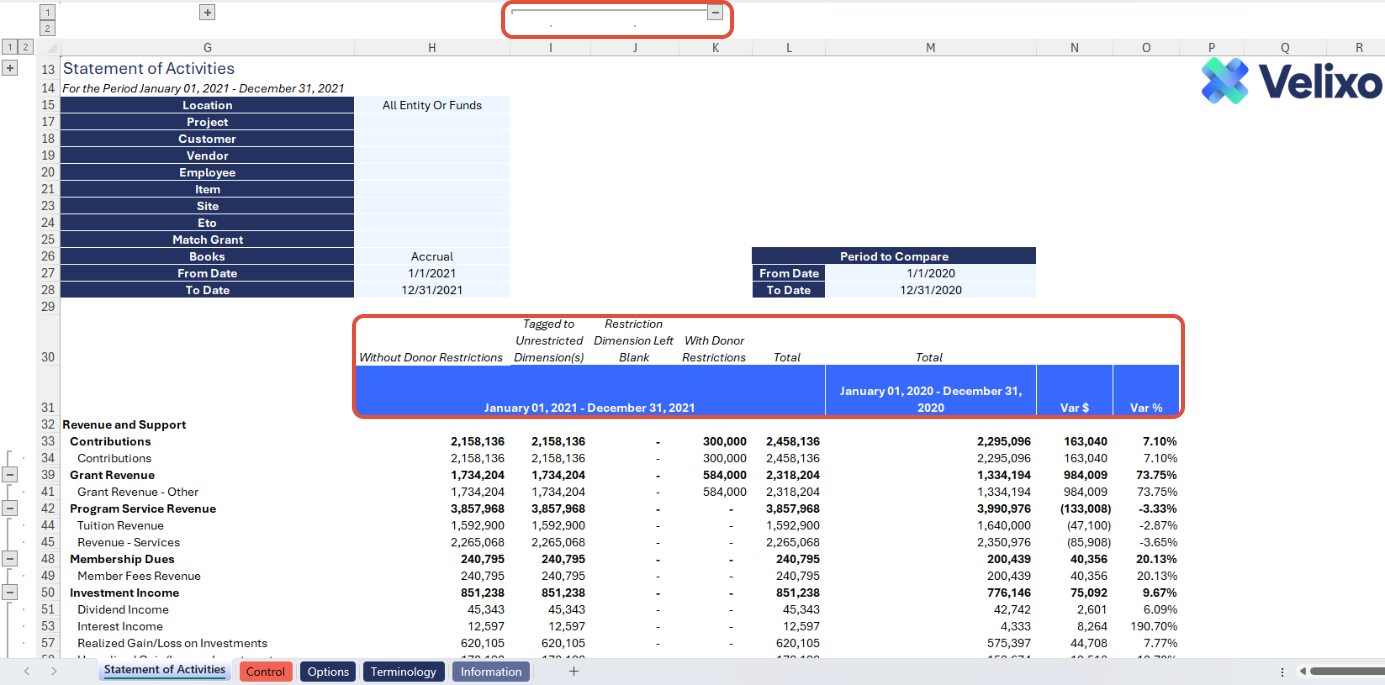
Metrics: The report includes the following metrics (columns):
-
Current Period
-
Without Donor Restrictions - a collapsable column group containing the following:
-
Col H (Without Donor Restrictions): the sum of Col I and Col J
-
Col I (Tagged to Unrestricted Dimension(s)): the turnover between the dates in the "From Date" and "To Date" filters (inclusive) for amounts without donor restriction (tagged to a dimension value representing an unrestricted net asset classification)
-
Col J (Restriction Dimension Left Blank): the turnover between the dates in the "From Date" and "To Date" filters (inclusive) for amounts where the user left the restriction dimension value blank (null) in Sage Intacct data entry
-
-
With Donor Restrictions
-
Col K (With Donor Restrictions): the turnover between the dates in the "From Date" and "To Date" filters (inclusive) for amounts with donor restriction (tagged to a dimension value representing a donor-restricted net asset classification)
-
-
Total (Current Period)
-
Col L: the total of Without Donor Restrictions + With Donor Restrictions for the "From Date" and "To Date" range.
-
-
-
Comparative Period
-
Total (Comparative Period)
-
Col M: the total turnover between the dates in the "From Date" and "To Date" filters (inclusive) for the Period to Compare.
-
-
-
Variance
-
Col N (Var $): the amount difference between the current period and comparative period turnover.
-
Col O (Var %): the variance ratio between the current period and comparative period turnover.
-
Time Periods
The incorporated time periods encompass the following:
Current Period:
-
Provides the turnover between the dates in the "From Date" and "To Date" filters (inclusive), subject to the appropriate net asset classification filters per column.
-
For example, if a user selects From Date 1/1/2023 and To Date 12/31/2023, the returned activity will be the turnover for the calendar year 2023.
-
This automatically supports the flexibility for any variation of date range requirements a user might have (fiscal years, periods shorter or longer than 12 months, etc.) as you are free to define any date range so long as your From Date is not after your To Date!
Comparative Period:
-
Provides the turnover between the dates in the "From Date" and "To Date" filters (inclusive) under the "Period to Compare" header.
-
For example, if a user selects From Date 1/1/2022 and To Date 12/31/2022, the returned activity will be the turnover for the calendar year 2022.
-
The same statement regarding support for flexibility of date range requirements is true here - fiscal years, periods shorter/longer than 12 months, etc. - any date range is acceptable so long as the From Date is not after the To Date!
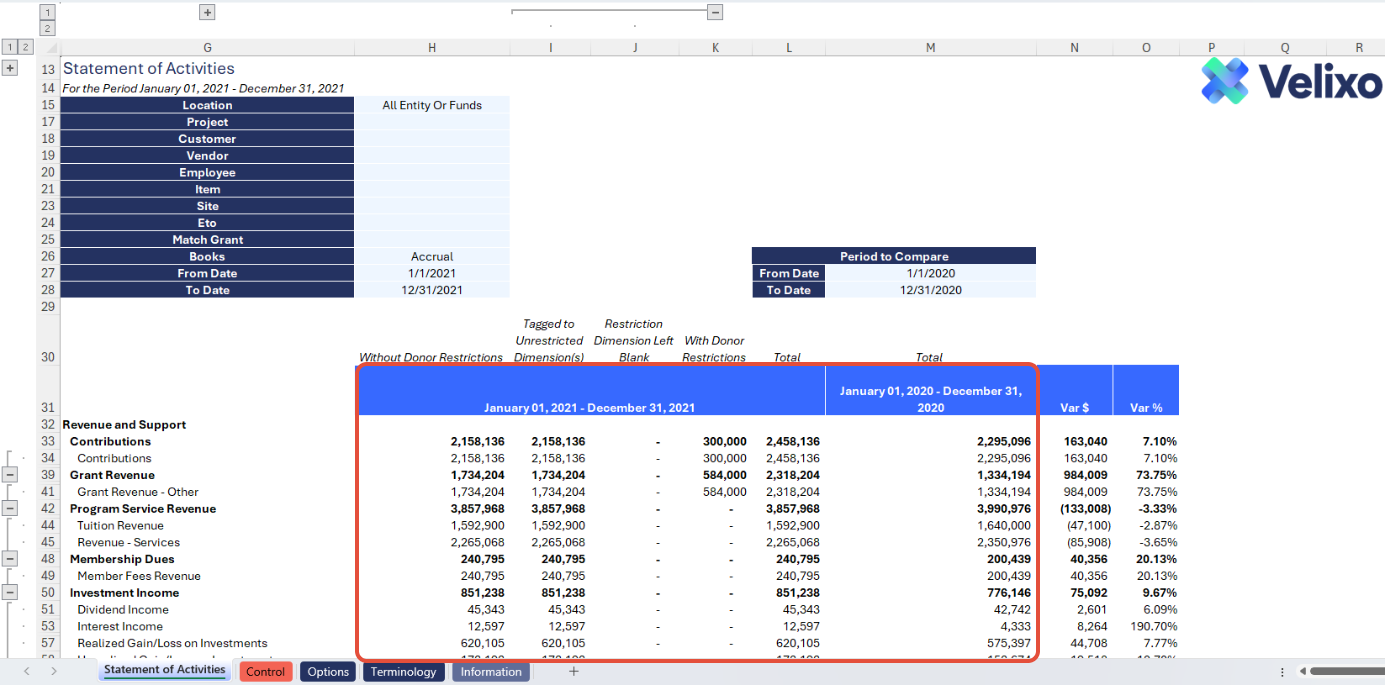
Auto Hide Zero Rows in Selected Range has been configured on the current period and comparative period columns. This means that even if some of Sage Intacct's standard Account categories are not mapped to any of your accounts or if there is no value in any of the current period or comparative period columns, then those account categories will remain hidden and the report will work as expected.
User Guide
Using the report
Now that we've covered the report overview, let's dive into a step-by-step guide on effectively utilizing the report.
-
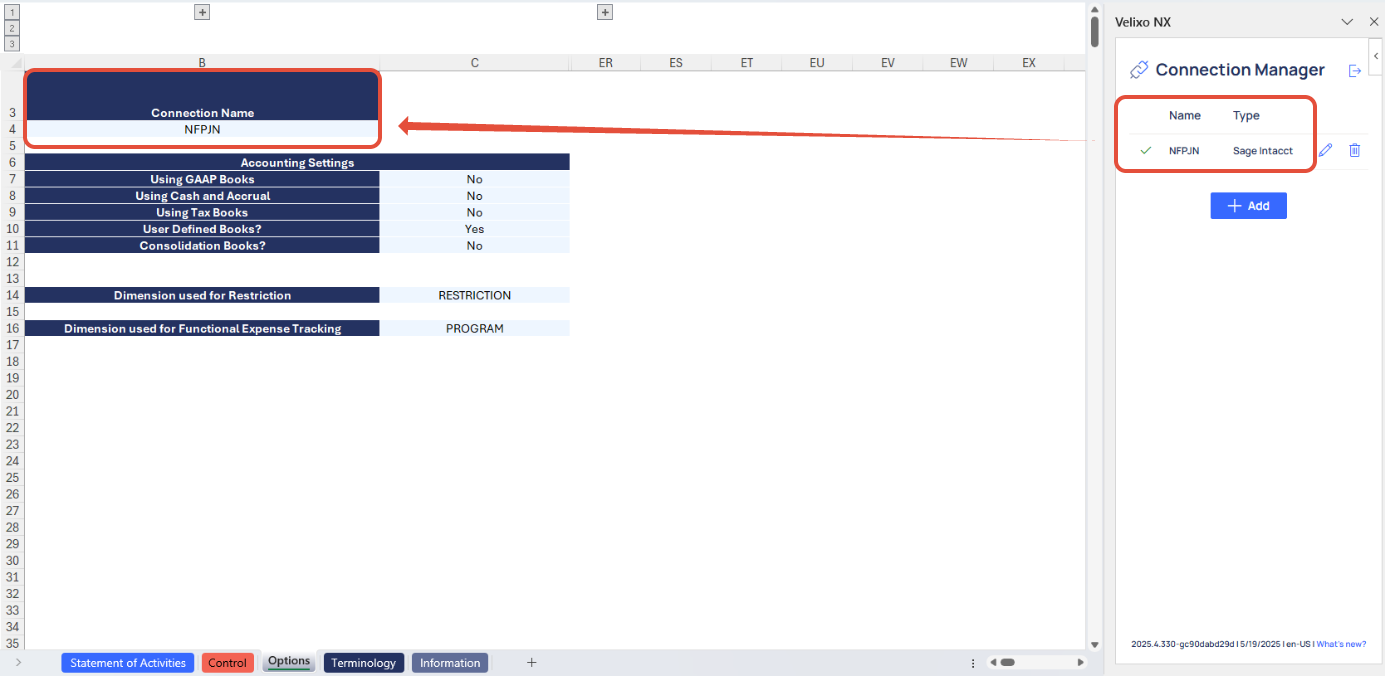
Set the Connection Name on the Options Sheet: crucial for all processes, set the Connection Name on the Options sheet by updating cell B4. Ensure it matches the name used during Velixo application login.
-
Update the Terminology Sheet: The Terminology tab lists your organization's Sage Intacct dimensions along with the dimension's native name and its name in your Sage Intacct instance. You can use this tab to further customize the names you would like to use for some or all of your Sage Intacct dimensions throughout the template. To do so, simply input your desired name in the light blue cells for Singular Term and Plural Term for the dimension. The changes will immediately and automatically persist throughout the template.
-
If your organization leverages user-defined dimensions (UDDs), you must also input the exact integration name for each UDD to ensure seamless use of the dimension throughout the template. Note that the integration name and the Object (record) name are not always the same; check with your Sage Intacct implementer if you are unsure. A user with the appropriate permissions can find the UDD's integration name in Sage Intacct by going to Platform Services > All > Objects and locating the UDD in the Objects list.
-
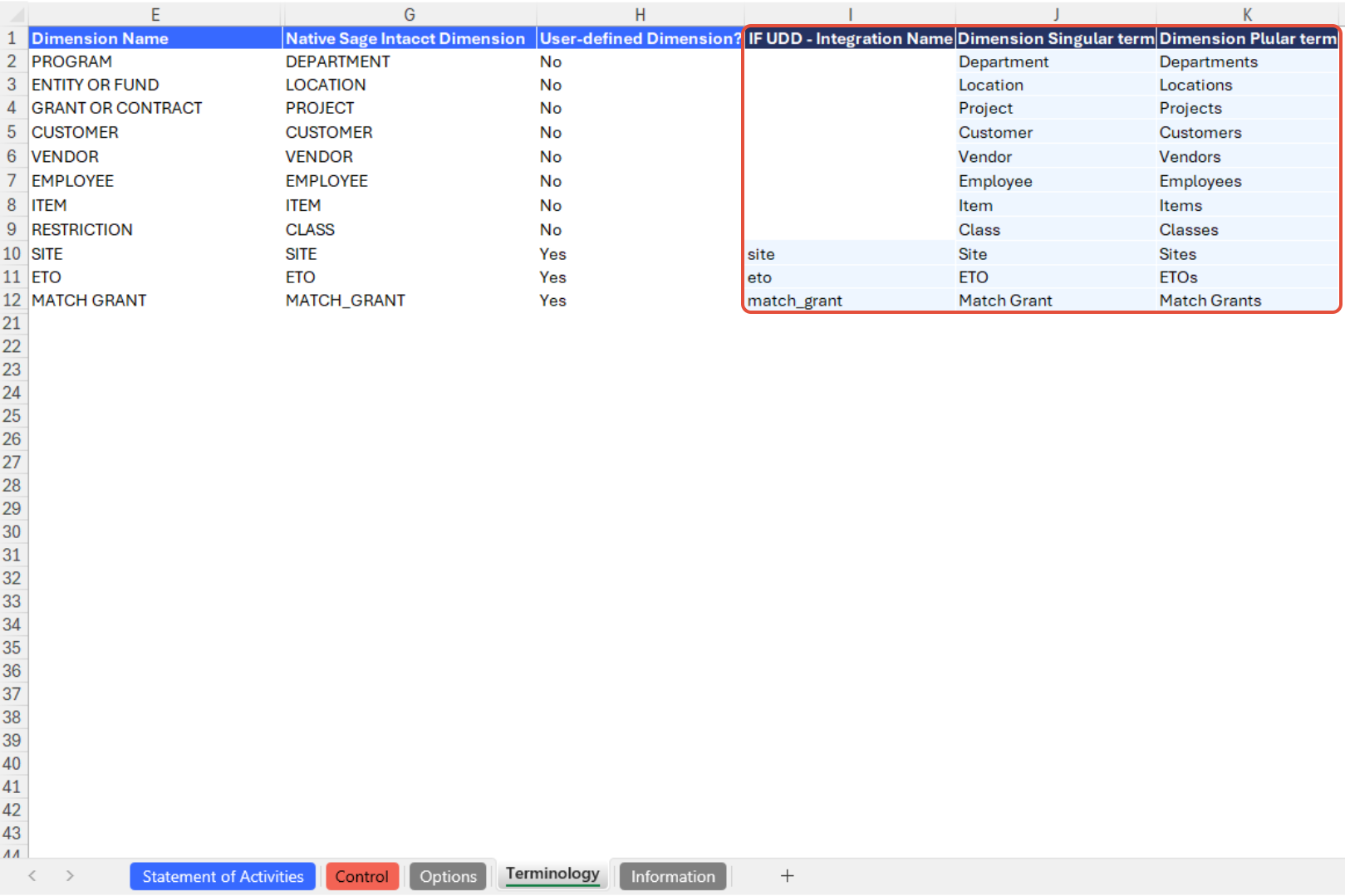

Example of finding the Integration name for a user-defined dimension (UDD).
We recommend updating the Terminology tab before setting any report filters.
-
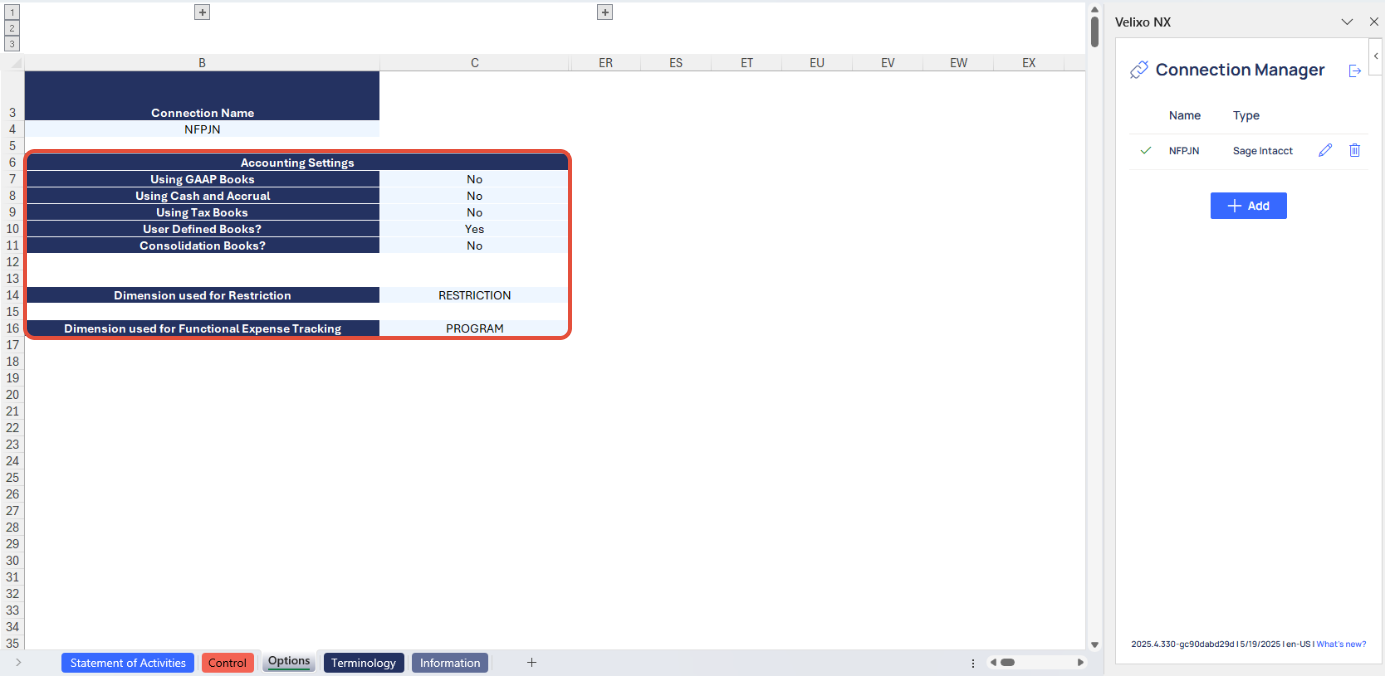
Update the Options Sheet: As the foundation for filters on the Statement of Activities tab, keep the Options sheet up to date. It should always and automatically capture the latest dimensions and structures from your Sage Intacct instance; however, you can also customize it.
-
If your organization uses special reporting books, you can choose to enable or disable the use of those books in your template. This applies to the following book types available in Sage Intacct:
-
GAAP
-
Cash (when using Cash and Accrual accounting)
-
Tax
-
User Defined Books
-
Consolidation (when using Sage Intacct Domestic or Global Consolidations)
-
-
Choose which dimension your organization uses to track Net Asset restriction. Cell C14 presents a drop down list containing your Sage Intacct dimensions.
-
Choose which dimension your organization uses for Functional Expense tracking. Cell C16 presents a drop down list containing your Sage Intacct dimensions.
Your choices here will control which books and dimensions are available for selection in the filters on the Statement of Activities.
After updating the Options sheet, map your organization's specific dimension values on the Statement of Activities as follows:
-
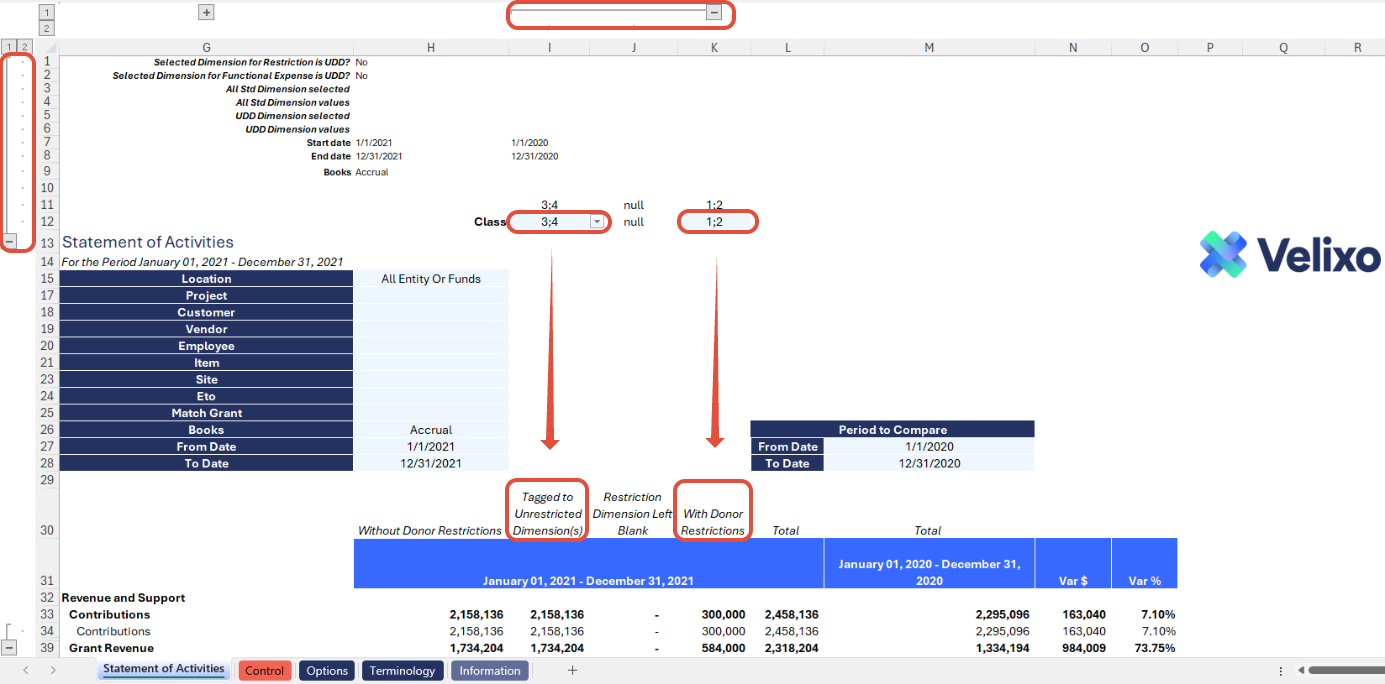
Set Dimension Values for With Donor Restrictions and Without Donor Restrictions on columns:Set the columns for your current period so they align to the appropriate values for your different Net Asset classifications. Click the Expand buttons above column K and to the left of row 13 to begin.
-
Cells I12 and K12 represent dropdown lists containing the dimension values for the dimension you chose as Restriction on the Options sheet. These cells support selection of a Custom group (as created on the Options sheet), a single dimension value, or entry of a Velixo range expression.
-
Cell J12 is pre-filtered to "null." Important: We recommend leaving this as-is to capture any cases where the Restriction dimension was not tagged in your Sage Intacct data. This will help to reduce the likelihood of out-of-balance issues.
-
-
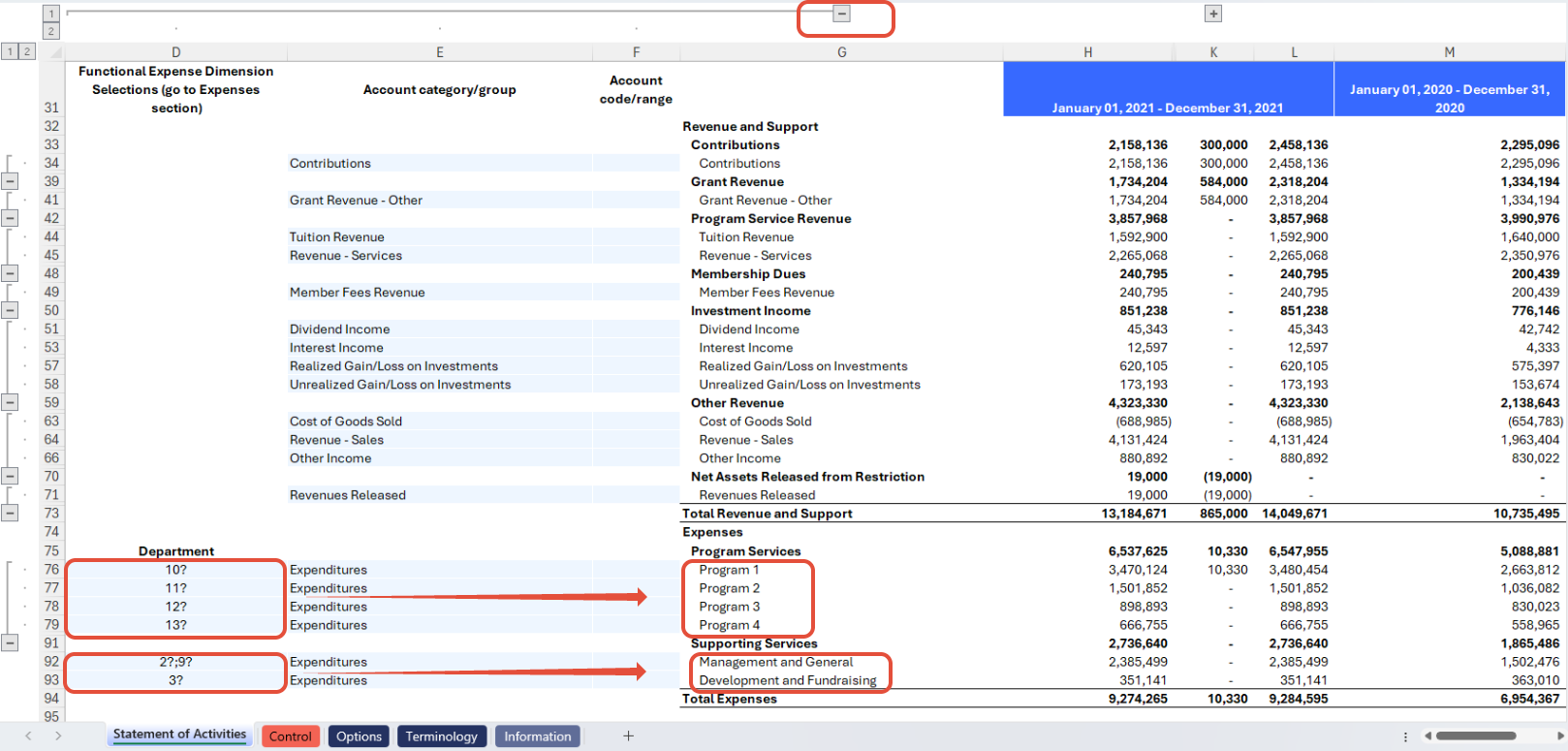
Set Dimension Values for your Functional Expense tracking rows in the Expenses section: Set the Expense rows so they align to the appropriate values matching your desired level of detail in Functional Expense breakout within the Statement of Activities. This will vary by organization; accordingly, Velixo has pre-built this template with excess capacity to allow for user input of up to 15 lines of breakout within the Programs section. Any unused lines will be hidden automatically by Velixo's auto-hide functionality. Click the Expand button above column G to begin.
-
Starting in cell D76, the light blue cells in the column represent dropdown lists containing the dimension values for the dimension you chose as Functional Expense tracking on the Options sheet. These cells support selection of a Custom group (as created on the Options sheet), a single dimension value, or entry of a Velixo range expression.
-
Important: We recommend filtering one row to null to capture any cases where your organization's Sage Intacct data is not tagged to the Functional Expense dimension. This will help to reduce the likelihood of out-of-balance issues. If you have never recorded data without tagging this dimension, you can omit this step.
-
-
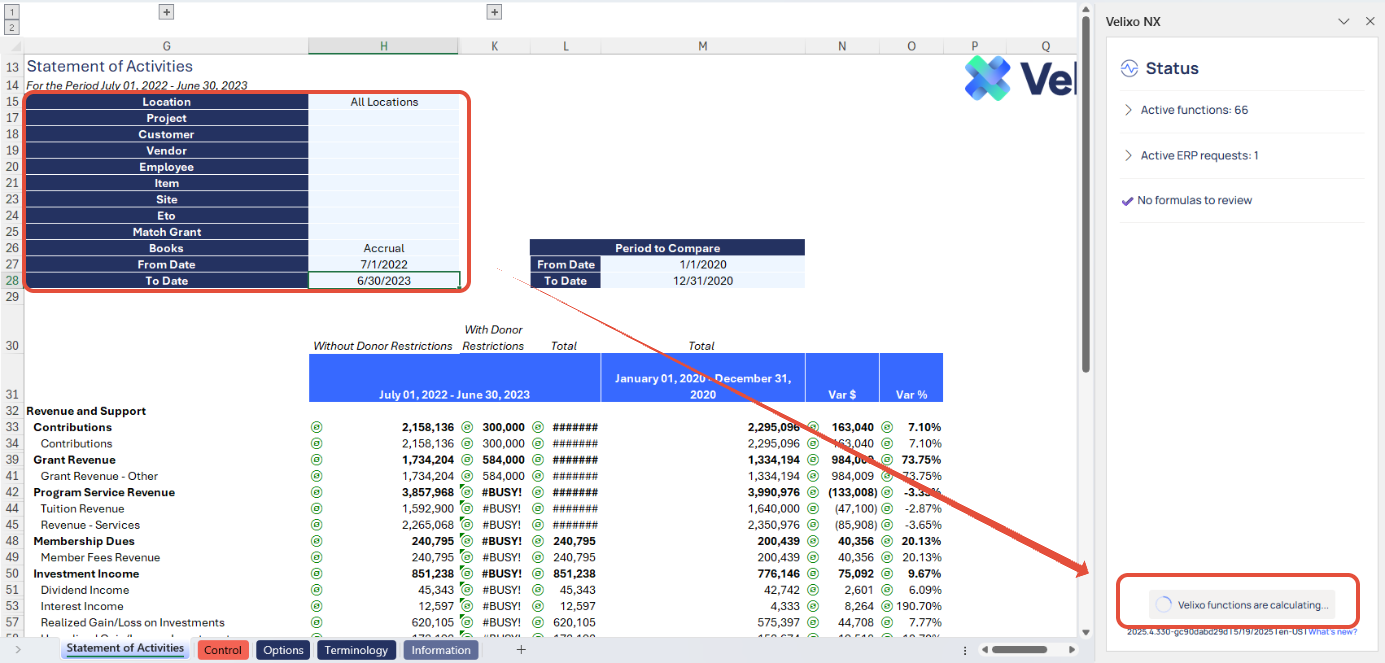
Choose Desired Filters: After updating the Options sheet and Net Asset classifications, select desired filters for the report:
-
Dimensions
-
Books
-
From Date and To Date for current period
-
From Date and To Date for comparative period
-

-
Automatic Report Update: Selecting any filter will automatically update report balances. Begin analyzing the report with the latest data.
-
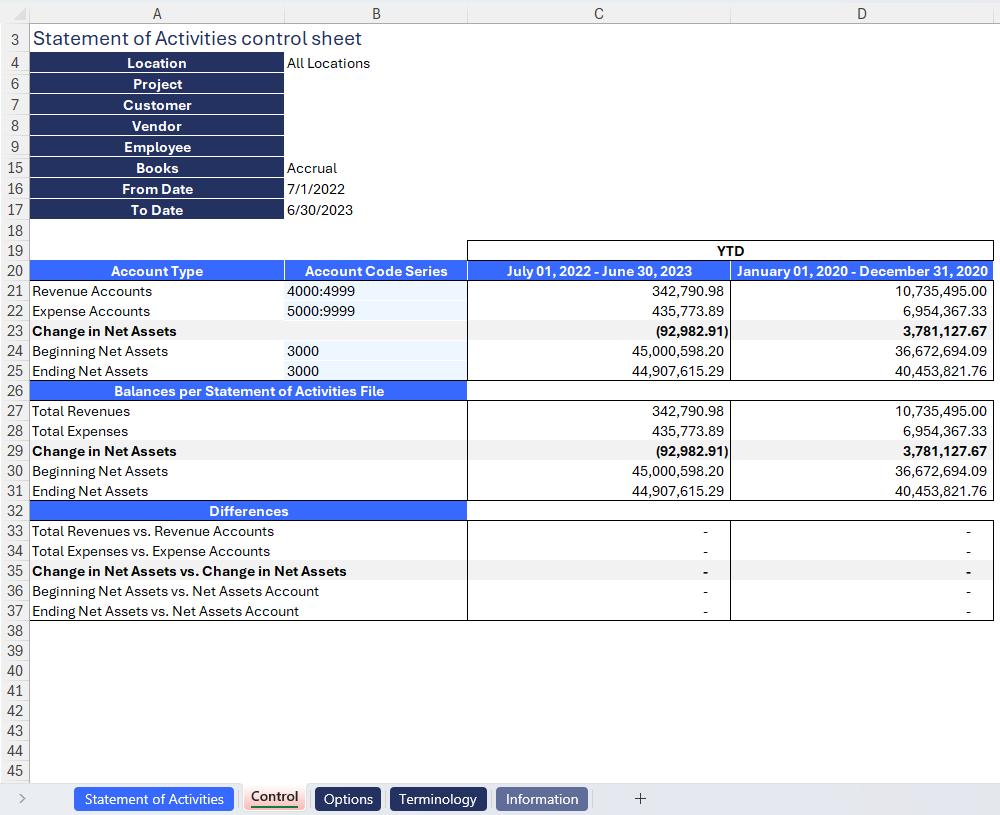
Validation and analysis: ensure accuracy by verifying balances in the Control sheet. Confirm that differences for each total are zero.
-
Variances investigation: if discrepancies arise between data extracted at the account category and account code levels, conduct a thorough investigation to resolve any differences.
Using the Control report
Committed to upholding data integrity across the report and Sage Intacct, the Control sheet serves as a supplementary component to the primary Statement of Activities tab. Its purpose is to validate the data extracted by Velixo on an account category basis by cross-referencing it with the extracted balances at the account code level.
Given that the balances of the account codes aggregate to the account category, the Control sheet ensures the absence of discrepancies in the total for each account type. The verification process enhances the readability and accuracy of the overall financial reporting template.
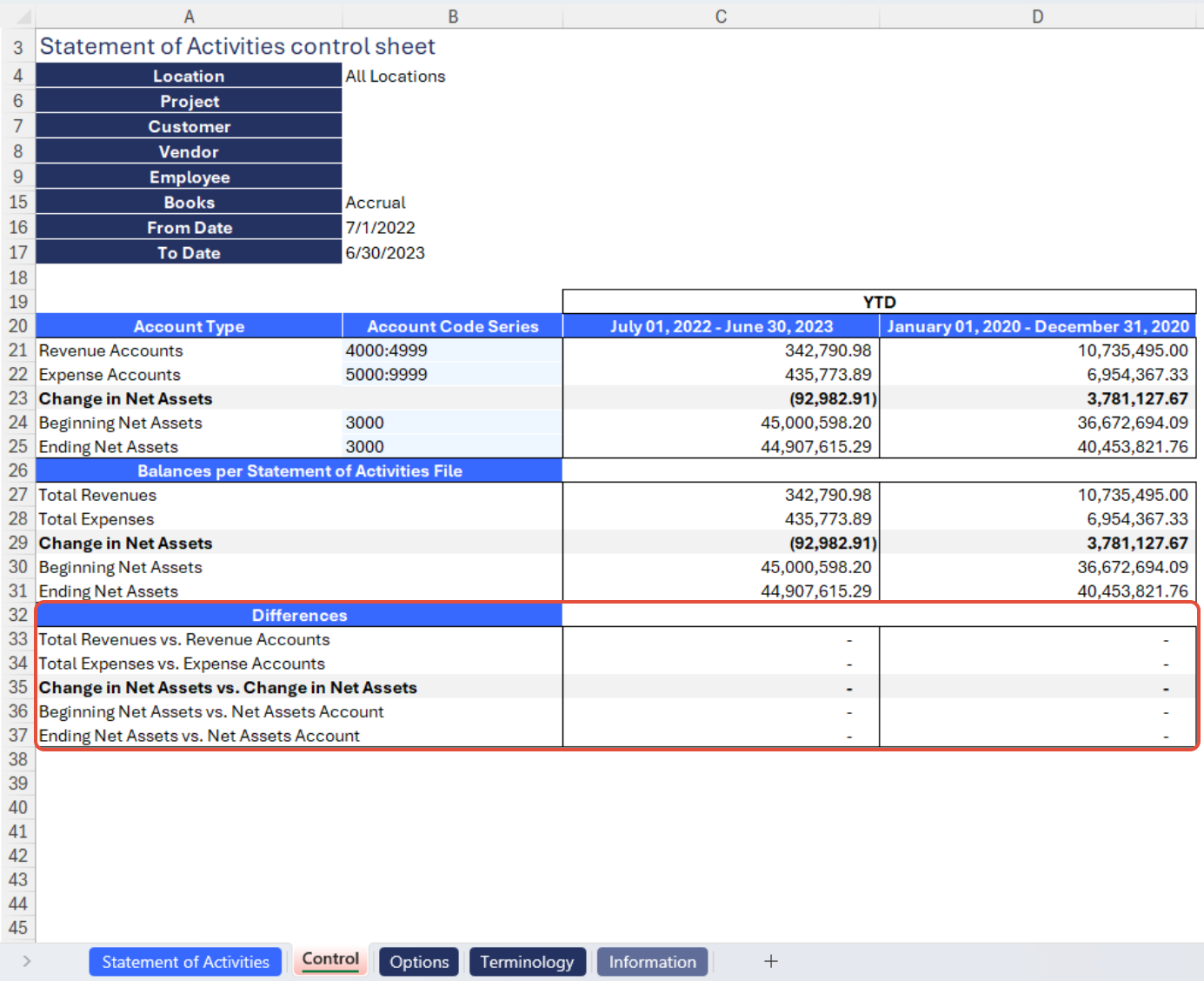
The Control sheet is divided into three sections:
-
Account Code Balance Check: Extracting balances at the account code level to guarantee accurate capture and reconciliation of revenue, expense, change in net assets, beginning net assets, and ending net assets balances with the account categories listed on the Statement of Activities tab. The Account code series is highly flexible, and users may adjust the settings to match their specific requirements at any time.
-
Balances per Statement of Activities File: Displays total balances from the Statement of Activities tab for reconciliation with the Account Code balance section.
-
Differences: Highlights reconciliatory differences between the Account code and account category sections, flagged with conditional formatting for investigation.
In a Statement of Activities, it is crucial that the Ending Net Assets match the sum of the Beginning Net Assets and Change in Net Assets for the chosen period. To ensure it is as obvious as possible, we check for any differences at the overall Statement of Activities level on the face of the report itself and flag immediately if it is out of balance.
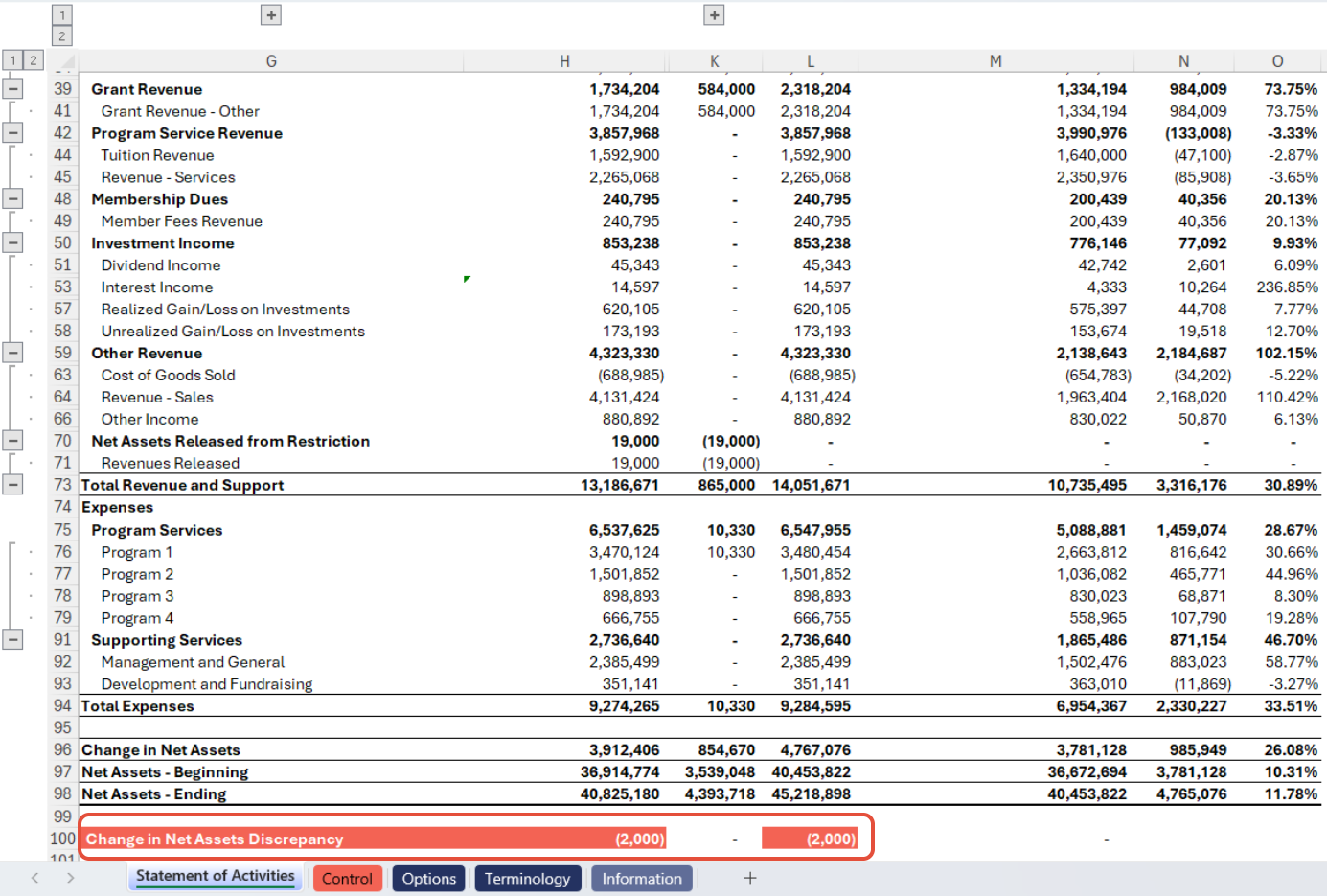
If any discrepancies in the report are displayed, it could be caused by a custom structure on the Statement of Activities tab, missing account categories, renamed account categories or any user customizations.
To troubleshoot further, you could redownload or reconnect the report to your instance, verify that no account category row returns any error, and perform data validations by comparing this report with Sage Intacct's out-of-the-box financial reports. If you believe the report contains an error, please report it to Velixo Support.
Understanding the Report Formula
Velixo created the template using a combination of Excel functions and Velixo functions for the Statement of Activities report. The report incorporates three primary formulas on the Statement of Activities tab:
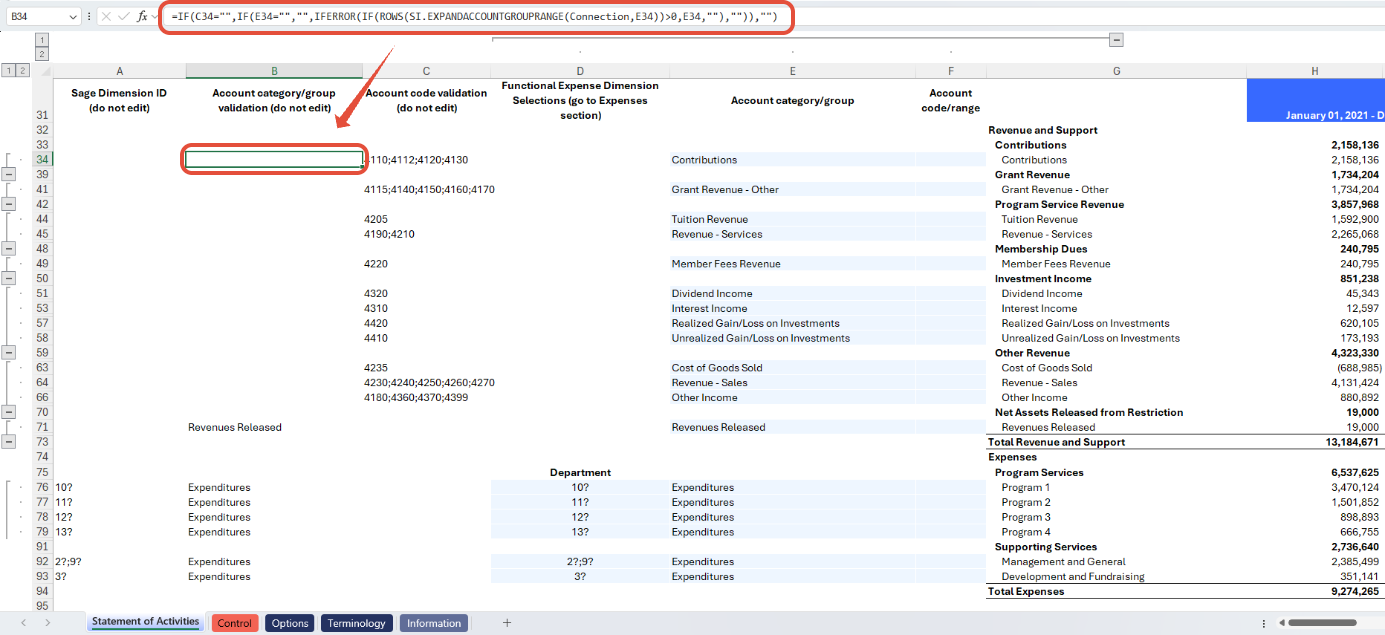
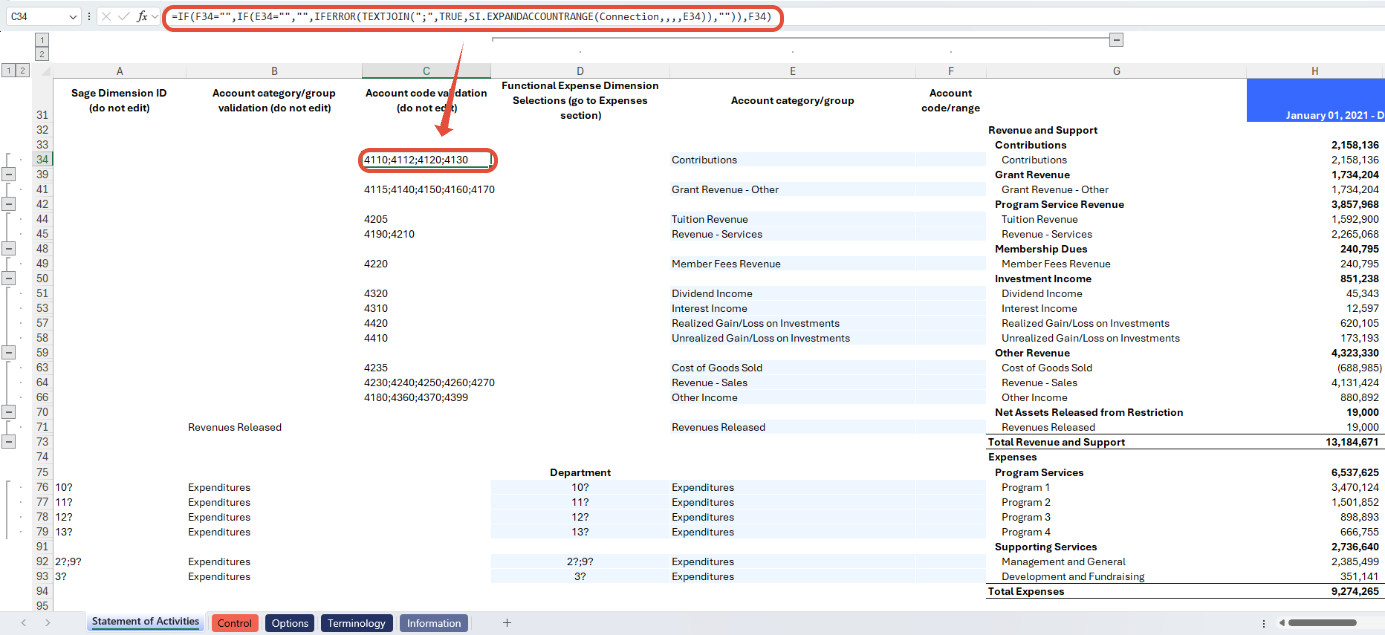
Account Group Validation
-
In Column B, a validation formula was used to verify if the account group in Column E exists in Sage Intacct.
-
Invalid values (not in Sage Intacct) return as blank.
-
Ensure continuous use of this formula for any account group additions or name changes; a correctly populated formula ensures accurate transaction amounts.
Account Code Validation
-
Column C contains a validation formula designed to retrieve mapped account codes to the corresponding QuickStart category in Column E. If no account codes are mapped to the specified QuickStart category in the ERP, it will return a blank value.
-
The retrieved account codes serve as the foundation for the Transaction Amount calculation formula.
-
This process exclusively applies to QuickStart categories. If an account group is specified in Column E instead, it will return a blank value, prompting the formula to reference the Account code/range in Column F instead for calculation purposes.
Transaction Amount formula
-
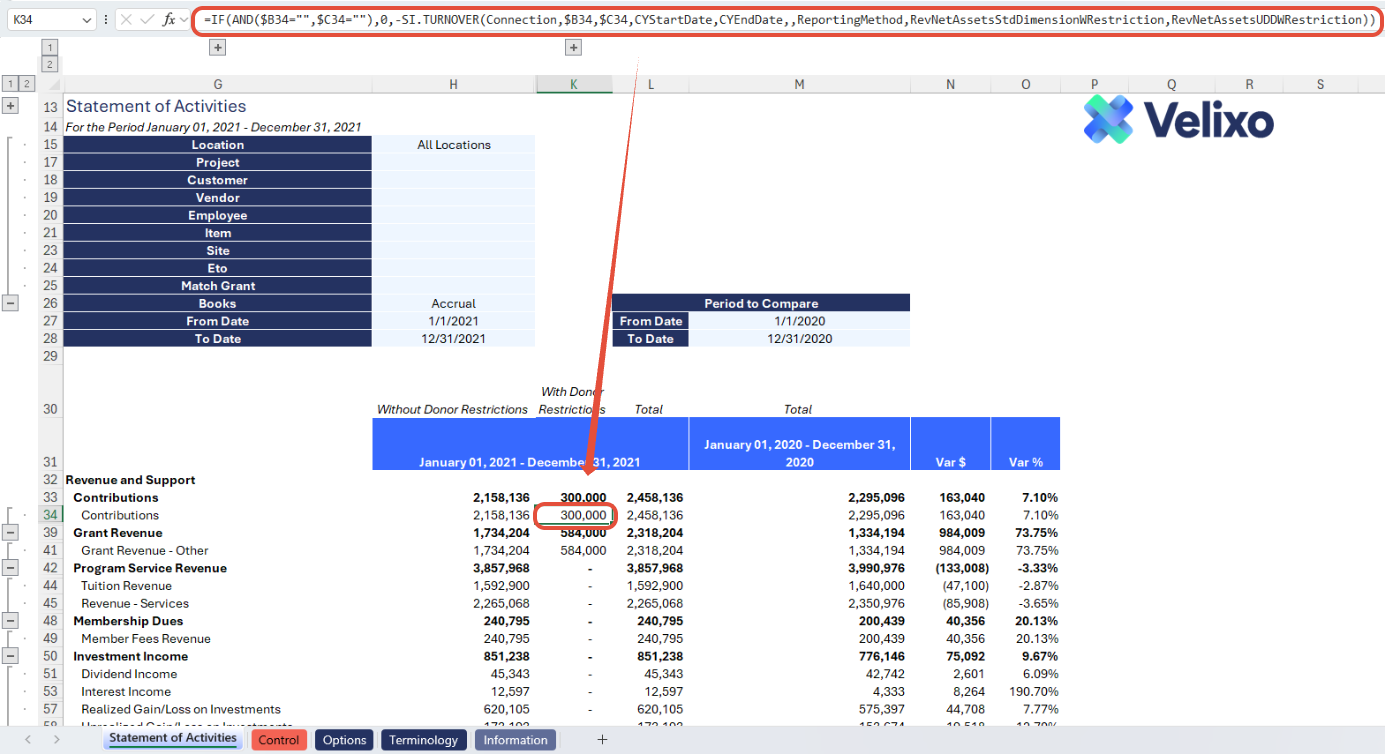
Used in current period and comparative period columns, this formula's primary objective is to extract balances for the account categories from Sage Intacct.
-
Velixo functions, specifically SI.TURNOVER, power these columns.
-
To facilitate flawless execution of Velixo functions, an IF statement is strategically placed.
-
The validation formulas for account codes and account groups ensure that any invalid inputs result in blanks. The IF statement discerns the validity of the input: if both columns B and C are blank, the transaction amount formula sets the amount to zero. Conversely, if the category is valid and has mapped accounts associated with it, or if the account group is valid within the ERP system, the balance is extracted using the Velixo function.
Customizing the template
Reviewing the Options sheet
The Options tab comprises Sage Intacct dimensions, and other attributes and structures used in the report. The information updates in real-time with Velixo app refresh, facilitating immediate integration of newly added ERP data into the report as filters. Due to the volume of data potentially available, this information is organized into collapsed groupings for a less overwhelming, easier user experience.
This includes:
-
Connection Name
-
Accounting Settings
-
Standard Dimensions (Location, Department, Project, Customer, Vendor, Employee, Item, Class)
-
User Defined Dimension (Prebuilt to account for up to three UDDs, though you can customize for as many as you like if you have more)
-
Books
-
GL Accounts
-
Account Groups
-
Reporting Periods
Finally, a Template-Specific Lists/Filters section lists additional helpful information and gives you an optional template tool to create a query filter (if needed to create more complex grouping/filtering criteria). See the SI.QUERYFILTER and SI.QUERY topics for further information.
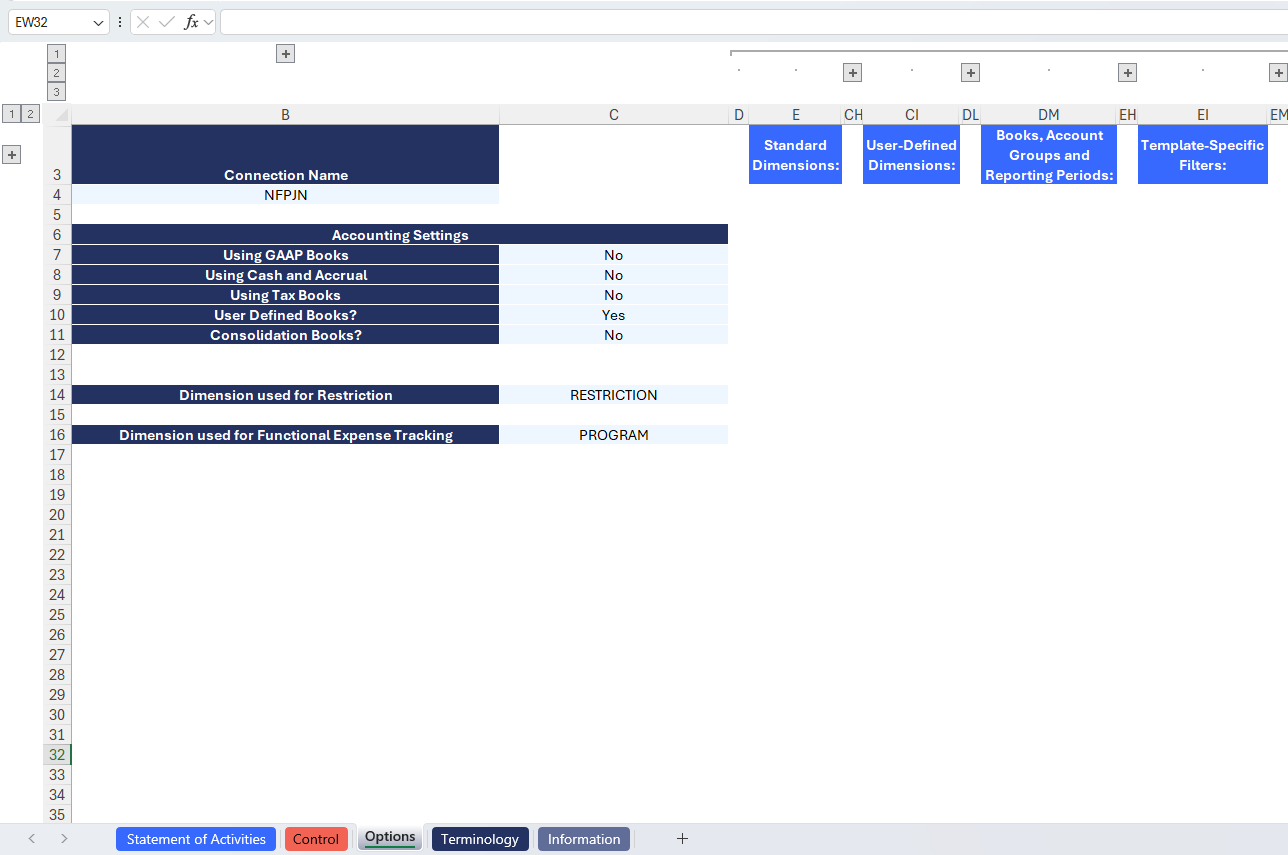
The Connection Name is subject to variation depending on the user input provided through the Velixo login portal. For convenience, users may add the connection name used on cell B4. This cell has been designated as a named range (Connection), ensuring its automatic application to all formulas throughout the sheet.
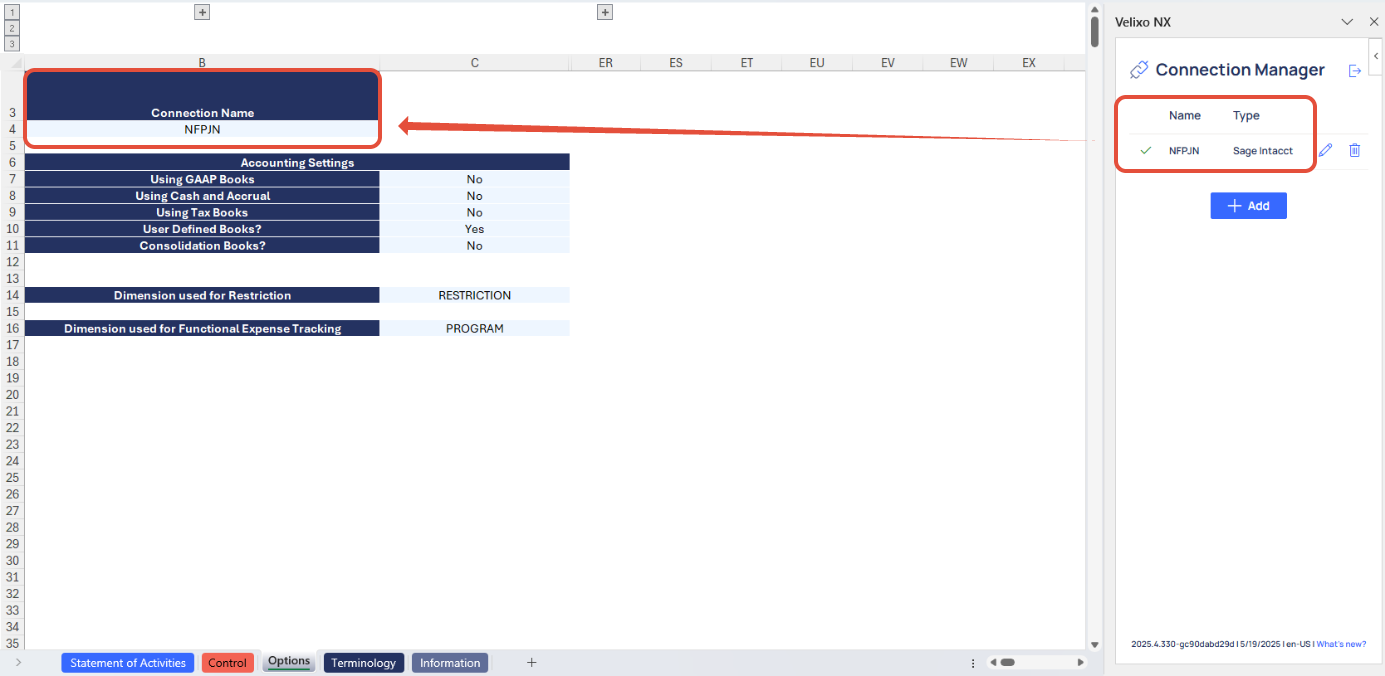
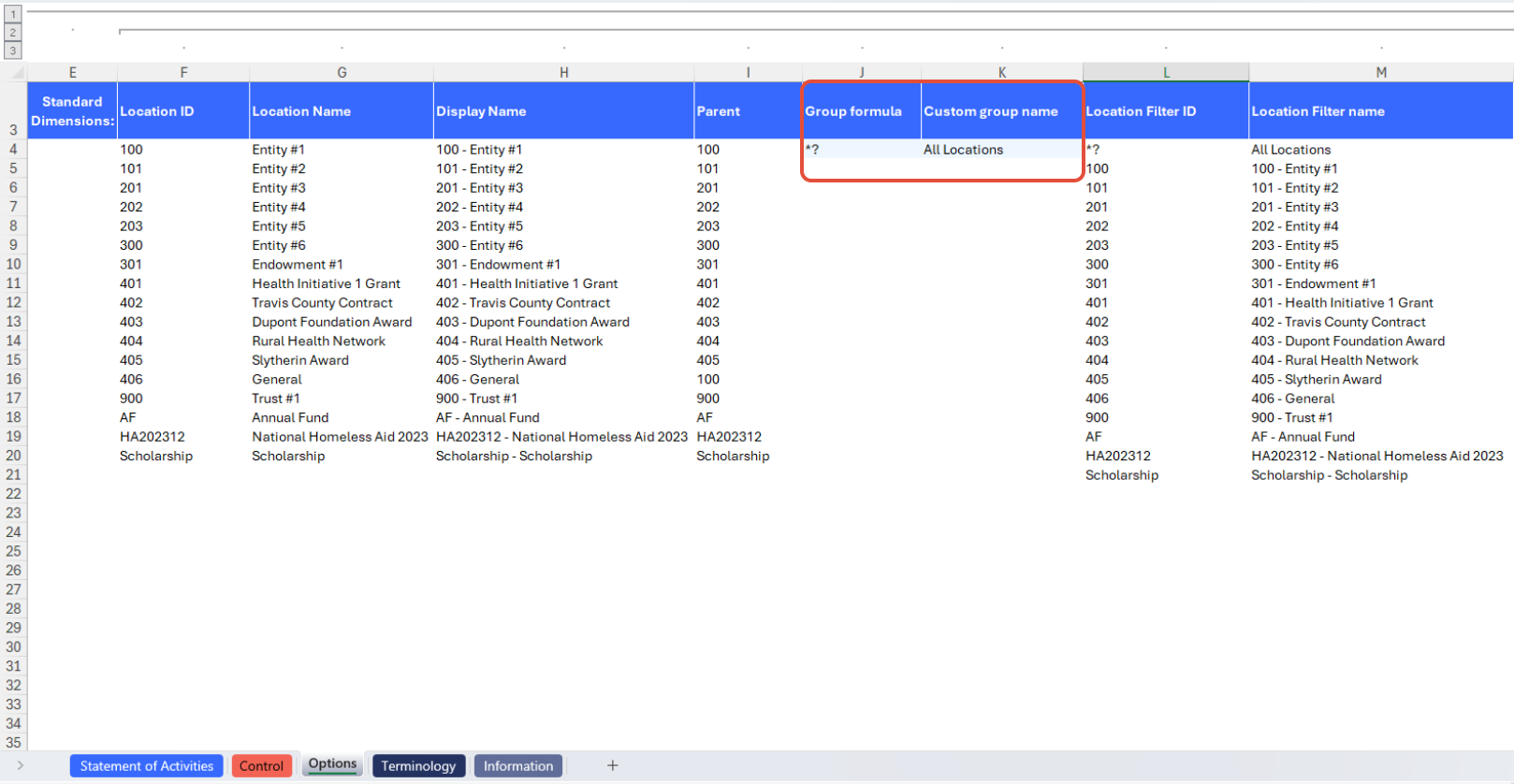
Users can also customize their dimensions by adding their preferred custom values, using a list and ranges as described in this article. The ability to define custom values for grouping is prebuilt into this template for standard dimensions, user defined dimensions, and books.
To do so:
-
Expand the column group for your desired dimension (eg. Location or Department).
-
Then, simply input the desired values in the Group formula and Custom group name columns, highlighted in light blue for quick identification.
Managing Account Structures
The calculated transaction amounts are determined solely by the account codes mapped to the QuickStart category in Column E. This ensures the report is fully ready for use by anyone, 100% out-of-the-box, provided the account codes are accurately linked to the QuickStart category in Sage Intacct.
However, as outlined earlier in this document, users have the flexibility to tailor this report to their specific needs. It is not required, but may be useful if the default QuickStart categories don't quite fit your requirements.
Adding New Account Category
If users desire a structure beyond the provided account categories, they can leverage account groups set up in their ERP instance. However, caution is crucial to avoid overlap between account groups, preventing inaccuracies. Opting for a granular account category list ensures data is accurate.
Users have two options when adding a new account structure:
-
Re-purposing an existing Account Category:
-
Rename an existing account category line, replacing it with the desired custom account group.
-
Ensure exact naming consistency with the ERP instance for Velixo to accurately return amounts.
-
-
Adding a Row in the Statement of Activities section: Use Excel functions to add a new row in the desired section.
-
Use Excel functions to add a new row in the desired section.
-
Be cautious with formulas in newly added rows; copying from existing rows in the same section ensures accurate results.
-
Removing an Account Category
While users have the freedom to remove an account category, it's strongly discouraged if you intend on using other account categories in the future. Velixo templates make use of Velixo's automatic hiding of rows with zero values, which has been configured on all current period and comparative period actual values.
This feature eliminates the need for manual deletions of account category rows and ensures the report remains fully dynamic should usage of account categories change over years or transactions get created against new account categories.
However, if you are certain that some of the standard account categories will not be used by your organization, then feel free to delete them:
-
Utilize Excel's delete row function for removal, followed by thorough data validation and reconciliation on the report.
-
Always validate data accuracy using the Control sheet.
Grouping Account Groups
The user can group multiple account groups into one to create a summary account. Velixo enabled this feature so that the user can consolidate similar account groups and present them in the Statement of Activities as one category.
-
On Column E of the Statement of Activities tab, the user can list all the account groups and use the semi-colon ( ; ) delimiter to group them.
-
If needed, rename the account category on column K reflecting the name for the consolidated account group from Column E.
Users also have the ability to group QuickStart categories to form custom ones. However, currently, merging QuickStart categories with Account Groups is not feasible. This functionality will only be available if the QuickStart category aligns precisely with an account group. This is not recommended as it may lead to data inaccuracies.
Use of Account Codes/Ranges
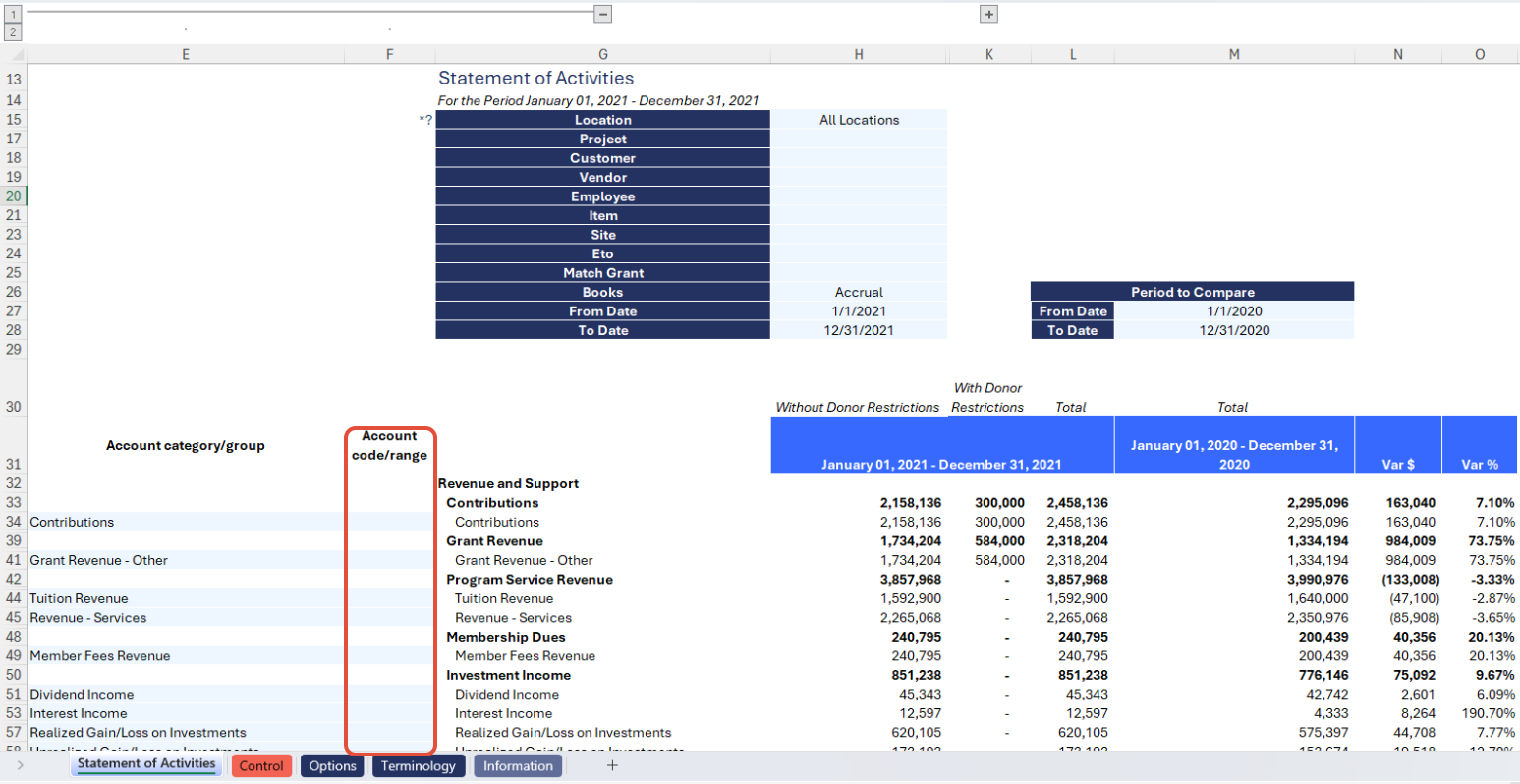
As an additional feature, Velixo added the ability to use Account Code or Account Code ranges to extract the balance for the category.
-
On column F of the Statement of Financial Position tab, users can list all the account code or ranges they wish to use or consolidate. Like account groups, the semi-colon delimiter should be used for groupings.
-
If needed, rename the account category on column G reflecting the name for the consolidated account group from Column F.
Please note that Account Group and Account Code cannot be used at the same time. If both have values, it will result in calculation errors for the transaction balances. If a structure is not used, leave it blank to prevent errors.
Version history
|
Version |
Released on |
Changes |
|
1 |
N/A - Early Adopters only |
N/A. Initial version of the template.
|
|
1.1 |
August 5, 2025 |
|