
Overview
Occasionally in troubleshooting an issue, it can be helpful (and you may be directed by Velixo Technical Support) to uninstall and then reinstall Velixo.
Let's look at the options available to you for uninstalling the product.
Using the Installer Program
Step 1
If you still have the installer program you used to install your Velixo software, you can use that.
If not, you can download that installer for your specific ERP from the Download and Install the Excel Add-in article.
Step 2 Run the installer
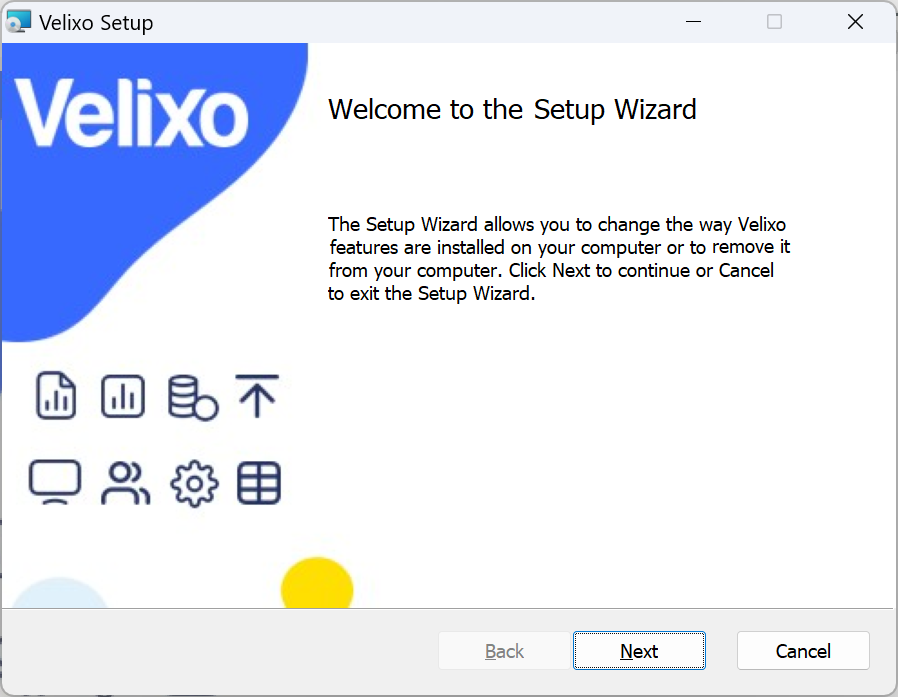
The first screen will inform you that you can make changes. Click Next.
Step 3
On the next screen, click the Remove button.
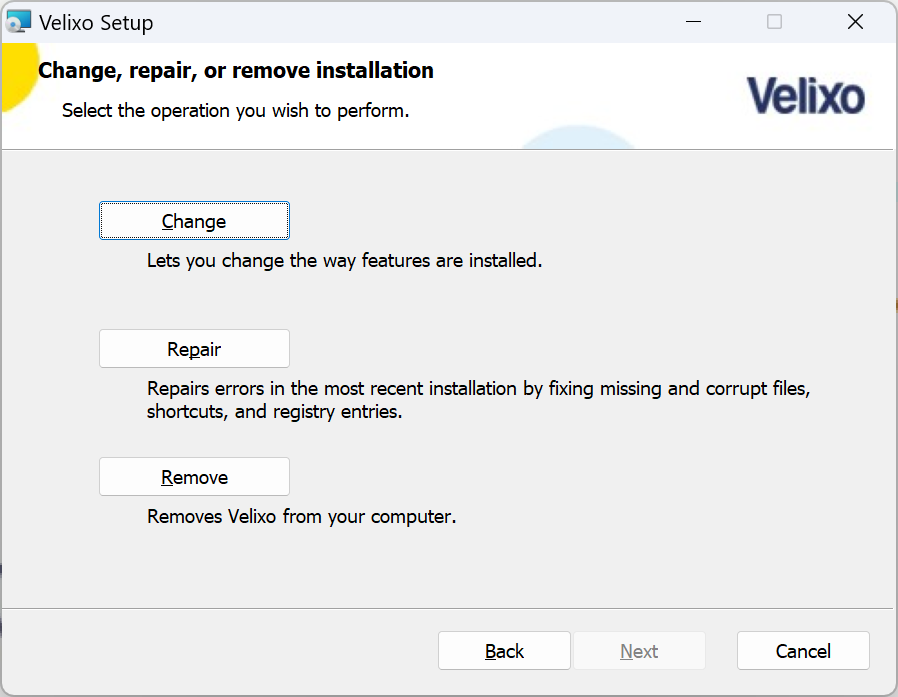
Step 4
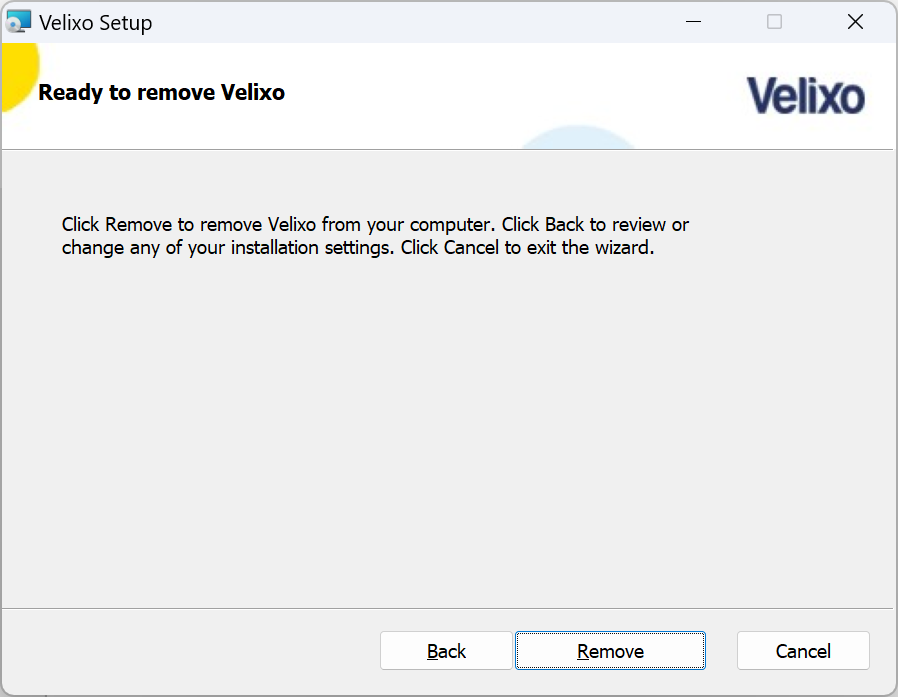
On the Ready screen, click the Remove button, again...
Uninstalling takes only a few seconds. When complete, click the Finish button.
Using Apps & Features
Step 1
If you do not have the installer program you used to install your Velixo software and you not using the latest release, you can still uninstall using the Windows Apps and Features system settings.
Step 2
On the Windows Task Bar, type Apps & Features in the search box:
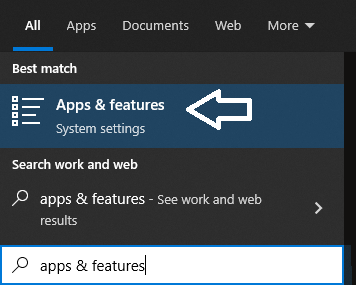
and select the displayed System Settings to proceed.
Step 3
Scroll down through the alphabetical lists until you find the entry for Velixo:
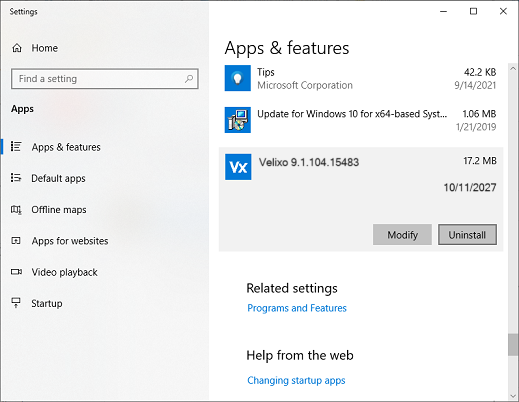
Click Uninstall
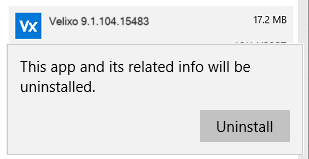
When prompted, click Uninstall (again)
Using Windows Control Panel
Step 1
If you do not have the installer program you used to install your Velixo software and you not using the latest release, you can still uninstall using the Windows Control Panel.
Step 2
On the Windows Task Bar, type Control Panel in the search box:
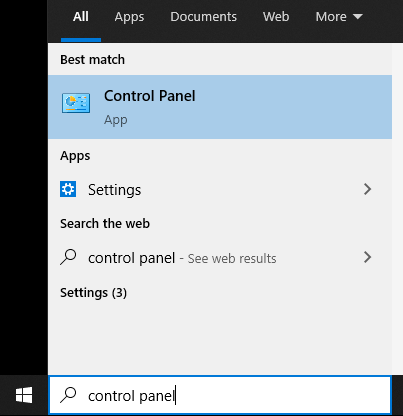
and select the displayed App to start it.
Step 3a
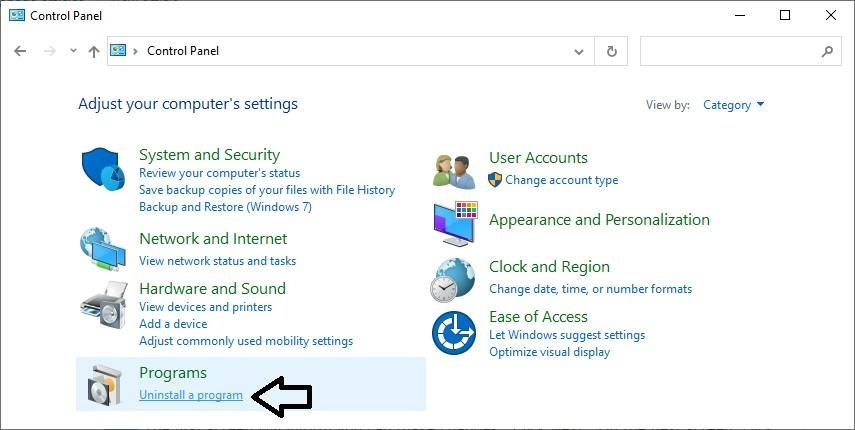
If Control Panel displays in "Category" mode, select Uninstall a Program
Step 3b
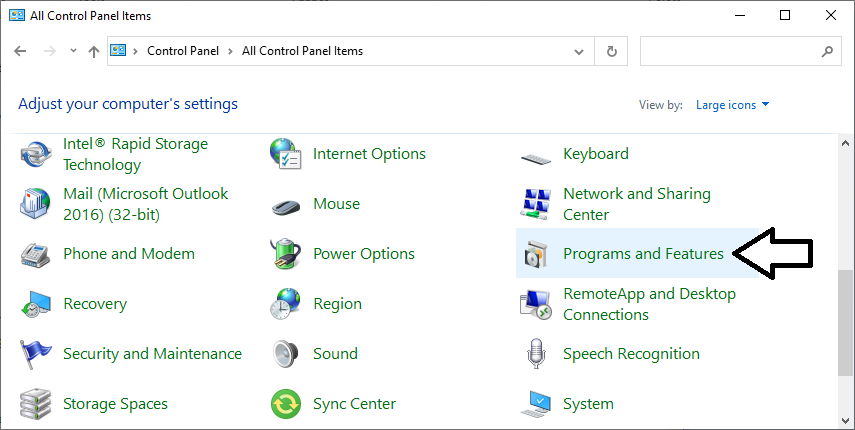
If Control Panel displays in "Icon" mode, select Programs and Features
Step 4
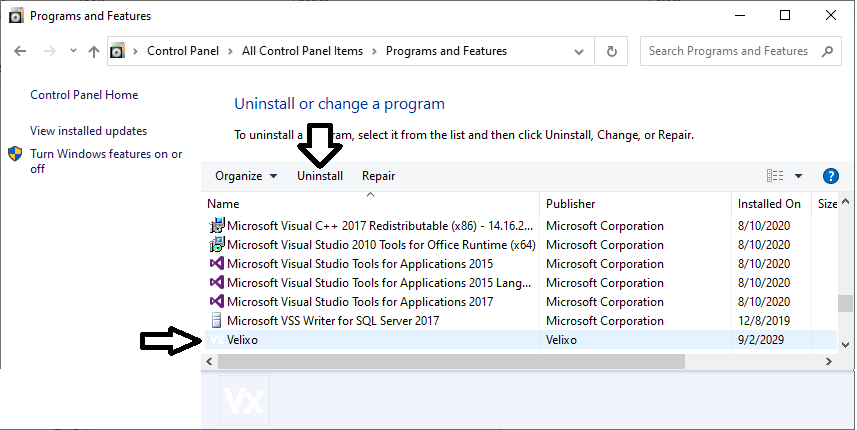
Scroll down toward the bottom of the list of programs and select the entry for your version of Velixo. Then click the Uninstall link at the top of the list.
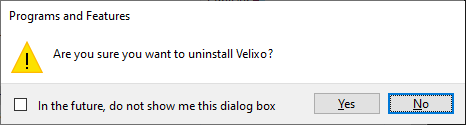
If prompted if you are sure about uninstalling, click the Yes button.
Done!
You are now ready to reinstall the desired version of Velixo Classic for Windows.