
Overview
There are three methods which can be used to enter Velixo functions into your reports:
-
Using Excel's Insert Function feature
-
Entering your function in the Formula Bar
-
Entering your function directly in the cell
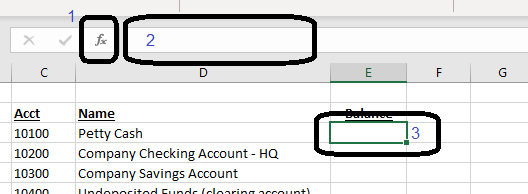
When manually typing your functions in either the Formula Bar or directly in the cell, Velixo helps you select the specific arguments to use in your functions.
Step-by-Step
As you start typing your Velixo functions and have not yet started typing a argument (or you have typed a double quote mark: " ), Velixo will suggest what appears to be the best match for the specific argument you are about to enter:
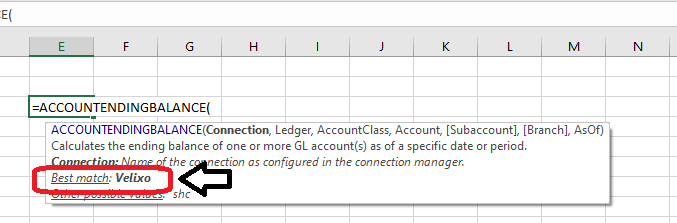
Velixo will update the suggestion as you type
If you would like to accept the suggestion, simply press F2 (once) and Velixo will place the Best Match in your function:
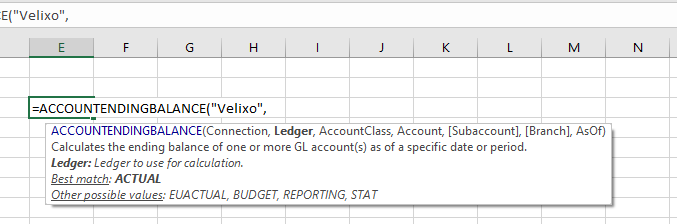
As you continue to enter arguments, Velixo will continue to suggest the best match based on the argument you are entering and whatever text you have typed.
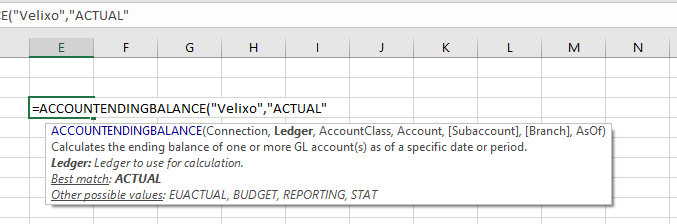
You can continue to press F2 whenever the suggested match is what you want:
Troubleshooting
If no match is displayed, check that you have entered a valid Connection name. Velixo cannot make suggestions if it cannot find a connection with the name you specified.
Sometimes, when Excel or your report is first started, there may be a slight pause before the suggestions are displayed. Instead, the text "Preparing best match and possible argument values..." will appear. After a moment, when Velixo has had time to read your data, suggestions will start to appear.
When you have entered any non-quotation mark as the first character of the argument value, the Best match and Other possible values will not appear. Velixo assumes that you want to enter a formula or a cell reference, rather than a value from your data.
Best Match suggestions are available for the following arguments:
|
|
Be sure you press F2 just once for each argument. Repeatedly and quickly pressing F2 before the next suggestion is displayed can cause Excel to get confused and enter unpredictable values.