
Overview
This article describes filtering methods you can apply to Acumatica Generic Inquiries to focus your report on desired records. In most cases, we recommend building your filter with GIFILTER and passing the result into GI or GILOOKUPF functions.
Such filters are easier to maintain than writing raw expressions by hand, especially when you need multiple criteria or optional filters.
Always supply a GIFILTER filter when working with Generic Inquiries that return large data sets (for example, GL transactions or invoices).
Most common filtering scenarios
A full reference sheet of OData expressions that allow for filtering Generic Inquiries is available below.
Filter by an exact value
Use equality when you want rows that match one value exactly.
AccountCD eq '10100'
Filter by multiple conditions
Combine conditions with and or or.
-
AccountCD eq '10100' and CustomerCD eq 'ABARTENDE' -
AccountCD eq '10100' or AccountCD eq '10200'
When you build filters with GIFILTER, and and or are chosen for you: separate column/criteria pairs are joined with and, and several criteria for one column with or. For an or spanning two different columns, see How criteria are combined in the GIFILTER article.
Filter by dates
Date and date-time values must be formatted as text in the OData expression.
-
InvoiceDate ge 2010-01-01T00:00:00Z -
InvoiceDate lt 2011-01-01T00:00:00Z
Do not use Excel date-formatted values in your filters. Convert them to text first using Excel's TEXT() function with a format expected by the filter: either yyyy-mm-dd or yyyy-MM-ddThh:mm:ssZ.
Filter blank or non-blank values
Use the lowercase keyword null to filter empty values.
-
CustomerNbr eq null– returns rows where the field is blank -
CustomerNbr ne null– returns rows where the field is not blank
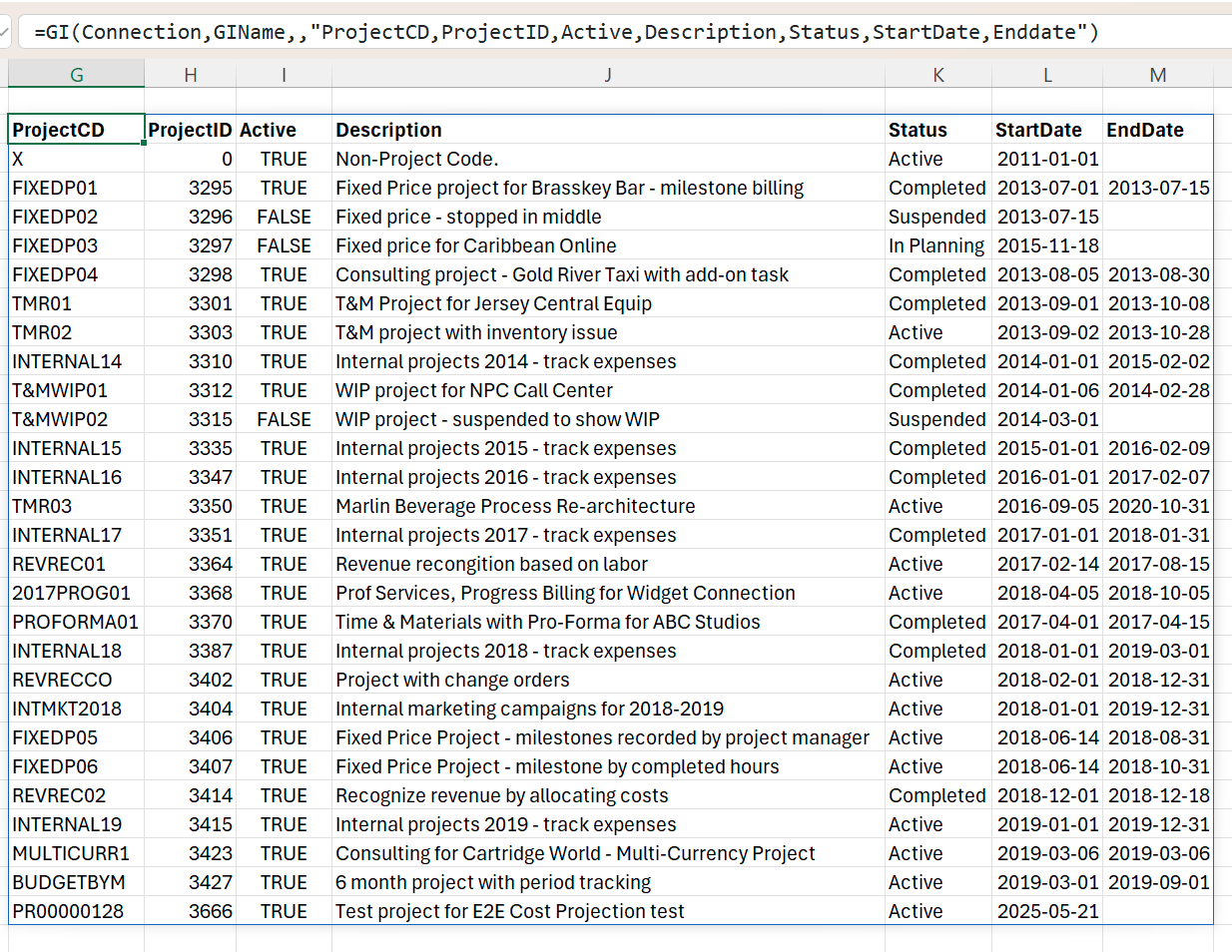
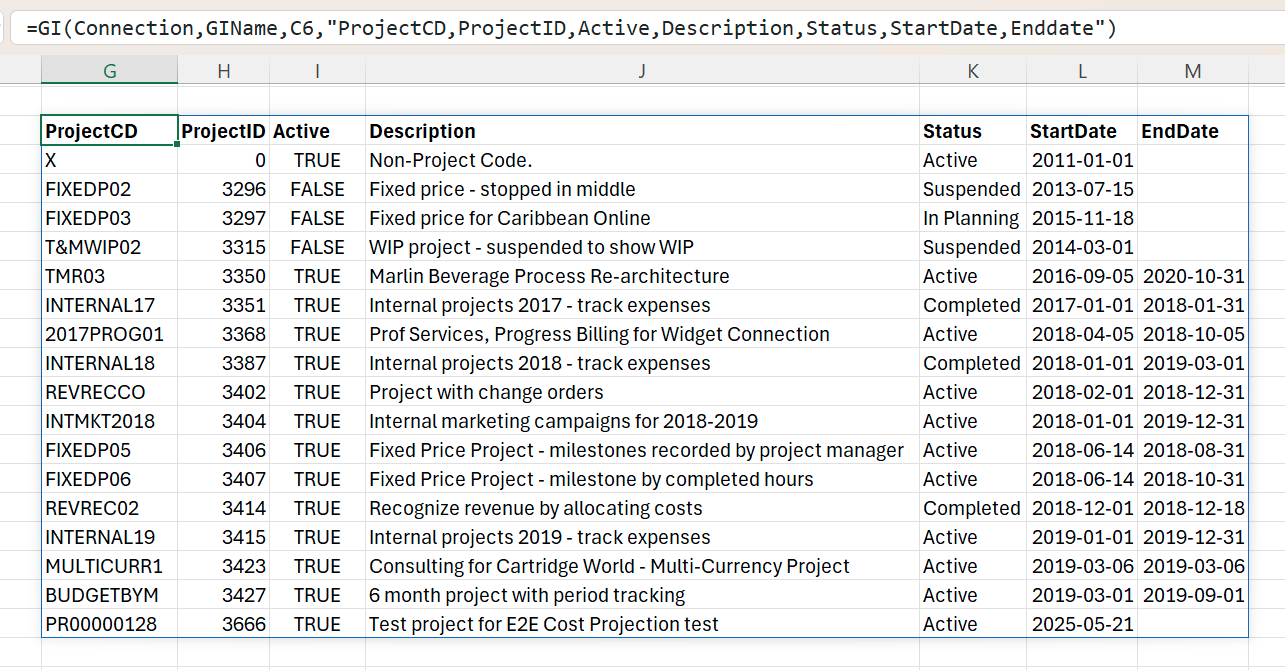
This example shows filtering of the following GI data to return lines where the EndDate is empty
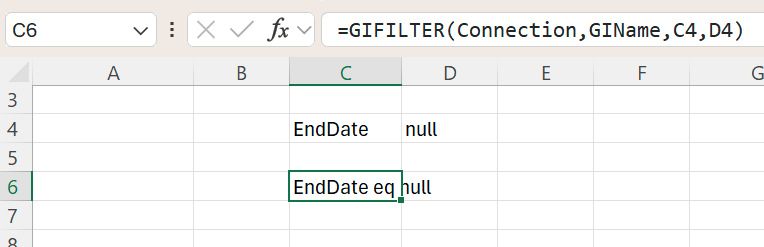
First, create a GIFILTER formula:
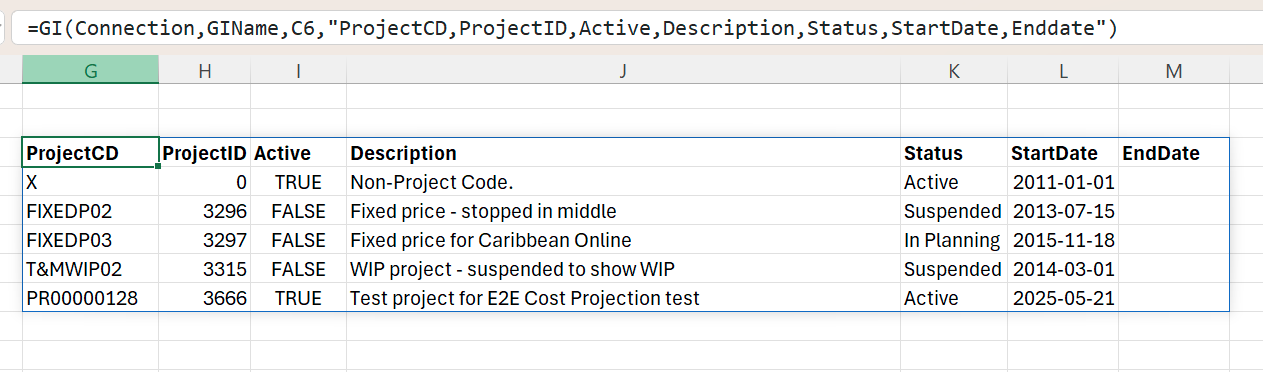
Run a GI formula that leverages the created filter:
Combine blank and value conditions with OR
To return rows where a field is blank or matches another condition, build the filter with GIFILTER. Reference the column once, and pass both alternatives in the criteria argument as a horizontal range or an array — one entry holding null, the other holding the value condition. GIFILTER joins several criteria for one column with or and wraps them in a bracketed group.
Referencing the same column as two separate column/criteria pairs does not produce or. GIFILTER joins separate pairs with and, which for two different values of one column matches no rows.
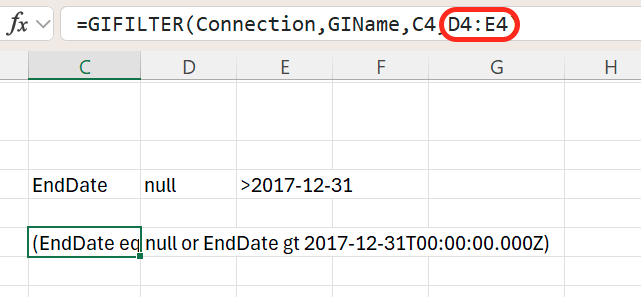
For example, to retrieve records where EndDate is blank or is later than a specific date, enter null in one cell and >2017-12-31 in the cell beside it, then reference that two-cell range as the criteria:
Run a GI formula that leverages the created filter:
Use optional filters
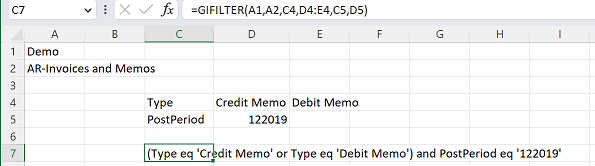
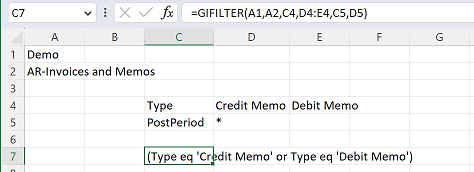
If you want a criterion to be optional, use an asterisk * in place of the criterion value in GIFILTER. Velixo ignores any criterion set to *, which allows you to keep one reusable formula instead of rewriting the filter each time.
Filter by financial period
Financial period fields require special care because the expected format depends on the Acumatica version.
Determine the correct format
|
Scenario |
Recommended format |
Example |
|---|---|---|
|
Acumatica 2020R2 or newer |
MMYYYY |
|
|
Acumatica 2020R1 or older |
YYYYMM |
|
Financial periods are stored without dashes in Acumatica. Use 122021 or 202112, not 12-2021.
Filter a range of financial periods
Do not use simple ge and le comparisons on financial period strings. Financial periods are treated as text, not dates, so such comparisons return incorrect results. For example, filtering between 022019 and 052019 would also include 032013, 042016, and other unrelated periods.
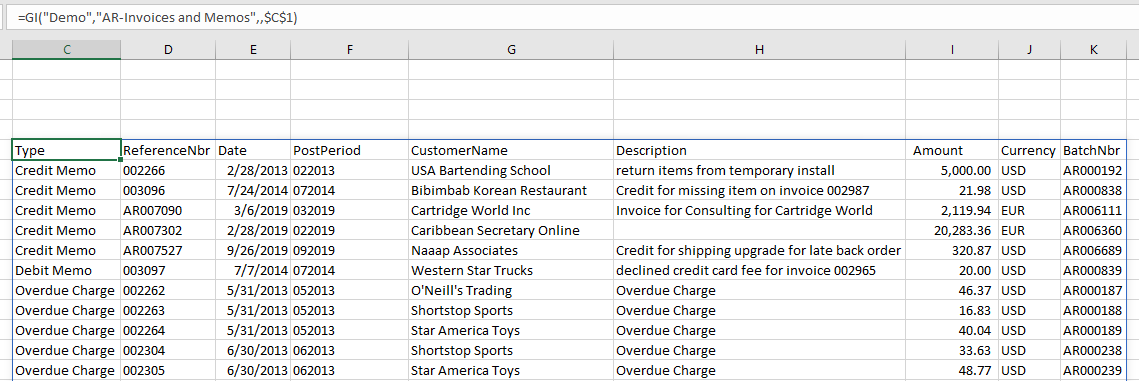
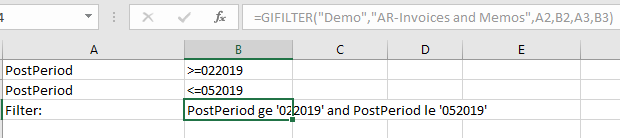
Instead, generate the list of periods you need and build a filter from that list:
-
Use FINANCIALPERIODLIST to generate the periods between a start and end period.
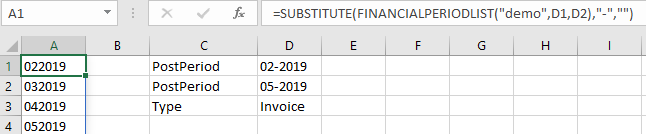
-
Remove dashes from the output using Excel's
SUBSTITUTE()function:SUBSTITUTE(FINANCIALPERIODLIST(...), "-", "") -
Pass the resulting list into GIFILTER. Use the
#spill-range operator at the end of the cell reference (for example,A1#) to pass all values from the spilled range. -
You can combine the period list with other filter criteria in the same GIFILTER call — for example, adding a non-invoice filter alongside the period list.

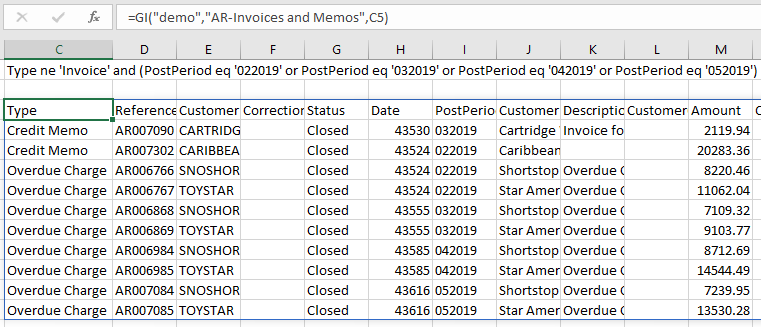
This approach works because instead of asking for a textual range, you explicitly list the exact allowed period values. GIFILTER automatically formats the filter with the correct sequence of eq conditions and parentheses.
Filter on custom attributes
You can include custom attributes in a Generic Inquiry result set and report them with GI. However, filtering on those fields has one common pitfall, where the GI output may display the attribute Description, but OData filtering expects the Value ID.
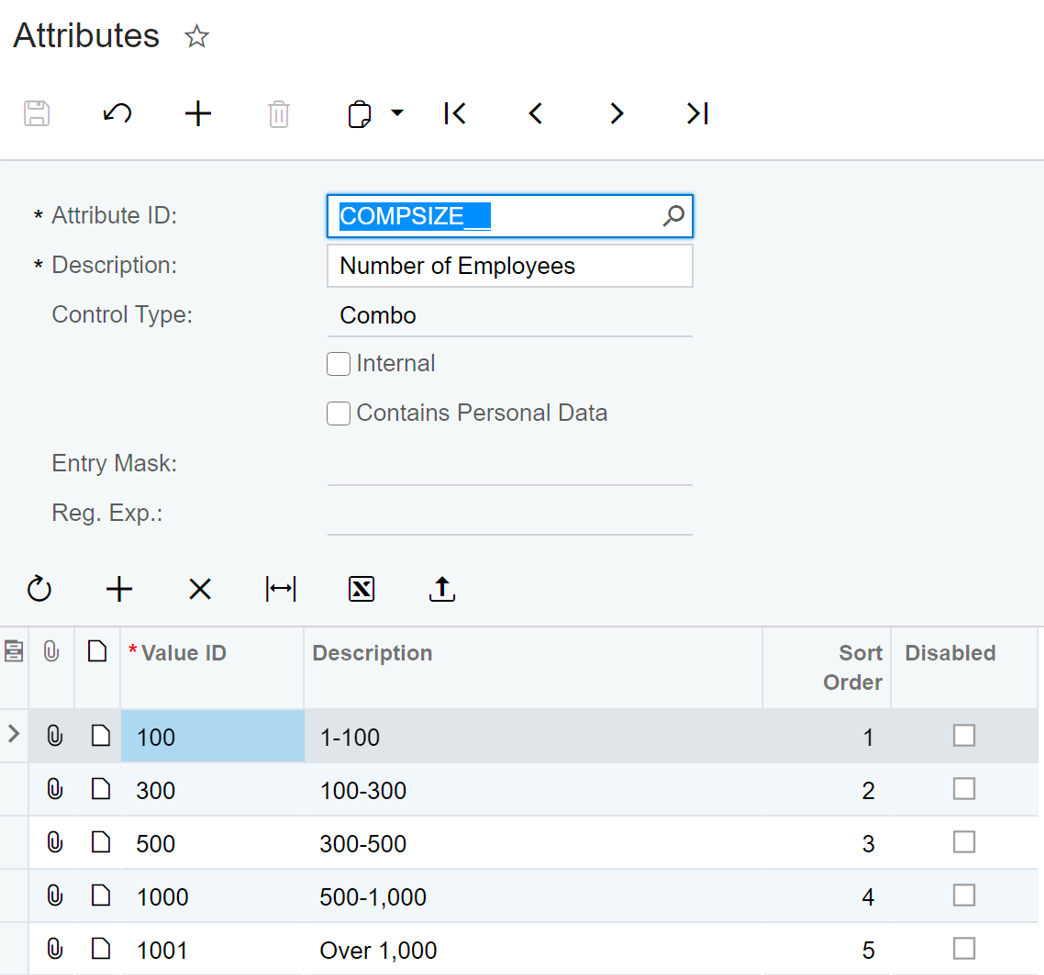
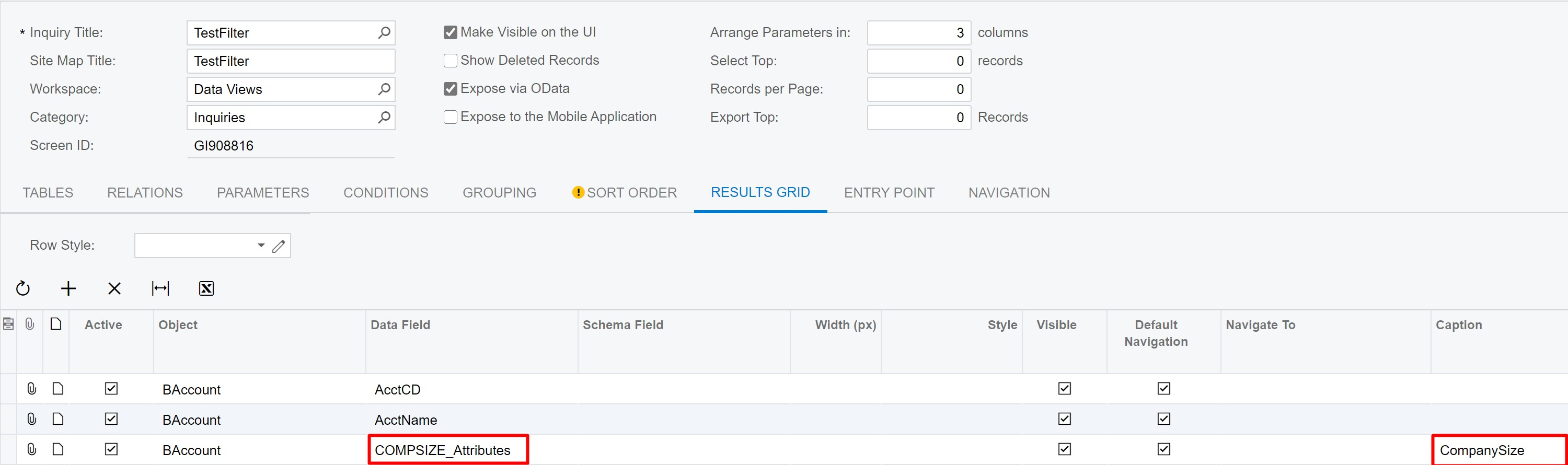
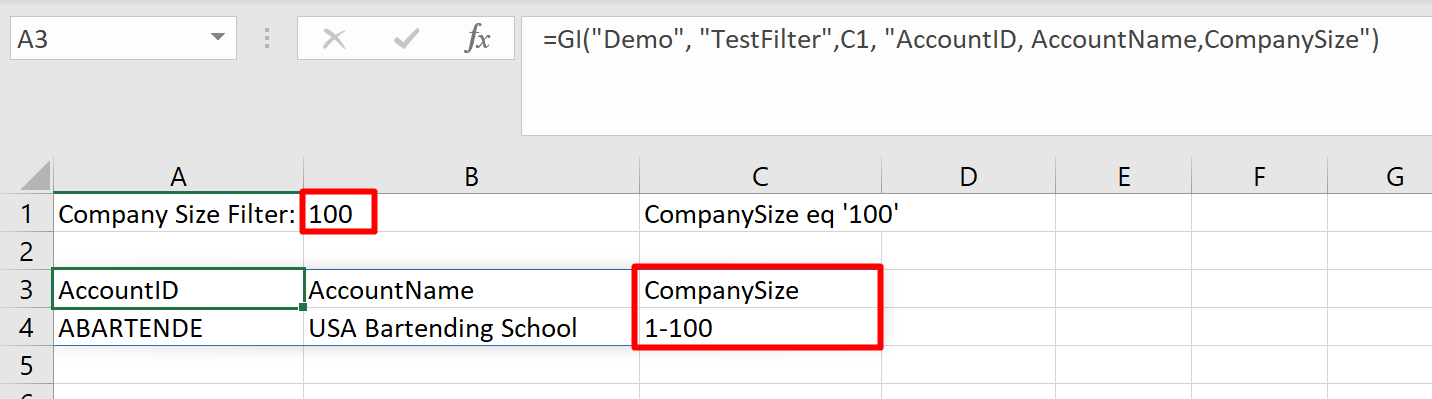
For example, if the displayed attribute value is 1-100, the filter may need to use 100 instead, depending on how the attribute values are defined in Acumatica.
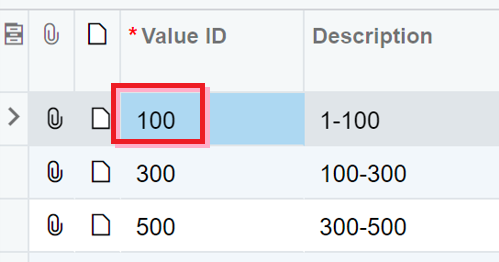
If a filter on a custom attribute returns no results, verify whether you used the Value ID (not the displayed value).
Refer to Acumatica documentation to learn more about Custom Attributes.
OData filter reference sheet
Below are common operators and functions used in the OData filter clause. For the full specification, consult the OData v4 URL conventions standard.
Comparison operators
|
Scenario |
Example |
Notes |
|---|---|---|
|
Equality |
|
Use single quotes for string values. |
|
Inequality |
|
Returns all rows except the specified value. |
|
Less than |
|
Returns rows before the specified date. |
|
Less than or equal to |
|
In Acumatica, dates usually point to the beginning of the day, so documents from January 1st are included. |
|
Greater than |
|
Returns rows after the specified date. In Acumatica, this excludes documents from January 1st. |
|
Greater than or equal to |
|
Includes the specified date. |
|
Date range |
|
Inclusive start, exclusive end. |
|
Blank value |
|
|
|
Non-blank value |
|
|
String functions*
|
Function |
Example |
Explanation |
|---|---|---|
|
Starts with |
|
Returns rows where the customer name starts with "John". |
|
Ends with |
|
Returns rows where the document type ends with "Memo". |
|
Contains |
|
Returns rows whose description contains "overdue". |
|
Length |
|
Returns rows where the customer name is longer than 20 characters. |
|
Index of |
|
Returns rows where the name contains "John" but does not begin with it. |
|
Replace |
|
Returns rows where the description without spaces is shorter than 10 characters. |
|
Substring |
|
Returns rows where the subaccount code starting at index 3 equals "DIST". |
|
To lowercase |
|
Case-insensitive match. "JOHN", "John", "jOhN" all match. |
|
To uppercase |
|
Case-insensitive match. "JOHN", "John", "jOhN" all match. |
|
Trim |
|
Matches "present" regardless of case or surrounding whitespace. |
|
Concat |
|
Returns rows where the concatenated name equals "John Doe". |
Date functions*
|
Function |
Example |
Explanation |
|---|---|---|
|
Day |
|
Returns rows where the invoice date is the 31st of any month. |
|
Month |
|
Returns rows where the invoice date is in March. |
|
Year |
|
Returns rows where the invoice date is in 2010. |
Numeric functions*
|
Function |
Example |
Explanation |
|---|---|---|
|
Round |
|
Returns rows where the rounded amount is at least 100 (99.6 would match). |
|
Floor |
|
Returns rows where the value rounded down equals 5. |
|
Ceiling |
|
Returns rows where the value rounded up equals 5. |
Functions marked with * require:
-
Acumatica 2021R1 Update 16 or higher, or
-
Acumatica 2021R2 Update 4 or higher
To use these functions with older versions of Acumatica, use supported comparison operators where possible (see workaround).
Troubleshoot filtering
Common problems to avoid
-
Use the exact column casing. If the GI column is
CustomerID, thencustomeridcan fail. -
Use lowercase boolean values. Write
trueorfalse, or use1and0. -
Use quotes with literal string values. Example:
AccountCD eq '10100'. -
Do not quote numeric values. Example:
AccountID eq 123. -
Convert Excel dates to text. Raw Excel serial values are not valid OData date literals. Use Excel's
TEXT()function with a format like"yyyy-mm-dd". -
Handle quotes carefully when concatenating. String values need single quotes inside the final filter text:
"AccountCD eq '"&C5&"'". -
Match date types correctly. A
DateTimeOffsetcolumn requires a value like2010-01-01T00:00:00Z. Alternatively, cast the column:cast(InvoiceDate, Edm.Date) gt 2010-01-01. -
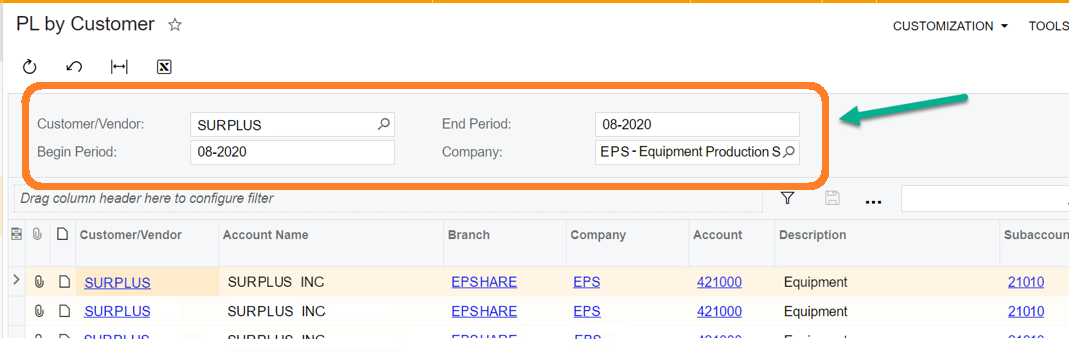
Avoid predefined GI parameters. Acumatica's OData interface does not support this filtering pattern. Remove GI parameters or make them optional so the GI returns the full data set when parameters are not specified.
-
Do not filter on calculated GI fields. Calculated fields (those computed with a formula starting with
=) can be reported but cannot be used in OData filters.
Problems, likely causes, and resolutions
|
Error |
Likely cause |
What to do |
|---|---|---|
|
Error message: "Acumatica could not recognize the OData syntax". |
Unsupported OData function or expression. Wildcards ( |
Check the output of your GIFILTER call. Simplify the filter by replacing unsupported functions with comparison operators (see workaround below).
Instead of: Use: |
|
Error message: "Acumatica returned a 'Not found' error while loading the data”. |
Filter URL exceeds Acumatica's default limit of 2,048 characters. Measure the length of your GIFILTER output. If it approaches 2,000 characters, the filter is too long. |
Workaround 1:
Shorten the filter by breaking value lists into intervals (see below) or delegate part of the filter to Excel. Example:
Replace the list with a range using comparison operators:
This approach also works for numeric values.
Workaround 2:
If the full OData filter is too long, remove the longest parts and handle them on the Excel side, for example, using Excel's |
|
No results when filtering on attribute filter. |
Wrong attribute value used - the displayed Description instead of the Value ID. |
Use the attribute |
|
No results when filtering on financial period filter. |
Wrong period format for the Acumatica version. |
Verify whether your scenario requires |